Release Notes
FactoryTalk AssetCentre Server provides you with a set of asset focused tools to securely/centrally manage your facility and process automation.
Version 16.00.00 (released 11/2025)
Catalog Number FactoryTalk AssetCentre Server
Requirements
This release has the following requirements.
FactoryTalk AssetCentre version 16.00.00 (CPR 9 SR 16)
FactoryTalk AssetCentre version 16.00.00 works within the system requirements of all Rockwell Automation® software products.
System requirements
Hardware requirements
For the optimal performance of the FactoryTalk AssetCentre system, we recommend that computers running FactoryTalk AssetCentre Server, FactoryTalk AssetCentre Desktop Client, or FactoryTalk AssetCentre Agent meet or exceed the following hardware requirements.
Type
Description
CPU
Core Processors
RAM
Operator Workstation
FactoryTalk AssetCentre Desktop Client
Intel® Core™ i5 Standard Power processor
2
8 GB
Engineering Workstation
FactoryTalk AssetCentre Desktop Client FactoryTalk AssetCentre Agent
Intel Core i5 Standard Power processor
2
8 GB
System Agent
FactoryTalk AssetCentre Agent
Intel Core i5 Standard Power processor
2
8 GB
Application Server
FactoryTalk AssetCentre Server
Small systems: Intel Core i5 Standard Power processor
2
8 GB
Medium to large systems: Intel® Xeon® quad-core family processor
4
16 GB
For the optimal performance of the FactoryTalk AssetCentre system, we recommend that virtual machines running FactoryTalk AssetCentre Server, FactoryTalk AssetCentre Desktop Client, or FactoryTalk AssetCentre Agent meet or exceed the following hardware requirements.
Type
Description
CPU
Core Processors
RAM
Operator Workstation
FactoryTalk AssetCentre Desktop Client
Intel Xeon quad-core family processor
2
8 GB
Engineering Workstation
FactoryTalk AssetCentre Desktop Client FactoryTalk AssetCentre Agent
Intel Xeon quad-core family processor
2
8 GB
System Agent
FactoryTalk AssetCentre Agent
Intel Xeon quad-core family processor
2
8 GB
Application Server
FactoryTalk AssetCentre Server
Small systems:
Intel Xeon quad-core family processor
2
8 GB
Medium to large systems:
Intel Xeon quad-core family processor
4
16 GB
For display resolution, 1024x768 or higher resolution is required.
System size
FactoryTalk AssetCentre is supported on these system sizes.
|
Types |
Components |
System architecture |
|
Small systems |
Server |
AssetCentre Server, Microsoft SQL Server®, and FactoryTalk Directory Server are co-located. |
|
Agent |
1-5 |
|
|
Desktop Client |
10 |
|
|
Web Client |
25 |
|
|
Medium systems |
Server |
AssetCentre Server and Microsoft SQL Server are co-located. FactoryTalk Directory Server is on a separate computer. |
|
Agent |
6-25 |
|
|
Desktop Client |
60 |
|
|
Web Client |
100 |
|
|
Large systems |
Server |
AssetCentre Server, Microsoft SQL Server, and FactoryTalk Directory Server are hosted on separate computers. |
|
Agent |
26-50 |
|
|
Desktop Client |
100-150 |
|
|
Web Client |
200 |
Product compatibility
FactoryTalk AssetCentre version 16.00.00 is compatible with the following Rockwell Automation products. For the latest compatibility information, refer to the Rockwell Automation Product Compatibility and Download Center.
FactoryTalk AssetCentre Desktop Client
- To edit the file and data settings for a compare operation, you must have associated software installed on the client computer. To perform archive to archive version compare, you must install the programming software on the client computer.
Asset
Compatible Software
Version
Allen-Bradley® PLC-5® Controller
RSLogix™ 5
10.00 or later
Allen-Bradley SLC™ 500 Controller and Allen-Bradley MicroLogix™ Controller
RSLogix 500®
12.00 or later
ControlLogix® and CompactLogix™
RSLogix 5000®
20.00 or later
Studio 5000 Logix Designer®
21.00 or later
RSLogix 5000 Compare Utility or Logix Designer Compare Tool
12.00 or later
FactoryTalk® View Site Edition (SE)
FactoryTalk View Studio Enterprise
16.00 or later
Rockwell Automation drives
DriveExecutive™ Lite
5.02 or later
For more information about the specific drives that FactoryTalk AssetCentre is compatible with, see Knowledgebase Document ID: QA47141 - FactoryTalk AssetCentre RA Motor Control or PowerFlex Drive Device Support.
If your system includes Allen-Bradley PanelView Plus and MobileView™ operator interfaces, use FactoryTalk View ME Transfer Utility version 16.00 or later.
If your system includes an Siemens® S7 project, use STEP7 version 5.6 SP1 or later.
FactoryTalk AssetCentre Agent
- For Disaster Recovery functions, the programming software for your devices MUST be installed on the agent
computer.
Asset
Compatible Software
Version
Allen-Bradley PLC-5 Controller
RSLogix 5
10.00 or later
Allen-Bradley SLC 500 Controller and Allen-Bradley MicroLogix Controller
RSLogix 500
12.00 or later
ControlLogix and CompactLogix
RSLogix 5000
20.00 or later
Studio 5000 Logix Designer
21.00 or later
RSLogix 5000 Compare Utility or Logix Designer Compare Tool
12.00 or later
Allen-BradleyPanelView Plus Controller and Allen-Bradley MobileView Controller
FactoryTalk View ME Transfer Utility
16.00 or later
FactoryTalk Linx (formerly known as RSLinx Enterprise)
6.60 or later
FactoryTalk View Site Edition
FactoryTalk View Studio Enterprise
16.00 or later
Rockwell Automation drives
DriveExecutive Lite
5.02 or later
Allen-Bradley PowerFlex® Drive
UDC
16.04 or later
Mitsubishi® Controller
GX Works2™
1.615R
GX Works3™
1.095Z
Siemens S7 Controller
TIA Portal
15.1, 16, 17, 18, and 19
STEP7
5.6 SP1 or later
Schneider® Controller
Control Expert
IMPORTANT: Unity DIF or Control Expert DIF software must be installed along with Control Expert to enable proper execution of backup schedules and backup and compare schedules.
15.2 with Unity DIF version 8.0 SP7
15.3 with Control Expert DIF version 15.2 HF1
16 with Control Expert DIF version 15.2 HF1
Operating systems
IMPORTANT:
- Turn off the Windows updates on production computers. Installing Microsoft Service Pack release or Windows operating system updates may affect the operation of Rockwell Automation software installed on the computer. To avoid this problem, see Knowledgebase Document ID: QA2151 - Microsoft Patch Qualifications.
FactoryTalk AssetCentre requires .NET 4.8, which is only supported on Windows 10 v1803 and later.
The RSLogix 5 is not supported in the following operating systems:
Windows Server® 2025
Windows® 11 (24H2)
Windows 11 IoT Enterprise LTSC 2024 (24H2)
FactoryTalk AssetCentre Server
The following operating systems are supported and recommended*:
Windows Server® 2025 Standard (Recommended OS)**
Windows Server 2022 Standard (Recommended OS)**
Windows Server 2019 Standard**
Windows Server 2016 Standard**
FactoryTalk AssetCentre Desktop Client, Web Client, and Agent
The following operating systems are supported and recommended*:
Windows Server 2025 Standard (Recommended OS)**
Windows Server 2022 Standard (Recommended OS)**
Windows Server 2019 Standard**
Windows Server 2016 Standard**
Windows® 11 Professional (Recommended OS)
Windows 11 Enterprise (Recommended OS)
Windows 11 IoT Enterprise 2024 LTSC 64-bit (v24H2)***
Windows 11 Enterprise 2024 LTSC 64-bit (v24H2)
Windows 10 Enterprise 64-bit
Windows 10 Professional 64-bit
Windows 10 Enterprise 2021 LTSC 64-bit (v21H2) (Recommended OS)
Windows 10 IoT Enterprise 2021 LTSC 64-bit (v21H2)***
Windows 10 Enterprise 2019 LTSC 64-bit (v1809)
*The recommended operating systems have priority for Microsoft Patch Qualifications with Rockwell Automation software.
**Windows Server Datacenter editions are supported. The key difference between Windows Server Standard and Datacenter edition is how Microsoft licenses the operating system. Windows Server Standard includes licensing for up to two virtual machines per core license, making it suitable for lightly virtualized environments. Datacenter edition allows unlimited virtual machines per core license, offering better value for highly virtualized or cloud-scale deployments.
***Windows 11 IoT Enterprise LTSC and Windows 11 Enterprise LTSC are binary equivalents but are licensed differently. Windows 10 IoT Enterprise LTSC and Windows 10 Enterprise LTSC are binary equivalents but are licensed differently.
Rockwell Automation's software installation policy is based on the lifecycle information of Microsoft operating systems. If an operating system's lifecycle state is approaching its end, you may encounter a warning message when trying to install Rockwell Automation software on it.
|
Microsoft lifecycle policy |
Rockwell Automation installation warning policy |
Rockwell Automation installation prevention policy |
|
Fixed |
Present a warning message during installation on Microsoft operating systems that are 18 months before Microsoft's extended end date. |
Prevent installation on Microsoft operating systems that are six months past Microsoft's extended end date. |
|
Modern |
Present a warning message during installation on Microsoft operating systems that are 18 months before Microsoft's retirement date. |
Prevent installation on Microsoft operating systems that are six months past Microsoft's retirement date. |
The following table illustrates how the installation policy is applied using the current operating systems. For the latest compatibility information, refer to the Microsoft Lifecycle Policy and Product Compatibility and Download Center .
|
Operating system |
Microsoft lifecycle policy |
Extended end date |
Retirement date |
Installation warning |
Installation prevented |
|
Windows 11 Enterprise and Professional editions |
Modern |
None |
None |
None |
None |
|
Windows 10 Enterprise and Professional editions |
Modern |
None |
October 14, 2025 |
April 14, 2024 |
April 14, 2026 |
|
Windows Server 2025 Standard and Datacenter editions |
Fixed |
October 10, 2034 |
None |
April 10, 2033 |
April 10, 2035 |
|
Windows Server 2022 Standard and Datacenter editions |
Fixed |
October 10, 2031 |
None |
April 14, 2030 |
April 14, 2032 |
|
Windows Server 2019 Standard and Datacenter editions |
Fixed |
January 9, 2029 |
None |
July 9, 2027 |
July 9, 2029 |
|
Windows Server 2016 Standard and Datacenter editions |
Fixed |
January 12, 2027 |
None |
July 12, 2025 |
July 12, 2027 |
Software requirements
SQL Server database
FactoryTalk AssetCentre supports the following SQL Server.
Microsoft SQL Server 2019
Microsoft SQL Server 2022
FactoryTalk AssetCentre Agent
The following are minimum software requirements for FactoryTalk AssetCentre Agent.
(optional) SIMATIC NET if you want to connect to Siemens S7 Controller (STEP7) via MPI (Multi Point Interface) or PROFIBUS protocol
It is only required when using Disaster Recovery for Siemens S7 controllers (S7-300/400 with STEP7 software).
(optional) Siemens TIA Portal software if you want to use Disaster Recovery for Siemens controllers (S7-1200, S71500, and ET200 with TIA Portal software)
(optional) Mitsubishi GX Works3 software if you want to use Disaster Recovery for Mitsubishi controllers (iQ-F and iQ-R series with GX Works3 software)
(optional) Mitsubishi GX Works2 software if you want to use Disaster Recovery for Mitsubishi controllers (L, F, and Q series with GX Works2 software)
(optional) Schneider Control Expert software if you want to use Disaster Recovery for Schneider controllers (M340, M580, and M580 Safety with Control Expert software)
FactoryTalk AssetCentre Client
The following are minimum software requirements for FactoryTalk AssetCentre Client.
(optional) Editing software for Siemens S7 Controller (STEP7), such as SIMATIC Manager
It is only required when using Archive to Archive comparison for Siemens S7 controllers (S7-300/400 with STEP7 software).
Supported browsers
The following web browsers have been tested and are supported for FactoryTalk AssetCentre Web Client and FactoryTalk AssetCentre Help with this release:
Microsoft® Edge™
Google® Chrome™ browser
Mozilla® Firefox®
High Resolution Display Support
Windows 10 v1703 or later is the recommended operating system if running this software with a 2K or 4K High Resolution Display.
Rockwell Automation Test Environment
Rockwell Automation tests software products under a standard configuration of operating systems and antivirus software. For additional information, see the Knowledgebase Document ID: PN24 - Rockwell Software Products and Antivirus Software.
Security requirements
To learn about designing a secure networking environment, review this publication:
Configuring Firewalls for FactoryTalk Services Platform (publication FTSP-RM001) shows the ports, services, and firewall rules necessary for FactoryTalk® Services Platform components to function properly.
Converged Plantwide Ethernet (CPwE) Design and Implementation Guide (publication ENET-TD001) is built on, and adds to, design guidelines from the Cisco Ethernet-to-the-Factory (EttF) solution and the Rockwell Automation Integrated Architecture™.
To learn about implementing application-level security using FactoryTalk Security, review this publication:
FactoryTalk Security Application Technique (publication SECURE-AT002) explains how to use FactoryTalk Security to implement authentication and authorization in your industrial automation system and how to enforce product-specific security for applications like Studio 5000 Logix Designer, FactoryTalk View, and FactoryTalk AssetCentre.
To learn about designing and implementing an architecture with device-level security using CIP Security, review these publications:
System Security Design Guidelines Reference Manual (publication SECURE-RM001) provides guidelines for how to use Rockwell Automation products to improve the security of your industrial automation system.
Configure System Security Features User Manual (publication SECURE-UM001) describes the system-level configuration requirements to use a controller that has achieved IEC 62443-4-2:2019 certification.
CIP Security with Rockwell Automation Products Application Technique (publication SECURE-AT001) explains how to implement the Common Industrial Protocol (CIP) Security standard in your industrial automation control system (IACS).
Features
This release includes the following system features.
FactoryTalk AssetCentre version 16.00.00 has the following new and enhanced features:
New features
Periodically monitor security-related configurations of Allen-Bradley® Logix5000™ to detect deviations from defined standards, reduce security risks, and provide clear visibility into configuration compliance.
Update device lifecycle information within an OT environment using the Airgap Lifecycle Transfer option in the FactoryTalk AssetCentre web client and standalone FactoryTalk AssetCentre Lifecycle Information Transfer Utility.
Expand Rockwell Automation disaster recovery capabilities:
FactoryTalk devices that have FactoryTalk® Optix™ embedded, such as the Allen-Bradley® OptixPanel™, Allen-Bradley® OptixEdge™, or Allen-Bradley Embedded Edge Compute module. FactoryTalk Optix applications designed using FactoryTalk® Optix Studio™ version 1.6.4 or later are supported.
- FactoryTalk Optix Runtime software on a generic Windows or a Linux operating system. FactoryTalk Optix applications designed using FactoryTalk Optix Studio 1.6.4 or later are supported.
Recover unused database storage space by performing a database shrink operation during a scheduled database cleanup task.
Enhanced features
Expand third-party disaster recovery capabilities:
Schneider M340, M580, and M580 Safety controllers programmed with the following versions of Control Expert software.
Control Expert V15.2 with Unity Diff V8.0 SP7
Control Expert V15.3 with Control Expert DIF V15.2 HF1
Control Expert V16 with Control Expert DIF V15.2 HF1
Manage FactoryTalk AssetCentre searches and tasks from a FactoryTalk AssetCentre web client.
Enhance File Transfer Protocol (FTP) communication security and reliability for FactoryTalk AssetCentre FTP asset types by enabling SSH File Transfer Protocol (SFTP).
Optimize system resource usage during change detect tasks by allowing configuration of communication settings between the FactoryTalk AssetCentre agent and controllers.
Modernize installation for the following tools to enhance convenience and deployment flexibility:
FactoryTalk AssetCentre Import Export Utility
FactoryTalk AssetCentre Archive Extractor Utility
FactoryTalk AssetCentre Event Log Attachment Extractor Utility
Corrected Anomalies in This Release
This release corrects the following anomalies.
-
When a user is denied the Configure Personal Archive Working Folder permission, performing an archive-to-archive comparison in the FactoryTalk AssetCentre desktop client in any of the following scenarios fails with a misleading error message: “Compare target not found. Unable to locate file at the specified working folder”.
Comparing two files within the FactoryTalk AssetCentre desktop client.
Comparing one file within the FactoryTalk AssetCentre desktop client and one file outside of it.
First identified in FactoryTalk AssetCentre version 12.00.00. [Jira 5074188]
Corrected in FactoryTalk AssetCentre version 16.00.00.
FactoryTalk AssetCentre version 15.00 or earlier does not support MyRockwell authentication using FactoryTalk Services Platform version 6.60 or later. First identified in FactoryTalk AssetCentre version 15.00.00. [Jira 4804815]
Corrected in FactoryTalk AssetCentre version 16.00.00.
If the Asset Inventory CIP scan contains more than 15,000 devices, the Backup and Compare schedule fails. First identified in FactoryTalk AssetCentre version 12.00.00 [Jira 1913506]
Corrected in FactoryTalk AssetCentre version 16.00.00.
After running a Backup and Compare schedule for Logix 5000 controller assets successfully, the compare PDF report cannot be generated and opened successfully if the PDF file size is extremely large, such as 8000 pages. First identified in FactoryTalk AssetCentre version 12.00.00. [Jira 1885002]
Corrected in FactoryTalk AssetCentre version 16.00.00.
When configuring the FactoryTalk AssetCentre remote server settings in FactoryTalk Administration Console to enable cross-FactoryTalk Directory operations, incorrect FactoryTalk Directory usernames or passwords will trigger automatic logging of failed sign-in attempts and generate lots of error messages in your FactoryTalk AssetCentre system. This is intentionally designed for detailed audit tracking. First identified in FactoryTalk AssetCentre version 15.00.00. [Jira 3703338]
Corrected in FactoryTalk AssetCentre version 16.00.00.
When repairing the FactoryTalk AssetCentre server, the following scenarios might happen:
Scenario one: If the TLS setting is enabled during the installation, the Require SSL checkbox in SSL settings in Internet Information Services Manager (IIS) will be unchecked and the Management of Change electronic signature workflow will no longer work.
Scenario two: If you are using a Group Managed Service Account (gMSA) or Managed Service Account (MSA) account, the user configured to run the Management of Change workflow becomes a local user and the Management of Change electronic signature workflow will no longer work.
First identified in FactoryTalk AssetCentre 15.00.00. [Jira 3774522]
Corrected in FactoryTalk AssetCentre version 16.00.00.
When running disaster recovery tasks using remote agents, an exception called System.Runtime.InteropServices.COMException might show in FactoryTalk Diagnostics on the FactoryTalk AssetCentre server computer. First identified in FactoryTalk AssetCentre version 15.00.00. [Jira 3733292]
Corrected in FactoryTalk AssetCentre version 16.00.00.
When switching between schedules in the Task properties view in the FactoryTalk AssetCentre web client, selecting the cell of a schedule cannot show its task properties. First identified in FactoryTalk AssetCentre version 15. 00.00. [Jira 3929071]
Corrected in FactoryTalk AssetCentre version 16.00.00.
When multiple FactoryTalk AssetCentre web clients have been open for a long time, several web clients might report connection errors. First identified in FactoryTalk AssetCentre version 15.00.00. [Jira 3581546]
Corrected in FactoryTalk AssetCentre version 16.00.00.
When running disaster recovery tasks using remote agents, an error indicating a “Value cannot be null” might be recorded in FactoryTalk Diagnostics on the FactoryTalk AssetCentre server and remote FactoryTalk AssetCentre agent computers. First identified in FactoryTalk AssetCentre version 15.00.00. [Jira 3927778]
Corrected in FactoryTalk AssetCentre version 16.00.00.
-
When setting up the remote FactoryTalk Directory backup configurations, if the backup file is encrypted with a passphrase, this passphrase cannot be updated to a new one. First identified in FactoryTalk AssetCentre version 15.00.00 [Jira 4209443]
Corrected in FactoryTalk AssetCentre version 16.00.00.
Known Anomalies in This Release
This release has the following known anomalies.
FactoryTalk AssetCentre desktop client users whose username contains an apostrophe (') may encounter an exception error when both system and personal working folders exist and the configuration update removes the personal working folder. First identified in FactoryTalk AssetCentre version 16.00.00. [Jira 5347188]
To retain the original system working folder: Temporarily assign a different folder as the system working folder, save the configuration, and then reselect the original system working folder and save again.
To change the system working folder: Assign a new folder as the system working folder and then save the configuration.
To resolve this problem, do one of the following:
-
FactoryTalk Optix disaster recovery tasks may fail with the errors "The specified network password is not correct" and "The process cannot access the file because it's being used by another process" in either of these scenarios:
Scenario 1: Both FactoryTalk Optix Runtime (Embedded) and FactoryTalk Optix Runtime (Software) assets are placed in the same container and assigned to the same FactoryTalk AssetCentre agent.
Scenario 2: The two assets are placed in separate schedules but are assigned to the same FactoryTalk AssetCentre agent to run at the same time.
Scenario 1:
Manually run the disaster recovery tasks again.
Separate FactoryTalk Optix Runtime assets into different containers or assign additional FactoryTalk AssetCentre agents to distribute the workload.
Scenario 2:
Adjust the time intervals between disaster recovery tasks for FactoryTalk Optix Runtime (Embedded) and FactoryTalk Optix Runtime (Software) to prevent overlap.
These errors occur because both asset types share resources on the agent, causing conflicts when tasks run at the same time. First identified in FactoryTalk AssetCentre version 16.00.00. [Jira 5074858]
The system will retry the failed tasks several times during schedule execution which generally resolves the behavior. If all retry attempts fail and the errors persist, do the following for each scenario:
-
When viewing lifecycle information in the FactoryTalk AssetCentre desktop client, the lifecycle details for FactoryTalk Optix Runtime (Embedded) assets, including the Most Current Release and Most Current Minor Release, are not displayed, even if the hardware is correctly connected using the proper address. First identified in FactoryTalk AssetCentre version 16.00.00. [Jira 5364720]
There is no workaround for this anomaly.
When viewing lifecycle information in the FactoryTalk AssetCentre desktop client, the firmware revisions of FactoryTalk Optix Runtime (Embedded) assets displayed in both the asset tree and the RAAI file do not match the firmware revisions of FactoryTalk Optix devices retrieved from Product Compatibility and Download Center (PCDC). The mismatch is due to limitations in how the information is retrieved. First identified in FactoryTalk AssetCentre version 16.00.00. [Jira 5371295]
There is no workaround for this anomaly.
Starting from FactoryTalk AssetCentre version 16.00, one FactoryTalk AssetCentre agent can handle up to 500 controllers in a change detect or source code validation schedule. Attempting to create a change detect or source code validation schedule for a container with more than 100 controllers using the FactoryTalk AssetCentre desktop client may fail with a timeout error. First identified in FactoryTalk AssetCentre version 16.00. [Jira 4966581]
Use the FactoryTalk AssetCentre web client to create the change detect or source code validation schedules.
Organize controllers into containers with a maximum of 100 each, and then create change detect or source code validation schedules for each container.
To resolve this problem, do one of the following:
-
Lifecycle information for Allen-Bradley Stratix Switch assets, such as the Stratix 5800 - MMS10B, does not appear in the asset tree, even when the hardware is successfully connected using the correct address. First identified in FactoryTalk AssetCentre version 15.00.00. [Jira 3700620]
There is no workaround for this anomaly.
-
Windows Active Directory users signing in to the FactoryTalk AssetCentre desktop client using LDAP or LDAPS may experience session interruptions, as security tokens for these accounts cannot be refreshed automatically. First identified in FactoryTalk AssetCentre version 16.00.00. [Jira 5214265]
The FactoryTalk Directory session lease security policy determines the duration of a security token. Upon expiration of a session lease, LDAP or LDAPS users are required to re-authenticate manually. FactoryTalk Directory administrators have the option to extend or disable the session lease by setting its value to zero or to a specific duration; the default is 60 minutes. This can be configured in FactoryTalk Administration Console > System > Policies > System Policies > Security Policy > Logon session lease.
-
When a Windows Active Directory user tries to sign in to the FactoryTalk AssetCentre web client using LDAP or LDAPS, an access denied error occurs. This happens because the FactoryTalk AssetCentre web server is unable to refresh the user security token obtained during the LDAP or LDAPS sign-in. First identified in FactoryTalk AssetCentre version 16.00.00. [Jira 5189372]
There is no workaround for this anomaly.
-
When configuring remote server setting properties for performing cross-FactoryTalk Directory operations, assigning a Windows Active Directory user who authenticates via LDAP or LDAPS as the Remote FactoryTalk Directory user can impact the following:
-
Registering remote agent computers to the main FactoryTalk AssetCentre server will fail. As a result, running disaster recovery tasks are not supported for:
-
A remote FactoryTalk Directory
-
A FactoryTalk View Site Edition asset that belongs to a remote FactoryTalk Directory
-
Centralizing FactoryTalk Diagnostics from multiple FactoryTalk AssetCentre systems into a single FactoryTalk AssetCentre system is not supported.
First identified in FactoryTalk AssetCentre version 16.00.00. [Jira 5258054]
There is no workaround for this anomaly.
-
When running multiple disaster recovery schedules simultaneously, if tasks for the following specific asset types overlap, the system may exhibit errors. First identified in FactoryTalk AssetCentre version 16.00.00. [Jira 5079180]
A local FactoryTalk Directory asset and a remote FactoryTalk Directory asset
A local FactoryTalk Directory asset and a FactoryTalk View Site Edition asset that belongs to a remote FactoryTalk Directory
A FactoryTalk View Site Edition asset and a FactoryTalk View Site Edition asset that belongs to a remote FactoryTalk Directory
A FactoryTalk View Site Edition asset and a remote FactoryTalk Directory asset
To resolve this problem, adjust the timing of disaster recovery schedules containing FactoryTalk Directory or FactoryTalk View Site Edition assets to avoid overlap.
When checking out files or folders from the FactoryTalk AssetCentre desktop client, users whose username contains special characters < > & ' " may encounter the following display errors in the FactoryTalk AssetCentre web client.
Incorrect icons shown for the file or folder checkout status.
Incorrect usernames displayed in the asset pane to indicate who performed the checkout.
Incorrect usernames shown in the pop-up notes that briefly appear after the checkout action.
First identified in FactoryTalk AssetCentre version 16.00.00. [Jira 5371294]
These are display problems and do not affect the check-out or check-in functionality. To resolve these problems, refresh the FactoryTalk AssetCentre web client page.
When multiple Generic FTP Device assets are located within a single container and their disaster recovery operation task properties are batch edited, the Compare Configuration property may not function correctly. Specifically:
After saving changes in batch edit mode, the Compare Configuration field appears empty for each Generic FTP Device asset.
Only default configuration data is shown when opening the Compare Configuration dialog box in batch edit mode.
First identified in FactoryTalk AssetCentre version 16.00.00. [Jira 5277667]
To resolve this problem, view and edit each asset separately. When edited as individual assets, the Compare Configuration property displays and functions correctly.
If the FactoryTalk AssetCentre server and desktop client remain disconnected for an extended period, the Schedules tab may display the message "No schedules have been created" after the connection is restored. First identified in FactoryTalk AssetCentre version 16.00.00. [Jira 5324031]
To resolve this problem, close the Schedules tab, and then reopen it.
If the FactoryTalk Directory server restarts or experiences connection problems, FactoryTalk AssetCentre web client users may be signed out. Users will be prompted to sign in again. First identified in FactoryTalk AssetCentre version 16.00.00. [Jira 5364385]
There is no workaround for this anomaly.
Known Anomalies from Previous Releases
These anomalies are from previous releases but are still known in this release.
-
FactoryTalk AssetCentre web client may remain on the sign-in page after providing user credentials. This problem occurs because the size of the user’s authorization token exceeds the browser’s maximum supported cookie size of 4,096 bytes. First identified in FactoryTalk AssetCentre version 13.00.00. [Jira 5189634]
To resolve this problem, install Patch: Web client fails to sign in, FactoryTalk AssetCentre 13.0, 15.0, 16.0, which breaks large authorization tokens into multiple cookies. The combined cookie size cannot exceed 16,384 bytes.
In rare cases, the browser may return a "Bad Request – Request Too Long (HTTP Error 400)" error when the user’s authorization token size is close to the 16,384 byte limit. If this occurs, reduce the number of FactoryTalk groups the affected user account belongs to in the FactoryTalk Directory.
If AssetCentre system databases are moved between domain locations, Manage of Change workflow does not work. There are two scenarios:
Scenario one: When AssetCentre system databases are stored in domain A, if you backup the database in domain A and restore the database in domain B, Management of Change workflow does not work because domain B cannot identify the correct user.
Scenario two: When AssetCentre system databases are in a Windows work group, if you backup the database in the work group and restore the database in domain B, Manage of Change workflow does not work because domain B cannot identify the correct user.
First identified in FactoryTalk AssetCentre version 12.00.00. [Jira 1934291]
To avoid this problem:
In the current location, perform a database backup of the AssetCentre system databases, both: AssetCentre and Llumin_dB.
In the new location, perform a database restore of the AssetCentre system databases, both AssetCentre and Llumin_dB.
Proceed with the AssetCentre Server installation.
When running a Source Code Validation schedule containing a controller whose firmware has been updated from version 34 to version 35 or later, the Source Code Validation schedule task will run successfully but the task’s result is invalid. First identified in FactoryTalk AssetCentre version 11.00.00. [Jira 1648178]
To avoid this problem, re-browse the controller’s Asset Tree Address Information property after applying the controller’s firmware update; run the Source Code Validation schedule again.
When executing a search using Run Now from the FactoryTalk AssetCentre Web Client, if the search results contain more than 2,000 rows (approximately 200 pages), the PDF report will only show the first 2,000 rows. First identified in FactoryTalk AssetCentre version 12.00.00 [Jira 1877940]
To avoid this problem, use FactoryTalk AssetCentre desktop client, or change the search parameters to return fewer rows of information.
When a Disaster Recovery schedule contains a PowerFlex 755TR Drive, the drive’s disaster recovery task fails. First identified in FactoryTalk AssetCentre version 12.00.00. [Jira 1769829]
To avoid this problem, use the latest drive firmware.
When restarting services that were stopped for more than 30 minutes, some functions of FactoryTalk AssetCentre might fail. There are three scenarios:
Scenario one: When restarting the SQL Server service, the schedule function fails with the error "No Schedules have been created".
Scenario two: When restarting the SQL Server service, the Agent Groups function fails with the error "RockwellAutomation.FTAssetCentre.Aos.ReloadingAssetsException".
Scenario three: When restarting the World Wide Web publishing service, the Audit Log and Diagnostics and Health Log functions fail with the error "Cannot display data.Application in disconnected mode."
First identified in FactoryTalk AssetCentre version 9.00.00. [Jira 1767030]
To avoid this problem, do the following for each scenario:
Scenario one: Close the Schedule tab, and then reopen it.
Scenario two: Close the Agent Groups tab, and then reopen it.
Scenario three: Close the Audit Log tab or the Diagnostics and Health Log tab, and then reopen it.
When the Device Monitor schedule is active, if you change the value of Copy Controller Log to Audit, for example from Ture to False, and then save the changes, the Copy Controller Log to Audit function fails. First identified in FactoryTalk AssetCentre version 12.00.00 [Jira 1924996]
To avoid this problem, first deactivate the schedule by clearing the Active checkbox, and then reactivate the schedule.
When upgrading FactoryTalk AssetCentre from version 11.00.00 or later, the Disaster Recovery tasks for PowerFlex assets fail. First identified in FactoryTalk AssetCentre version 11.00.00 [Jira 1913507]
To avoid this problem, re-browse the addressing information for assets.
The remote FactoryTalk Agent cannot register to the Server successfully because the firewall is blocking the AgentController service. First identified in FactoryTalk AssetCentre version 12.00.00. [Jira 1807445]
To avoid this problem, do one of the following:
Configure the firewall to permit traffic on the AgentController service.
Run Windows Firewall Configuration Utility manually.
When running a Backup and Compare schedule with a large ControlLogix project, the schedule may fail because the Logix Designer Compare Tool runs out of memory. First identified in FactoryTalk AssetCentre version 9.00.00. [Jira 1552204]
To avoid this problem, do the following:
Open Logix Designer Compare Tool, select Memory Saver. Make sure that Enable Save is selected before selecting Memory Saver.
Run the schedule again.
When performing a FactoryTalk Directory or FactoryTalk View Site Edition backup, the FactoryTalk Directory is locked by design, and this may prevent the FactoryTalk AssetCentre Server from accessing a remote FactoryTalk Directory Server. As a result of the connection, between the FactoryTalk AssetCentre Server and FactoryTalk Directory, FactoryTalk AssetCentre Agents will disconnect from the FactoryTalk AssetCentre Server during the backup task execution. First identified in FactoryTalk AssetCentre version 12.00.00. [Jira 1943618]
Once the backup task completes, the affected connections will automatically restore.
-
When performing an Asset Inventory WMI to scan the software, with the Changes only option selected, the scan can not detect installation changes for applications that do not maintain installation information (for example, you uninstall the software today and then install it on another day). First identified in FactoryTalk AssetCentre version 7.00.00.[358777]
There is currently no work around for this anomaly.
Cannot modify or uninstall the software FactoryTalk AssetCentre Client or FactoryTalk AssetCentre Agent application by double-clicking Setup.exe in the installation package and selecting AssetCentre Custom Installation. First identified in FactoryTalk AssetCentre version 8.00.00. [46429]
To modify or uninstall the software components, go to the Programs and Features list of the Control Panel.
After upgrading FactoryTalk AssetCentre from a previous version to the latest version, in some scenarios, the cached log cannot be written because SQL Server LocalDB is non-functional. First identified in FactoryTalk AssetCentre version 12.00.00. [Jira 1932900]
Open Registry Editor, and find the CLSID within the following registry key:
Modify the String Value ParentInstance according to the version that you want to upgrade. For example, after you upgrade from version 12.00.00 to version 13.00.00, modify it from MSSQL15E.LOCALDB to MSSQL16E.LOCALDB.
Restart the computer.
To avoid this problem:
HKEY_USERS\DEFAULT\SOFTWARE\Microsoft\Microsoft SQL Server\UserInstances
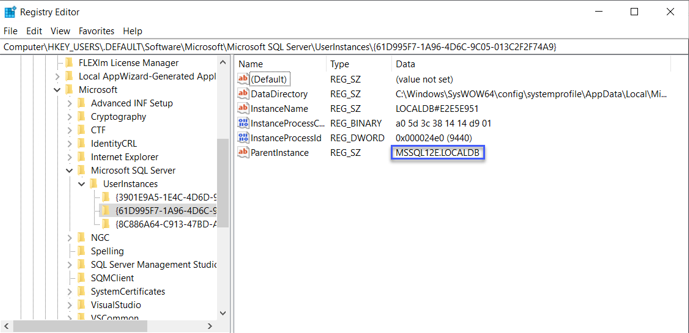
The following table provides the registry keys of the FactoryTalk AssetCentre versions.
|
FactoryTalk AssetCentre
Version
|
LocalDB Version
|
Registry Keys
|
|
V13.00.00, V15.00.00, V16.00.00
|
Microsoft SQL Server 2022
LocalDB
|
MSSQL16E.LOCALDB
|
|
V12.00.00
|
Microsoft SQL Server 2019
LocalDB
|
MSSQL15E.LOCALDB
|
V9.00.00, V10.00.00, V11.00.00
|
Microsoft SQL Server 2014
Express LocalDB
|
MSSQL12E.LOCALDB
|
When configuring a PanelView asset's Addressing Info, if a device other than a PanelView is selected, several extraneous error messages may display. First identified in FactoryTalk AssetCentre version 9.00.00. [Jira 242271]
To avoid this problem, choose the proper device type when configuring the Addressing Info of a PanelView asset.
A PanelView Plus or MobileView Disaster Recovery schedule will fail with a communication error message, if the Address Info is not set for the device using FactoryTalk Linx Browser located on the FactoryTalk AssetCentre agent computer. First identified in FactoryTalk AssetCentre version 10.00.00. [Jira 395652]
To avoid this problem, after configuring the Addressing Info property of a PanelView Plus asset or a MobileView asset, the user must browse for the device in FactoryTalk Linx Browser from the FactoryTalk AssetCentre agent computer when the agent computer is not collocated with the FactoryTalk AssetCentre client.
When the Report Incremental Differences option is enabled for a Logix 5000 controller asset within a Disaster Recovery schedule, the task will fail if the controller firmware version does not match the firmware version of the ACD file associated with the Incremental Checkpoint label. First identified in FactoryTalk AssetCentre version 10.00.00. [Jira 806906]
To avoid this problem, you can do the following steps:
After upgrading or downgrading a Logix 5000 controller’s firmware, open the FactoryTalk AssetCentre archive to check in the ACD file that matches Logix 5000 controller firmware version.
Select Add Label to move the Incremental Checkpoint, and then select the Allow reuse of existing labels check box.
In the Label box, enter the label name exactly as Incremental Checkpoint.
The Disaster and Recovery schedule will now run successfully.
FactoryTalk AssetCentre has limited support for 4K displays, when display scaling is greater than 100%. First identified in FactoryTalk AssetCentre version 10.00.00. [Jira 355367]
To avoid this problem, set the display scaling to 100% and restart the computer.
When uninstalling FactoryTalk AssetCentre Agent, FactoryTalk AssetCentre Agent will remain in the Control Panel, Add/Remove until all supporting applications (for example, RSLogix 500) are also removed. First identified in FactoryTalk AssetCentre version 10.00.00. [Jira 488955]
To resolve this problem, uninstall all software installed together with FactoryTalk AssetCentre Agent 10.00.00 installation and then it will be removed.
When repairing a FactoryTalk AssetCentre Agent installation on a computer upon which Logix Designer Compare Tool is not installed, FactoryTalk AssetCentre will generate a nuisance warning message indicating that Logix Designer Compare Tool requires that Microsoft .NET Framework 3.5 to be installed. First identified in FactoryTalk AssetCentre version 10.00.00. [Jira 566002]
This issue currently has no workaround. The behavior does not adversely impact the FactoryTalk AssetCentre Agent installation repair process.
When updating an earlier version FactoryTalk AssetCentre Server with SSL enabled to version 11.00.00, failure to restart the computer using either the Restart Now or Restart Later in the installation user interface, prevents the FactoryTalk AssetCentre Client from launching. First identified in FactoryTalk AssetCentre version 11.00.00. [Jira 1046534]
To resolve this problem, you can do the following steps:
Open the Server Settings utility.
In the Configure Server Settings Utility window, clear the Use the secure communication channel check box, and then select the Apply button.
- Reselect the Use the secure communication channel check box, and then select the Apply button.
Select OK.
When performing Archive version to version compare of a DNO file associated with a PowerFlex 755, an error message appears. First identified in FactoryTalk AssetCentre version 9.00.00. [Jira 1285794]
To resolve this problem, do the following:
Using the FactoryTalk AssetCentre Client, check out and open the DNO file.
Go online with the target PowerFlex 755 device.
Close the DNO file, and check in the DNO file.
When using the silent or unattended setup to upgrade FactoryTalk AssetCentre version 8.00.00 or later, if any of the additional software components’ version (for example, Logix Designer Compare Tool) on the computer is equal to or higher than the version you will upgrade to, the upgrade will fail. First identified in FactoryTalk AssetCentre version 11.00.00. [Jira 1444198]
To avoid this problem, you can do one of the following:
Upgrade FactoryTalk AssetCentre version 8.00.00 or later using the Setup wizard.
Enter
/IgnoreWarningwhen upgrading FactoryTalk AssetCentre version 8.00.00 or later using the silent or unattended setup.Example:
C:\Users\Administrator\Desktop\11.00.00-FTAssetCentre-DVDD\Setup.exe
/Q /IAcceptAllLicenseTerms /AutoRestart /SetupLanguage=ENU
/Product="AssetCentre Server" /SerialNumber=2740J00396
/ProductKey=RYN62-LWBQ6 /Version=11.00.00 /InstallDrive=D:
/SqlServer="(local)" /DirectoryServer=FTDIRECTORY/ IgnoreWarning
When a large binder, more than 1GB in total size, is being promoted in the Archive, running an Archive Check In and Check Out Status search schedule will fail. Once the promotion is completed the schedule can be executed successfully. First identified in FactoryTalk AssetCentre version 9.00.00. [Jira 1309942]
There is currently no workaround for this anomaly.
If running the FactoryTalk AssetCentre Client on Windows 10 version 1903, when opening a PowerFlex drive Backup & Compare comparison report (CSV file) in the Event Log, an error message appears. Please note Windows 10 version 1903 reached Microsoft End of Service on 8.Dec.2020. First identified in FactoryTalk AssetCentre version 10.00.00. [Jira 1285815]
To avoid this problem, configure the default application to open the CSV file via the operating system Settings > Apps > Default apps. Notepad.exe is recommended
The Agent Groups function fails with the error "RockwellAutomation.FTAssetCentre.AosReloadingAssetsException" in any of these scenarios:
When the network cable has been disconnected from the FactoryTalk AssetCentre Server computer for more than ten minutes, and then reconnecting it.
When the Default Web Site has been stopped for the FactoryTalk AssetCentre Server computer for more than ten minutes, and then restarting it.
When the World Wide Web Publishing service has been stopped for more than ten minutes, and then restarting it.
First identified in FactoryTalk AssetCentre version 12.00.00. [Jira 1933027]
To avoid this problem, close the Agent Groups tab, and then reopen it.
When running a Source Code Validation schedule for Logix 5000 controllers, a scheduled task may return a false positive due to an anomaly Studio 5000 Logix Designer version 34.00 and version 35.00. First identified in FactoryTalk AssetCentre version 11.00.00. [Jira 2172329]
To resolve this problem, upgrade to Studio 5000 Logix Designer version 36.00 or later.
When the FactoryTalk AssetCentre Server activation expires or reaches the expiration warning threshold, no notification is shown to the user each time the FactoryTalk AssetCentre Web Client opens. First identified in FactoryTalk AssetCentre version 13.00.00. [Jira 2332699]
To see the expiration information, open FactoryTalk Activation Manager from Start > Rockwell Software, and then select Find Available Activations.
The following applications do not support Azure AD or OpenID Connect sign-in: FactoryTalk AssetCentre Log Cleanup utility, FactoryTalk AssetCentre Archive Cleanup utility, and the Source Control plug-in found in Studio 5000 Logix Designer, RSLogix 5000, RSLogix 5, and RSLogix 500. First identified in FactoryTalk AssetCentre version 13.00.00. [Jira 3171134]
There is no workaround for this anomaly.
From FactoryTalk AssetCentre version 15.00.00, FactoryTalk AssetCentre Log Cleanup utility and FactoryTalk AssetCentre Archive Cleanup utility support Azure AD or OpenID Connect sign-in.
FactoryTalk AssetCentre cannot backup an Allen-Bradley E300 Overload Relay when the device is communicated with a controller using a Class 1 CIP connection. First identified in version 13.00.00. [Jira 1825589]
There is no workaround for this anomaly.
Disaster recovery tasks for the Allen-Bradley Logix 5000 Controller, Allen-Bradley PLC-5 Controller, Allen-Bradley SLC 500 Controller, and Allen-Bradley MicroLogix Controller failed with the error “could not set security token”. First identified in FactoryTalk AssetCentre version 13.00.00. [Jira 3209566]
To resolve this problem, run FactoryTalk AssetCentre Agent Controller Launch Control Panel from Start > Rockwell Software, and then select Repair.
After installing FactoryTalk AssetCentre Server version 12.00.00 or later, if the FactoryTalk AssetCentre Server computer’s FactoryTalk Directory location is changed, the FactoryTalk AssetCentre system cannot function properly. First identified in FactoryTalk AssetCentre version 12.00.00. [Jira 2246229]
On the FactoryTalk AssetCentre Server computer, select Start > Rockwell Software > FactoryTalk AssetCentre Server Settings.
In the Configure Server Settings Utility window, configure Server Location - that is the fully qualified domain name (FQDN) of the FactoryTalk AssetCentre.
Select or clear Use the secure communication channel.
Configure IIS Server Communication port.
When Use the secure communication channel is selected, by default the port number is set as 443. Please ensure that port 443 is not used by other applications.
When Use the secure communication channel is not selected, the port number is set as 80.
When customizing the IIS Server Communication port, please take note that if your AssetCentre system includes the Management of Change capability, it is required to use port 443.
On the FactoryTalk AssetCentre Server computer, select Start > Rockwell Software > Server Settings.
In the Configure Server Settings Utility window, configure Server Location - that is the fully qualified domain name (FQDN) of the FactoryTalk AssetCentre.
Configure Use the secure communication channel - that is the communication between the server, client(s), and agent(s) encrypted using the TLS protocol.
- When Use the secure communication channel is selected, the IIS Server is configured to use port 443.
When Use the secure communication channel is not selected, the IIS Server is configured to use port 80.
When customizing the communication port using IIS Manager, you must do the following to specify the port in Primary Server Web Services Base URL.
Select Start > Rockwell Software > FactoryTalk Administration Console.
Navigate to Network > System > Policies > Product Policies > FactoryTalk AssetCentre, and the double-click Server Settings.
In the Server Settings Properties dialog, select Primary Server Web Services Base URL, and then append the port number following a colon to the web server FQDN in the form as https://<FactoryTalk AssetCentre Server FQDN>:<custom port>/RockwellSoftware/AssetCentre.
When customizing the IIS Server Communication port, please take note that if your AssetCentre system includes the Management of Change capability, it is required to use port 443.
To avoid this problem, do the following for FactoryTalk AssetCentre Server version 13.00.00 or later:
To avoid this problem, do the following for FactoryTalk AssetCentre Server version 12.00.00:
A disaster recovery task for an Asset Inventory asset configured to scan a network using SNMP does not detect and add Siemens devices to the inventory (.RAAI) file. First identified in FactoryTalk AssetCentre version 13.00.00. [Jira 2336140]
There is currently no workaround for this anomaly.
If a scheduled task execution exceeds the VerificationAgentTimeout value that is set in the registry editor (the default value is 120 minutes), the system cannot stop FactoryTalk AssetCentre AgentController service with the error “Could not stop service. Access is denied” and the scheduled task in FactoryTalk AssetCentre continues to execute when the AgentController service is running using NetworkService. NetworkService lacks the necessary operating system permissions to stop other services. First identified in FactoryTalk AssetCentre version 13.00.00. [Jira 3195877]
Run FactoryTalk AsseCentre Agent Controller Launch Control Panel from Start > Rockwell Software, and then specify a Windows user account with administrative user permission to run it as an application. This requires that the computer be restarted.
Stop the VerificationAgent from the task manager.
To resolve this problem, do either of the following:
- When performing a disaster recovery schedule for FactoryTalk Directory or FactoryTalk View Site Edition, simultaneously running a disaster recovery schedule for assets that use the VerificationAgent service might cause errors with the messages "Error: could not load agent" and "Error: could not load Verification agent". First identified in FactoryTalk AssetCentre version 13.00.00. [Jira 3148107]
Assets that use the VerificationAgent service to run disaster recovery schedules include Allen-Bradley Logix 5000 Controller, Allen-Bradley PanelView, Allen-Bradley PanelView Plus, Allen-Bradley MobileView, Allen-Bradley MicroLogix Controller, Allen-Bradley PLC-5, and Allen-Bradley SLC 500 Controller.
To avoid this problem, adjust the time intervals between disaster recovery schedules for FactoryTalk Directory or FactoryTalk View Site Edition and disaster recovery schedules for assets that use the VerificationAgent service to prevent overlap. The interval duration depends on the size of the system, larger systems generally require longer intervals.
If the FactoryTalk AssetCentre Client is installed in a non-system hard drive, comparing files using the archive to archive comparison fails. First identified in FactoryTalk AssetCentre version 13.00.00. [Jira 3221658]
Open Tools > Options, and then select Compare Engines.
- Select WinMerge.
Specify the path of Application to the installation path of the FactoryTalk AssetCentre Client.
To resolve this problem, do the following:
When performing Mitsubishi GX Works2 disaster recovery tasks, those tasks will fail if the FactoryTalk AssetCentre agent computer's Ethernet adapter is not the same Ethernet adapter specified with the Mitsubishi project file. This is a Mitsubishi GX Works2 automation interface limitation. First identified in FactoryTalk AssetCentre version 13.00.00. [Jira 3238860]
Open the GXW project file, and then open the PC side I/F Ethernet Board Setting.
Change Adapter from Not Specified to the agent computer’s Ethernet adapter, and then select OK.
Save the GXW project file.
In FactoryTalk AssetCentre, open the Mitsubishi Controller (GX Works2) asset property, and add the updated GXW project file to the Backup Data field.
To resolve this problem, do the following on the FactoryTalk AssetCentre agent computer from which you want to perform Mitsubishi GX Works2 disaster recovery tasks:
IMPORTANT: You must execute Mitsubishi GX Works2 disaster recovery tasks on the agent computer from which you specified the GXW project file’s Ethernet Board. It is recommended to use Agent Groups to restrict Mitsubishi GX Works2 disaster recovery tasks to FactoryTalk AssetCentre agent computer that meets the Mitsubishi GX Works automation interface requirements for matching Ethernet adapters.
When upgrading the FactoryTalk AssetCentre agent from version 9.00.00 to version 15.00.00 or later, repairing the FactoryTalk AssetCentre agent might fail with an error in installation log indicating that repairing RSLogix 500 has failed. First ide ntified in FactoryTalk AssetCentre version 15.00.00. [Jira 3917276]
On the FactoryTalk AssetCentre agent computer, navigate to Control Panel > Programs > Programs and Features.
Find and right-click RSLogix 500 English 12.00.00.
Select Uninstall.
Open the FactoryTalk AssetCentre installation package, double-click Setup.exe, and then select AssetCentre Agent.
Select Modify.
Expand Tools, and then select RSLogix 500 v12.00.00.
Select Modify.
To resolve this problem:
If you uninstall or upgrade Schneider Control Expert software on a FactoryTalk AssetCentre agent, the agent will no longer function. Schneider’s installation processes adversely impacts the operation of FactoryTalk Services Platform services which are required by the FactoryTalk AssetCentre agent. First identified in FactoryTalk AssetCentre version 15.00.00. [Jira 3917308]
On the computer hosting FactoryTalk AssetCentre agent, double-click Setup.exe in the installation package, and then select AssetCentre Agent.
Select Repair.
To resolve this problem:
If the Schneider Control Expert controller project is encrypted using a file password, a backup and compare task using Unity Diff V8.0 SP7 or Control Expert DIF V15.2 HF1 will fail. First identified in FactoryTalk AssetCentre 15.00.00. [Jira 3842149]
There is no workaround for this anomaly.
Installing Simens TIA Portal V15.1 before installing FactoryTalk AssetCentre Agent results in an incomplete installation error message on the FactoryTalk AssetCentre installation completion page. First identified in FactoryTalk AssetCentre 15.00.00. [Jira 3389250]
Open FactoryTalk AssetCentre Agent Controller Launch Control Panel.
Confirm the Agent Controller is configured to Run As an Application.
Select Repair.
Reboot the computer hosting the FactoryTalk AssetCentre agent.
To resolve this problem:
When the Internet Information Services (IIS) Manager Default Web Site is stopped on the FactoryTalk AssetCentre server computer, the Microsoft IIS w3wp.exe process might crash which causes errors in the FactoryTalk AssetCentre system. First identified in FactoryTalk AssetCentre version 15.00.00. [Jira 3757705]
Open Internet Information Services (IIS) Manager.
Navigate to localhost > Sites > Default Web Site.
Right-click Default Web Site, and then select Manage Website > Start.
To resolve this problem, on the FactoryTalk AssetCentre server computer:
An Allen-Bradley PowerFlex Drive disaster recovery task might fail with an error: RSLinx Error Detected. First identified in FactoryTalk AssetCentre version 15.0 0.00. [Jira 3858564]
Open RSLinx Classic, and then select Stop Service.
Select Communications > Configure Drivers.
Find the driver configured for your Allen-Bradley PowerFlex Drive asset, and then select Delete.
From the Available Driver Types list, select the previously configured driver type for your driver, and then select Add New.
Enter the name of the driver, and then select OK.
If the driver's name is changed, you must reconfigure the Addressing Info property for the Allen-Bradley PowerFlex Drive asset in the FactoryTalk AssetCentre desktop client.
Add hosts for your driver, and then select Apply.
Select OK.
To resolve this problem:
An Asset Inventory schedule scanning a network does not detect Allen-Bradley PLC-5 and SLC 500 controller hardware warranty identification number or ethernet MAC address. First identified in FactoryTalk AssetCentre version 15.00.00. [Jira 3307853]
Open RSLinx Classic and select Communications > Configure Drivers.
From the Available Driver Types list, select EtherNet/IP Driver.
Select Add New, choose a name for the driver, and then select OK.
Select Browse Local Subnet, and then select the device that is on the same network as your PLC.
Select OK.
In FactoryTalk AssetCentre client, select Design mode.
Double-click Asset Inventory in the tree to open asset properties.
Click anywhere within the Scanning Configuration field, and then select the browse button.
In Start scanning with this device, select the browse button.
Select the available Ethernet IP driver and save changes.
Open RSLinx Classic and select Communications > RSWho.
Right-click the Ethernet driver, and then select Configure Driver.
Under Host Name, find the available IP address for the Allen-Bradley PLC-5 controller or Allen-Bradley SLC 500 controller.
Modify the IP address by adding :EIP, for example, 10.224.108.186 :EIP.
Select OK.
This problem can be resolved by modifying the RSLinx Classic communication configuration. Please do one of the following:
Change Asset Inventory driver from Ethernet to Ethernet IP
Before you begin, make sure that you have created an Ethernet IP driver.
To create an Ethernet IP driver:
To change the Asset Inventory driver from Ethernet to Ethernet IP:
Or
Change device addressing in RSLinx Classic when using the Ethernet driver
When a ControlLogix controller contains a license protected project (ACD), disaster recovery tasks will fail unless the required CmStick, CmCard, or other compatible Wibu devices containing the required licenses are available on the agent computer performing the disaster recovery task. Note that no error messages will be logged into the event log. First identified in FactoryTalk AssetCentre version 11.00.00. [Jira 550377]
To avoid this problem, make sure that the required CmStick, CmCard, or other compatible Wibu devices containing the required licenses are inserted correctly on the agent computer before executing the disaster recovery schedule.
When the FactoryTalk AssetCentre web client automatically logs out after 24 hours, you might see misleading “refresh token” error messages in the diagnostic log. These errors can also occur if the FactoryTalk Directory server or its FactoryTalk Web Server service isn’t running or they have been restarted. First identified in FactoryTalk AssetCentre version 15.00.00. [Jira 3954051]
To resolve this problem, sign in to the FactoryTalk AssetCentre web client again.
When using FactoryTalk AssetCentre desktop client’s archive cleanup utility and the option Delete the comments contents and export them to an MDF (SQL Server database) file is selected, note that the archive files will be deleted even if the MDF file export fails. The MDF file export might fail for a variety of reasons, for example, the file path is changed to an unauthorized folder or there is insufficient disk space. First identified in FactoryTalk AssetCentre version 15.00.00. [Jira 3389397]
To resolve this problem, use FactoryTalk AssetCentre web client’s scheduled archive cleanup function, available in v15.00 and later, which resolved the problem by ensuring that archive files are not deleted until the MDF file export is successfully completed. For more information, see Create an archive cleanup schedule in FactoryTalk AssetCentre Web Client Help.
Functional Changes
This release has the following functional changes from the previous release.
FactoryTalk AssetCentre version 16.00.00 has the following changes in functionality since the last release.
Workflow change in SMTP configuration
SMTP server settings, which were previously managed through the FactoryTalk AssetCentre Server Settings, are now administered via the FactoryTalk Administration Console. All previously defined configurations remain unaffected and will continue to function as expected.
To edit these settings, navigate to: FactoryTalk Administration Console > System > Policies > System Policies > SMTP policy.
Enhanced tool installation methods
Installation methods for the following tools have been modernized to enhance convenience and deployment flexibility:
FactoryTalk AssetCentre Import Export Utility can be installed by selecting the AssetCentre Import Export Utility option during the FactoryTalk AssetCentre Desktop Client or FactoryTalk AssetCentre Custom installation.
FactoryTalk AssetCentre Archive Extractor Utility can be installed directly on your computer instead of being run from the installation package.
FactoryTalk AssetCentre Event Log Attachment Extractor Utility can be installed directly on your computer instead of being run from the installation package.
For more information, see the FactoryTalk AssetCentre Utilities User Manual.
Updated installation process for Siemens STEP7 and STEP5 disaster recovery capability
Support for Siemens STEP7 and STEP5 disaster recovery capability may require a separate installation component, depending on whether the required components are included in your FactoryTalk AssetCentre system.
For clean installations of version 16.00 or later, manual installation of the Siemens STEP7 and STEP5 disaster recovery capability is required.
For upgrades, no action is needed if existing disaster recovery schedules work correctly; otherwise, manual installation may be necessary to resolve missing component errors.
For more information, see Install the FactoryTalk AssetCentre Siemens STEP7 and STEP5 disaster recovery capability in the Application notes.
Removal of built-in search results viewing tabs
The Preview and Report tabs previously used to view search results within the FactoryTalk AssetCentre desktop client have been removed. Results from scheduled searches remain accessible upon completion. For manually run searches, results can now be viewed in the default browser.
Application Notes
This release has the following application notes.
The following are the application notes for FactoryTalk AssetCentre version 16.00.00.
FactoryTalk AssetCentre security configurations:
Security requirements
Secure communication with TLS and SSL protocols
VeriSign Universal Root Certification Authority certificate
Configure certificates for a remote FactoryTalk Network Directory when TLS is enabled
FactoryTalk AssetCentre utilities secure sign-in credentials
Encrypting communication between FactoryTalk AssetCentre and Microsoft SQL Server 2022 or later
Full OS backup
FactoryTalk AssetCentre system operations:
FactoryTalk AssetCentre desktop client and FactoryTalk AssetCentre web client
FactoryTalk AssetCentre agent
The number of clients, agents, and agent groups qualified within one FactoryTalk AssetCentre system
Ensuring consistent domain credentials for FactoryTalk AssetCentre desktop and web clients
FactoryTalk AssetCentre server, agents, and desktop clients do not support mixed Windows domain and workgroup environments
Synchronizing lifecycle information with the Rockwell Automation lifecycle website
Database mirroring may fail when the communication between FactoryTalk AssetCentre and Microsoft SQL Server is encrypted using TLS
Microsoft SQL Server database auto growth timeout causes FactoryTalk AssetCentre out-of-memory errors
MAC Address and Warranty Number may display incorrectly in exported security posture check results when opened in Microsoft Excel
Updated search conditions for standardized backup and compare status messages
FactoryTalk AssetCentre services auto-start issues with solid-state drives in distributed environments
View FactoryTalk AssetCentre server and agent status via FactoryTalk System Status Portal
FactoryTalk AssetCentre disaster recovery capability:
FactoryTalk Optix project upload limitations in FactoryTalk AssetCentre
Allen-Bradley Stratix Switch MAC address correction
Use FactoryTalk Linx to browse Logix 5000 controllers of firmware revision 38.00 or later
Some disaster recovery tasks are not supported when FactoryTalk Design Studio was used to create the project
Run disaster recovery tasks for controller projects developed with RSLogix 5000 version 16.00 in FactoryTalk AssetCentre version 13.00 or later
Install the FactoryTalk AssetCentre Siemens STEP7 and STEP5 disaster recovery capability
Disaster Recovery schedule tasks fail with Device Not Found recorded in the FactoryTalk AssetCentre Event log
FactoryTalk Directory asset compare
Event Log Attachment Extractor
Generic FTP device compatibility
FactoryTalk AssetCentre installation:
Impact of Microsoft deprecating VBScript
Install product updates
Unattended or silent install
Handling double quotation marks and backslashes in /Passphrase parameters
FactoryTalk AssetCentre security configurations
The following are application notes related to FactoryTalk AssetCentre security configurations.
Security requirements
For information on the security considerations when using Rockwell Automation products, including:
Ports, services, and firewall rules necessary for FactoryTalk AssetCentre components, see Configuring Firewalls for FactoryTalkAssetCentre (publication FTAC-RM001). Additional information for Rockwell Automation software, firewall rules, and service dependencies, see Knowledgebase Document ID: IN40928 - Security Software Considerations to Prevent or Mitigate Impacts to Rockwell Automation Software Products.
TCP/UDP ports used by Rockwell Automation products, see Knowledgebase Document ID: BF7490 - TCP/UDP Ports Used by Rockwell Automation Products.
21 CFR Part 11 requirements addressed by FactoryTalk AssetCentre, see Guidelines for Applying FactoryTalk AssetCentre in a 21 CFR Whitepaper.
Secure communication with TLS and SSL protocols
Windows implements SSL and TLS through S-channel Security Support Provider (SSP). The S-channel SSP implementation of the TLS and SSL protocols uses algorithms from a cipher suite to create keys and encryption information. Starting from FactoryTalk AssetCentre version 9.00, the operating system's capability is used to automatically filter out the insecure ciphers.
For all cipher suites listed for different operating systems, refer to Cipher Suites in TLS/SSL (S-channel SSP).
If you have a preference on the cipher suites and need to customize the priorities in group policy, refer to Prioritizing S-channel Cipher Suites.
To enable or disable specific ciphers in the registry, refer to How to restrict the use of certain cryptographic algorithms and protocols in Schannel.dll.
VeriSign Universal Root Certification Authority certificate
If the VeriSign Universal Root Certification Authority certificate does not exist on the local computer, the certificate is installed while installing Rockwell Automation software. Use Microsoft Management Console (MMC) to view the certificate in Console Root > Certificates (Local Computer) > Trusted Root Certification Authorities > Certificates.
Configure certificates for a remote FactoryTalk Network Directory when TLS is enabled
If your FactoryTalk Network Directory server and FactoryTalk AssetCentre server are installed on different computers and secure communications (TLS) are being used, the FactoryTalk Network Directory Web Authentication server requires a certificate for authenticating the FactoryTalk AssetCentre web client. You must configure a certificate authority (CA) issued, or a self-signed, certificate for the FactoryTalk Network Directory server so that the FactoryTalk AssetCentre web client can be used successfully.
For instructions related to using a certificate authority (CA) issued certificate on the FactoryTalk Network Directory server, see the FactoryTalk AssetCentre Installation Guide:
Configure the FactoryTalk AssetCentre system to use security communications (TLS)
For instructions related to using a self-signed certificate on the FactoryTalk Network Directory server, see the following topics in the FactoryTalk AssetCentre Installation Guide:
Create a self-signed certificate on the SQL Server or FactoryTalk Network Directory server
Configure the HTTPS site binding
FactoryTalk AssetCentre utilities secure sign-in credentials
The following utilities have removed sensitive information from their configuration files and strengthened sign-in methods to improve overall security:
FactoryTalk AssetCentre Log Cleanup utility
FactoryTalk AssetCentre Archive Cleanup utility
FactoryTalk AssetCentre Archive Extractor utility
FactoryTalk AssetCentre Event Log Attachment Extractor utility
When upgrading FactoryTalk AssetCentre to version 15.00.00 or later, any configured information in these tools will be cleared in its entirety. In addition, scheduled operations for these tools via Windows Task Scheduler cannot work correctly until you update configurations by following the instructions in the FactoryTalk AssetCentre Utilities User Manual.
Encrypting communication between FactoryTalk AssetCentre and Microsoft SQL Server 2022 or later
Microsoft SQL Server 2022, and later, support encrypted communication by enabling Force Encryption or Force Strict Encryption. When enabled, Microsoft SQL Server uses TLS (Transport Layer Security) to encrypt data transmitted between the Microsoft SQL Server and clients, like the FactoryTalk AssetCentre server. The Force Strict Encryption option is not supported by FactoryTalk AssetCentre. The communications between FactoryTalk AssetCentre and Microsoft SQL Server can be encrypted by selecting the Encryption communication using TLS checkbox in the Database User Configuration tool or enabling the Microsoft SQL Server Force Encryption option.
Full OS backup
Rockwell Automation does not test any third-party software to perform the full Windows operating system backup, for example, Veritas Backup Exec. When performing a computer backup on a running virtualized system, it is recommended the system is stopped before performing a backup.
FactoryTalk AssetCentre system operations
The following are application notes related to FactoryTalk AssetCentre system operations.
FactoryTalk AssetCentre desktop client and FactoryTalk AssetCentre web client
The following information is important when using the FactoryTalk AssetCentre desktop client and FactoryTalk AssetCentre web client:
All FactoryTalk AssetCentre clients must have identical RSLinx® Classic and FactoryTalk Linx communication driver configurations.
Disaster Recovery for Rockwell Automation devices supports the use of the DNS feature in FactoryTalk Linx for communications. However, the Allen-Bradley PanelView Plus and Allen-Bradley MobileView devices cannot use the DNS feature in FactoryTalk Linx.
After upgrading FactoryTalk AssetCentre to version 13.00.00 or later, you must manually clear your browser’s cache to make sure that you can successfully sign in to FactoryTalk AssetCentre Web Client.
The file password function in Mitsubishi GX Works3 is used to help prevent files in a controller from being accessed by unauthorized users. Using Mitsubishi GX Works3, you can set passwords to limit access to different types of data in a controller. However, FactoryTalk AssetCentre only supports specifying a single password in the Password File Access field when configuring a Mitsubishi Controller (GX Works3) asset. When a Mitsubishi GX Works3 controller is password-protected, you must configure the same password for all types of data in the Mitsubishi GX Works3 project to allow FactoryTalk AssetCentre to successfully perform a Mitsubishi Controller (GX Works3) disaster recovery task.
The Mitsubishi Controller (GX Works2) does not support the remote password and file password capability for Disaster Recovery schedules.
When using the following Schneider Control Expert versions for project comparisons, you can only schedule backup tasks if your controller project is encrypted with a file password.
Control Expert V15.2 with Unity Diff V8.0 SP7
Control Expert V15.3 with Control Expert DIF V15.2 HF1
Control Expert V16 with Control Expert DIF V15.2 HF1
When configuring remote FactoryTalk Directory assets, make sure that each asset’s Backup Data property is configured using a unique backup (BAK) file. Backup file corruption might occur when executing disaster recovery tasks for remote FactoryTalk Directory assets that use the same backup (BAK) file. To resolve this problem, remove the backup (BAK) file from the asset tree and then execute a disaster recovery schedule to generate a new backup (BAK) file.
FactoryTalk AssetCentre agent
The following information is important when using the FactoryTalk AssetCentre agent:
FactoryTalk AssetCentre agents belonging to the same agent group must meet the following requirements:
Have identical RSLinx Classic and FactoryTalk Linx (formerly known as RSLinx Enterprise) communication driver configurations.
Be able to communicate with all assets configured for use with that agent group.
Have all programming software products installed that are required by the assets configured for use with that agent group.
For example, if an agent group supports both SLC 500 and Logix 5000 controllers, then each agent belonging to that agent group must have both RSLogix 500 and the appropriate version of RSLogix 5000 or Logix Designer installed.
For Siemens TIA Portal, Mitsubishi GX Works2, Mitsubishi GX Works3, and Schneider Control Expert, FIPS must be disabled for communication to work properly.
In a Windows domain environment, when the FactoryTalk AssetCentre AgentController runs as an application, it is critical to select a standard Windows domain user account. This allows Microsoft Windows Communication Foundation (WCF) to authenticate between the FactoryTalk AssetCentre agent to connect to the FactoryTalk AssetCentre server. If the AgentController is configured to use a local Windows user account, then WCF won’t work correctly and the FactoryTalk AssetCentre agent won’t be able to connect to the server.
The number of clients, agents, and agent groups qualified within one FactoryTalk AssetCentre system
The following is the number of clients, agents, and agent groups qualified within one FactoryTalk AssetCentre system at the same time. More clients, agents, or agent groups running will impact the system performance. The system cannot exceed 100 agents in total. For example, a system could have 100 agent groups, consisting of 50 local agent groups and 50 remote agent groups, with each group having one agent member.
Desktop client: 150
Web client: 200
Agent: 100 total, with a mixture of local and remote agents.
Agent groups: 100 total, with a mixture of local and remote agent groups. System cannot exceed 50 remote agent groups.
Ensuring consistent domain credentials for FactoryTalk AssetCentre desktop and web clients
In a Windows domain environment, signing in to the FactoryTalk AssetCentre desktop and web clients using the Windows domain user account without the domain name can result in file check-in failures on the web client, even though file check-out on desktop clients works. This happens because the web client handles authentication requests remotely. When the domain name is omitted, Windows automatically selects an authentication method, recognizing the user as a local account rather than a domain account. This causes authentication inconsistencies between the desktop and web clients.
To avoid this problem, sign in using domain\username on both desktop and web clients.
FactoryTalk AssetCentre server, agents, and desktop clients do not support mixed Windows domain and workgroup environments
FactoryTalk AssetCentre cannot operate in environments containing both Windows domain and workgroup computers, due to Windows authentication limitations. For consistent authentication and validation, all FactoryTalk AssetCentre server, agent, and desktop client computers must be configured in one of the following ways:
All computers are members of the same Windows domain.
All computers are members of trusted Windows domains that maintain established mutual trust relationships.
All computers are members of the same Windows workgroup.
IMPORTANT: FactoryTalk AssetCentre web clients are unaffected by this limitation because they do not use Windows authentication directly; the FactoryTalk AssetCentre web server acts as an authentication proxy for the web client.
Synchronizing lifecycle information with the Rockwell Automation lifecycle website
Lifecycle information can be used to develop hardware device migration plans, or to find devices that require firmware updates. To retrieve the lifecycle information of your Rockwell Automation devices from the Product Compatibility and Download Center (PCDC), use one of the following methods depending on whether your FactoryTalk AssetCentre server has internet access.
If your FactoryTalk AssetCentre server can access the internet, use a forward proxy server or configure firewall access:
Use a Forward Proxy Server
For FactoryTalk AssetCtre version 12.00 or later, it is highly recommended to use a forward proxy server to communicate lifecycle information between the FactoryTalk AssetCentre Server and the PCDC because it provides a more secure connection than configuring firewall access. The forward proxy server must be accessible from the iDMZ and from the FactoryTalk AssetCentre server to access the PCDC.
In the FactoryTalk AssetCentre server, configure the forward proxy for the device lifecycle using FactoryTalk AssetCentre Server Settings. Enter a FactoryTalk administrator's credentials to sign in.
In FactoryTalk AssetCentre Server Settings, to enable the forward proxy server, select the checkbox next to Use the forward proxy. In the dialogs, enter the IP address and port number used by your forward proxy server to communicate lifecycle information between the FactoryTalk AssetCentre server and the PCDC. Once this information is entered, select OK. Be sure to restart your computer to ensure the settings take effect.
For the forward proxy server, there are many types and styles of software available. Each proxy server will have different methods and settings. Ensure that the forward proxy server has the web domain https://api.rockwellautomation.com added to the allowed web domain list.
For more information on configuring a forward proxy server and the FactoryTalk AssetCentre server, see Knowledgebase Document ID: QA65165: Using a forward proxy server between FactoryTalk AssetCentre and the Product Compatibility and Download Center (PCDC) and YouTube video: Forward Proxy Server Support for FactoryTalk AssetCentre.
Configure firewall access
Use the following information to configure firewall access to retrieve the lifecycle statuses from the PCDC.
PCDC URL: api.rockwellautomation.com
TLS port: 443
IP addresses: 54.xxx.xxx.xxx - 34.xxx.xxx.xxx
To strengthen security, it is recommended to:
Use URL filtering
You can create a URL filtering policy that allows TCP port 443 to access the PCDC URL of https://api.rockwellautomation.com and allows for bi-directional communication. The URL filtering ensures that only requests to the URL are sent to the PCDC and it is not dependent on IP addresses, which provides more flexibility. If the IP addresses used by Rockwell Automation change, the system would continue to operate because the URL remains constant.
Use IP address filtering
You can use IP address filtering to restrict access to the explicitly authorized APIs. This also requires specifying the complete range of IP addresses used by Rockwell Automation. However, any change in Rockwell Automation's IP addresses could prevent proper operation accessing the PCDC, it is highly recommended to use a forward proxy server or use the URL filtering.
- If your FactoryTalk AssetCentre server cannot access the internet, use the Airgap Lifecycle Transfer tool included in the FactoryTalk AssetCentre web client, together with the standalone FactoryTalk AssetCentre Lifecycle Information Transfer Utility, to keep your device information up-to-date. For more information, see Airgap Lifecycle Transfer in the FactoryTalk AssetCentre Web Client Help.
Database mirroring may fail when the communication between FactoryTalk AssetCentre and Microsoft SQL Server is encrypted using TLS
FactoryTalk AssetCentre supports database mirroring through the FactoryTalk AssetCentre Data Source Configuration Wizard to improve SQL Server availability.
If both Encrypt communications using TLS and Enable SQL Mirroring are selected, but the Transport Layer Security (TLS) certificate for encryption is not trusted, the FactoryTalk AssetCentre desktop client and web clients cannot connect to the mirrored database after a failover from the principal database.
To ensure the database mirroring function works properly, install Patch: Web client cannot show asset tree, FactoryTalk AssetCentre 12.0, 13.0, 15.0, 16.0, and then choose one of the options.
Option 1: Ensure that the TLS certificate is trusted for encryption
On the computer hosting the FactoryTalk AssetCentre server, open FactoryTalk AssetCentre Data Source Configuration.
On Database User Configuration, select Encrypt communications using TLS and Trust server certificate.
On FactoryTalk AssetCentre SQL Server Mirror, ensure Enable SQL Mirroring is selected.
Complete the remaining configurations and save the changes.
Option 2: Disable the TLS encryption
On the computer hosting SQL Server:
Open SQL Server Configuration Manager, and then expand SQL Server Network Configuration.
Right-click Protocols for <InstanceName>, and then select Properties.
On Flags, set Force Encryption to Off, and then select OK.
On SQL Server Configuration Manager, select SQL Server Services.
Right-click SQL Server <InstanceName>, and then select Restart.
On the computer hosting the FactoryTalk AssetCentre server:
Open FactoryTalk AssetCentre Data Source Configuration.
On Database User Configuration, clear Encrypt communications using TLS.
On FactoryTalk AssetCentre SQL Server Mirror, ensure Enable SQL Mirroring is selected.
Complete the remaining configurations and save the changes.
Microsoft SQL Server database auto growth timeout causes FactoryTalk AssetCentre out-of-memory errors
When multiple computers from multiple FactoryTalk Directories send FactoryTalk Diagnostics to a central FactoryTalk AssetCentre server, the Microsoft IIS w3wp.exe process may stop responding, causing out-of-memory errors. This happens because Microsoft SQL Server cannot increase the AssetCentre database size through an auto-growth operation before a timeout in Microsoft IIS, preventing data from being written to the SQL Server.
To resolve this problem, do the following:
Open Microsoft SQL Server Management Studio and then expand Databases.
- Right-click AssetCentre, and then select Properties.
On Database Properties, select the Files page.
Set the auto-growth property for AssetCentre_dat.
On the Autogrowth / Maxsize column, select the browse button.
Under File Growth, select In Megabytes, and then enter the desired number.
Select OK.
We recommend setting this number to 2048 MB, but you can adjust it according to your network topology.
Select OK.
MAC Address and Warranty Number may display incorrectly in exported security posture check results when opened in Microsoft Excel
When exporting security posture check results from the FactoryTalk AssetCentre web client, the MAC Address and Warranty Number fields in the exported CSV file may display incorrectly in Microsoft Excel. For example:
A MAC address such as 616263646566 may appear as 6.16264E+11.
A warranty number such as 000000875 may appear as 875.
This problem occurs because Excel can misinterpret some MAC addresses or warranty numbers as numeric values, resulting in formatting errors. To resolve this problem, open the exported CSV file using a text editor such as Notepad.
Updated search conditions for standardized backup and compare status messages
For backup and compare tasks, the status message wordings for different assets are standardized to use a common format. The following is a standard status message example:
When no difference is found:
When differences are found:
Status: Compare - No Differences Found - [extra information]-Completed at 2024-07-18 14:19:54 (Local) - 2024-07-18 06:19:54 (UTC)
Status: Compare - Differences Found - [extra information] - Completed at 2024-06-12 10:01:43 (Local) - 2024-06-12 02:01:43 (UTC)
As a result, some search tasks scheduled to search a message as a condition, for example, Operation Succeeded, might no longer return accurate results.
To resolve this problem, do the following:
Open FactoryTalk AssetCentre desktop client.
Select Searches.
Find and select the scheduled search tasks whose conditions are set to contain specific messages.
Select Conditions, and then select the edit button.
Enter a message in the To Compare With box.
Select OK.
This change does not apply to Allen-Bradley MobileView, Allen-Bradley PanelView Plus, and Allen-Bradley PLC-5 Controller assets.
FactoryTalk AssetCentre services auto-start issues with solid-state drives in distributed environments
In distributed environments where the FactoryTalk AssetCentre server and Microsoft SQL Server are hosted on separate computers using Windows authentication, FactoryTalk AssetCentre services may fail to start automatically after the server restarts if the server is equipped with a solid-state drive (SSD).
To resolve this problem and for best results in a distributed environment, do the following:
On the FactoryTalk AssetCentre server computer, open Services.
Find the following services:
FactoryTalk AssetCentre Server
FactoryTalk AssetCentre LLumin MOC Engine
Right-click each service and select Properties.
On General, set the Startup type to Automatic (Delayed Start).
Select OK.
View FactoryTalk AssetCentre server and agent status via FactoryTalk System Status Portal
FactoryTalk® System Status Portal provides the system status of network distributed and networks station applications without having to sign in to the FactoryTalk® Administration Console. This portal is installed with FactoryTalk® Services Platform by selecting FactoryTalk System Status Portal in customized installation.
Starting from FactoryTalk AssetCentre version 16.00.00, FactoryTalk System Status Portal shows the server and agent status of FactoryTalk AssetCentre in the FactoryTalk Directory they share. Only one FactoryTalk AssetCentre server is allowed in the FactoryTalk Directory.
Prerequisites
Make sure that at least one application has been created in the FactoryTalk Directory.
To view the status of FactoryTalk AssetCentre server and agents
In the web browser's address bar, enter one of the following:
http://<ComputerName>/FTSystemStatus or https://<ComputerName>/FTSystemStatus, where ComputerName is the FactoryTalk Directory server computer. For example, https://<MyFTDPC>/FTSystemStatus.
http://<IPAddress>/FTSystemStatus or https://<IPAddress>/FTSystemStatus, where IPAddress is the IP address of the FactoryTalk Directory server computer. For example, https://<192.16.2.1>/FTSystemStatus.
Tip: If you are signing in from the FactoryTalk Directory server computer, you can use localhost to replace ComputerName or IPAddress. For example,http://localhost/FTSystemStatus or https://localhost/FTSystemStatus.
Press Enter.
Enter a FactoryTalk user account with access to the application that you want to view and its password. Select the Keep me signed in checkbox to stay signed in until you sign out manually or until cookies stored by the website in your browser are deleted.
Select Sign in.
On the FactoryTalk Applications page, select an application.
Hover over Host name to view the state.
For more information, see the FactoryTalk System Status Portal Help and FactoryTalk Services Platform Help.
FactoryTalk AssetCentre disaster recovery capability
The following are application notes related to FactoryTalk AssetCentre disaster recovery capability.
FactoryTalk Optix project upload limitations in FactoryTalk AssetCentre
FactoryTalk AssetCentre and FactoryTalk Optix Studio handle data differently during the project upload process. Understanding these distinctions, as well as other important factors, is crucial when creating disaster recovery schedules that cover FactoryTalk Optix assets managed with FactoryTalk AssetCentre.
FactoryTalk AssetCentre does not stop the FactoryTalk Optix Runtime application execution during an upload. As a result, when running disaster recovery tasks, FactoryTalk AssetCentre will not upload nor detect changes made while a FactoryTalk Optix application at runtime on the device:
Security changes such as adding or deleting users, modifying passwords, and changing group membership
Editing recipes
Recipes
Data collected at runtime, such as tags, variable data, events, or alarms, that is stored in an Optix DataStore on the Optix target, such as a SQLite database
Alarm state data
Custom data preserved using the retentivity capability in FactoryTalk Optix Studio
IMPORTANT: FactoryTalk AssetCentre does not upload certificate information contained in the PKI file within the Application Files folder. Therefore, when deploying the files backed up by FactoryTalk AssetCentre to a FactoryTalk Optix device, you must manually reimport the certificate data.
FactoryTalk AssetCentre does not capture dynamic runtime change made through FactoryTalk Optix NetLogic capabilities when executing disaster recovery tasks. For example, if an application modifies the content of a running Optix project through NetLogic automation while the FactoryTalk Optix application is running, these changes will not be captured.
During disaster recovery tasks, FactoryTalk AssetCentre does not upload the Companion Specification folder from FactoryTalk Optix devices. FactoryTalk Optix Studio manages the Companion Specification folder globally, so FactoryTalk AssetCentre does not need to retrieve it from FactoryTalk Optix Runtime.
Allen-Bradley Stratix Switch MAC address correction
For an Allen-Bradley Stratix Switch device, its actual MAC address scanned using CIP might differ from the MAC address shown on its switch management page. Each physical interface on a switch has its own unique MAC address that derives from a base MAC address. Additionally, logical ports, such as management ports, might have different MAC addresses. Therefore, the MAC address displayed on the switch management page of Stratix Switch serves only for management purposes. The actual MAC address is in its asset property or the RAAI file.
Use FactoryTalk Linx to browse Logix 5000 controllers of firmware revision 38.00 or later
Logix 5000 controllers running firmware revision 38.00 or later can only be browsed using FactoryTalk Linx. RSLinx Classic cannot be used to browse controllers with these newer revisions in Studio 5000 Logix Designer or FactoryTalk AssetCentre. The following table illustrates communication software support:
|
Design Software
|
Firmware Revision
|
RSLinx Classic
|
FactoryTalk Linx
|
|
RSLogix 5000
|
18-20
|
Supported
|
Not supported
|
|
Studio 5000 Logix Designer
|
21-30
|
Supported
|
Not supported
|
|
31-37
|
Supported
|
Supported
| |
|
38 or later
|
Not supported
|
Supported
|
After upgrading an existing FactoryTalk AssetCentre system from an earlier version to version 16.00 and later, scheduled backup, backup and compare, and source code validation tasks will fail when:
A Logix 5000 controller originally added to the asset tree using RSLinx Classic is later updated to firmware revision 38.00 or later.
A Logix 5000 controller of firmware revision 38.00 or later is added to the asset tree via the import tool, and that controller was browsed using RSLinx Classic.
To resolve this problem, follow the steps to configure FactoryTalk Linx to browse Logix 5000 controllers:
In FactoryTalk AssetCentre Client, select
 .
.In the asset tree, right-click the Allen-Bradley Logix 5000 Controller asset, and then select Properties.
In the Addressing Info box, select
 .
.In the Network Browser list, select FactoryTalk Linx.
Find and select your device from the device list.
Select OK.
FactoryTalk AssetCentre cannot execute backup, backup and compare, or source code validation tasks for Logix controllers running projects that were created with FactoryTalk® Design Studio™. This limitation arises because FactoryTalk AssetCentre uses Studio 5000 Logix Designer to perform these disaster recovery tasks. Projects created with FactoryTalk Design Studio cannot be uploaded using Studio 5000 Logix Designer.
Change detect and security posture check tasks are fully supported for projects created with FactoryTalk Design Studio.
Run disaster recovery tasks for controller projects developed with RSLogix 5000 version 16.00 in FactoryTalk AssetCentre version 13.00 or laterFactoryTalk AssetCentre version 13.00 or later includes Logix Designer Compare Tool version 10.00 or later by default in its installation package. However, these versions of the Logix Designer Compare Tool are no longer compatible with RSLogix 5000 version 16.00. As a result, FactoryTalk AssetCentre version 13.00 or later cannot run disaster recovery tasks on controller projects developed with RSLogix 5000 version 16.00 when using the bundled Logix Designer Compare Tool.
To resolve this problem, do the following:
Part 1: Ensure FactoryTalk AssetCentre agent compatibility with RSLogix 5000 version 16.00
On the FactoryTalk AssetCentre agent computer version 13.00 or later, choose one of the following options. This is only required on agent computers that will be used to service Logix controllers running firmware revision 16.00.
To install a new FactoryTalk AssetCentre agent version 13.00 or later (Recommended)
Install Logix Designer Compare Tool version 9.00 from the Product Compatibility and Download Center (PCDC).
We recommend installing this before installing the FactoryTalk AssetCentre agents. If a newer version is already installed, uninstall it via the Control Panel.
Install FactoryTalk AssetCentre Agent software version 13.00 or later from the installation package or PCDC.
During installation, manually clear the Logix Designer Compare Tool checkbox to prevent an automatic upgrade. For more information, see Install the FactoryTalk AssetCentre Agent software in the FactoryTalk AssetCentre Installation Guide.
To modify an existing FactoryTalk AssetCentre agent version 13.00 or later installation for compatibility
Uninstall the current Logix Designer Compare Tool version 10.00 or later via the Control Panel.
Install Logix Designer Compare Tool version 9.00 from the PCDC.
Part 2: Create agent groups for FactoryTalk AssetCentre agents that are compatible with the RSLogix 5000 version 16.00
On the FactoryTalk AssetCentre desktop client computer:
Open FactoryTalk AssetCentre desktop client, and then enter the Design mode.
Create an agent group to include agents that will run tasks for controller projects developed with RSLogix 5000 version 16.00.
On the Menu bar, select View > Agent Groups.
On the Agent Group Creation and Agent Assignment toolbar, select the Add Agent Group button, configure the settings for the agent group, and then select OK.
Select the created agent group, and then select Add Agent Computer to add agents.
Configure the settings for the agent computers, and then select OK.
Exit the Design mode.
Part 3: Assign controller assets to FactoryTalk AssetCentre agent groups that are compatible with the RSLogix 5000 version 16.00
On the FactoryTalk AssetCentre desktop client computer:
Open FactoryTalk AssetCentre desktop client, and then enter the Design mode.
Configure all Allen-Bradley Logix 5000 Controller assets running firmware with major revision 16 to use the newly created agent group.
Select an Allen-Bradley Logix 5000 Controller asset in the asset catalog and add it to the asset tree.
On asset properties, select the Agent Group field, find the created agent group, and then select OK.
Configure other properties as desired, and then select OK.
Repeat steps a-c for all controller assets running firmware with major revision 16.
Exit the Design mode.
Create disaster recovery tasks as needed.
For more information, see Agent Groups and Schedules in the FactoryTalk AssetCentre Desktop Client Help.
Install the FactoryTalk AssetCentre Siemens STEP7 and STEP5 disaster recovery capability
FactoryTalk AssetCentre version 16.00 or later may require a separate installation component to support the Siemens STEP7 and STEP5 disaster recovery capabilities, depending on whether the required components are included in your FactoryTalk AssetCentre system. To determine whether an installation is necessary, consider the following scenarios:
For a clean installation of version 16.00 or later, manually install the Siemens STEP7 and STEP5 disaster recovery capability from the FactoryTalk AssetCentre installation package: 16.00.00-FTAssetCentre\FTAC Siemens STEP7 and STEP5 DR capability.
For an upgrade from an earlier version to version 16.00 or later:
If the Siemens STEP5 and STEP7 disaster recovery capabilities work correctly, no additional installation is required.
If those schedules do not work with a component missing error, manually install the Siemens STEP7 and STEP5 disaster recovery capability from the FactoryTalk AssetCentre installation package: 16.00.00-FTAssetCentre\FTAC Siemens STEP7 and STEP5 DR capability.
IMPORTANT: Rockwell Automation no longer updates the Siemens STEP7 for S7-300 and S7-400 and STEP5 disaster recovery capabilities. While they continue to work as designed, installing them could reduce the system's security.
To install the Siemens STEP7 and STEP5 disaster recovery capability
On the FactoryTalk AssetCentre client and agent computers, open the FactoryTalk AssetCentre installation package, and then navigate to 16.00.00-FTAssetCentre\FTAC Siemens STEP7 and STEP5 DR capability.
Double-click the installation package and follow the on-screen instructions until you get to the Custom Setup page.
On the Custom Setup page, select the appropriate components.
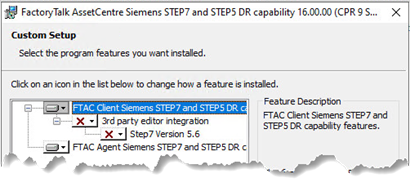
Tip: The Step7 version 5.6 component is not required for disaster recovery tasks; it merely associates project files with the appropriate editor. If the installation detects the Step7 editor file (S7tgtopx.exe) at either of the following paths, you can choose to install this component. If you have the Step7 editor files installed, make sure that they are at either of the following paths for the installation to detect.
C:\Siemens\Step7\s7bin
C:\Program Files\Siemens\Step7\s7bin or C:\Program Files (x86)\Siemens\Step7\s7bin
To install the Step7 version 5.6 component after the main installation, open the FTAC Siemens STEP7 and STEP5 DR capability installation package, and then select Modify to add this component.
Select Next, and then select Install. The disaster recovery capability works after the installation is completed successfully.
Tip: To uninstall this capability, open the FTAC Siemens STEP7 and STEP5 DR capability installation package, and then select Remove.
Disaster recovery schedule tasks fail with Device Not Found recorded in the FactoryTalk AssetCentre Event log
When a Logix controller asset’s Addressing property is configured using RSLinx Classic, Disaster Recovery schedule tasks may start failing with Device Not Found recorded in the FactoryTalk AssetCentre Event log. Rebooting the FactoryTalk AssetCentre Agent(s) will temporarily address the error, however, the task failures will eventually return. This behavior is addressed in an RSLinx Classic patch. For more information, see Knowledgebase Document ID: BF27867: Patch: High memory usage prevents FactoryTalk AssetCentre from completing inventory scan, Harmony 3.0.43, 3.0.44, 3.0.55.
FactoryTalk Directory asset compare
Differences are always found between two FactoryTalk Directory backup files after a Backup and Compare schedule, even though no changes are made to the FactoryTalk Directory. This is because the BAK files include timestamp information, which is detected as a difference during the binary compare of the backup files.
Event Log Attachment Extractor
The Event Log Attachment Extractor tool cannot properly extract event log attachments in the following two cases:
For Backup and Compare schedules that compare both backup data and configuration data, the event log attachment of the configuration data cannot be extracted by the Event Log Attachment Extractor tool.
When running a Backup and Compare schedule on the Generic FTP device with a custom compare engine, only the last compare report attachment can be extracted.
Generic FTP device compatibility
When performing backups or backup and compares on Generic FTP devices containing subdirectories, the FTP device must support both the "DIR" and "ls" commands. To verify, use the Command Line Prompt to sign in to the FTP device. Once logged in, type DIR and press Enter, and then type ls and press Enter. You should see the same results for each command issued.
FactoryTalk AssetCentre installation
The following are application notes related to FactoryTalk AssetCentre installation.
Impact of Microsoft deprecating VBScript
Microsoft announced the phased deprecation of VBScript in 2024. VBScript is now an optional feature beginning in Windows 11 24H2 and Windows Server 2025. Many FactoryTalk software products released before September 1, 2026, use VBScript during installation.
FactoryTalk AssetCentre versions 16.00.00 and earlier require VBScript for installation. Installation will fail if VBScript is not enabled.
To mitigate the problem, enable VBScript manually. For more information, see the Knowledgebase Document ID: IN41397 - Impact of Microsoft deprecating VBScript. FactoryTalk software products released after September 1, 2026, no longer rely on VBScript.
Install product updates
For the latest Product Updates and Patch information, refer to Knowledgebase Document ID: QA15600 - FactoryTalk AssetCentre Patch Roll-up for 3.0 and later.
You can subscribe to be notified when new product updates, or patches are released via the Knowledgebase by clicking Subscribe to Updates below the Knowledgebase answer title.
To download software or firmware updates, and patch roll-ups, go to Product Compatibility and Download Center.
Unattended or silent install
Use the command-line parameters to perform an unattended or silent installation of the software.
IMPORTANT: When installing or upgrading FactoryTalk AssetCentre to version 11.00.00 or later with SQL Server Authentication, you must use a silent or unattended setup to install it.Command-line parameters
The following table identifies the installation command-line parameters. Command-line parameters are case-insensitive. However, if a specified value includes a space, be sure to enclose the value in quotation marks (for example, "value with spaces").
|
Parameter |
Description |
|
/? |
Displays the usage options for installation parameters. |
|
/Q |
Silent Install, install runs in a quiet mode without any user
interface.
This parameter is recommended if you are deploying the software installation using an IT tool or script, and don’t expect to see any error or restart messages. When using this parameter, your IT tool or script should check the error codes and respond as needed. For example, if the installation returns error code 1641, then the IT tool or script should restart the computer and relaunch the installation after restart. This parameter is required if /QS or /Record is not specified. |
|
/QS |
Unattended Install, install runs in a mode that shows progress through the user interface, but does not accept any input. Error and restart messages are displayed. When using this parameter, the installation will stop and display a prompt if there are errors or restart messages. For example, if an immediate restart is required to complete the install, a restart message will be displayed to confirm the restart. Installation resumes automatically from the point of interruption after restart. This parameter is required if /Q or /Record is not specified. |
|
/IAcceptAllLicenseTerms |
Acknowledges acceptance of the license terms.
This parameter is required for /Q or /QS parameters. |
|
/AutoRestart |
Automatically restarts the computer after the installation is complete. Used when a restart is required to complete the installation. This parameter is optional. If this parameter is not used silent install (/Q) will return either error code 1641 or 3010 if a restart is required, and unattended install (/QS) will result in a confirmation prompt that must be agreed to before the installation is completed. |
|
/SetupLanguage="value" |
Specifies which language will be displayed during install process. The value must be the one of the following:
This parameter is optional. If this parameter is not used, the default language is the current user or operating system user interface language. |
|
/Record |
Records the installation options chosen to a recording file. When applied, the installation process automatically creates a recording file This parameter is optional. |
|
/Playback |
Plays back a recording file to specify the installation options. The value is the full path of the REC file to be used. For example, /Playback="C:\Users\ This parameter is optional. |
|
/IgnoreWarning |
Specifies that the setup ignores warnings and continues. This parameter is optional. If it is not specified, the setup exits when a warning occurs. |
|
/Product="value" |
Specifies which sub-products will be installed. The product name must be one of followings:
|
|
/Uninstall |
Uninstalls the product. This parameter is optional. |
|
/SerialNumber="value" |
Specifies the serial number of the software being installed. This is used to activate the software during installation. This parameter is optional. If it is not specified the software must be activated manually after installation if activation is required. Some software does not require activation. If activation is not required this parameter is not available. |
|
/ProductKey="value" |
Specifies the product key used to get activation keys during
installation.
This parameter is optional. If it is not specified the software must be activated manually after installation if activation is required. Some software does not require activation. If activation is not required this parameter is not available. |
|
/InstallDrive="value" |
Specifies the install drive. For example, /InstallDrive="D:". Some information and files will still be installed to the system volume (typically C:) even when a different target volume is specified. For example, registry entries. This parameter is optional. If this parameter is not used, the default install drive is C:. |
|
/IISCommPort |
Specifies the IIS server communication port for HTTPS. The default port for HTTPS is 443. The range is from 1025 through 49151. If the HTTPS port was previously configured using FactoryTalk Services Platform, like port 4356, then the existing HTTPS port setting is retained. This parameter is optional. |
|
/ftsp-bak |
Restores the backup file and specifies where the restore file can be found. Rockwell Automation provides a NETWORK_SECURE.BAK backup file containing pre-configured access control lists which limit user access. The pre-configured access control lists follow Rockwell Automation recommended best practice. To implement the access control, restore the NETWORK_SECURE.BAK backup file located in the FactoryTalk Services Platform installation package, Redist\FTSPSecureBak. The BAK file is only supported for the "global" scope, which can be specified with ftsp-s. This parameter is only available when restoring FactoryTalk Services Server or FactoryTalk Services Custom Installation. This parameter is optional. IMPORTANT: Applying a BAK file during installation will overwrite an existingFactoryTalkDirectory contents,use with caution when applying this parameter. |
|
/ftsp-pp |
Specifies the plain text used to decrypt the backup file. This parameter is only available when restoring FactoryTalk Services Server or FactoryTalk Services Custom Installation. This parameter is optional. |
|
/ftsp-value="value" |
Specifies to enable or disable the option Require computer accounts for all client machines in Security Policy. The option is used to determine whether a client computer account must exist in the directory to log in. Only "enable" and "disable" are supported. This parameter is optional. |
|
/FTSPWebAuth="value" |
Specifies that the installation includes the FactoryTalk Web Authentication Server. The FactoryTalk Web Authentication Server will be installed by default with FactoryTalk Services Server. This parameter is only available when installing FactoryTalk AssetCentre Server or FactoryTalk AssetCentre Custom Installation. This parameter is optional. The value must be one of the following:
If the value is Yes, the FactoryTalk Web Authentication Server will be installed. The FactoryTalk Reverse Proxy will also be installed as it is required for operation of the FactoryTalk Web Authentication Server.
If the value is No, the FactoryTalk Web Authentication Server will not be installed, but Internet Information Services (IIS) will be enabled. |
|
/ReverseProxy="value" |
Specifies that the installation includes the FactoryTalk Reverse Proxy. The FactoryTalk Reverse Proxy will be installed by default with FactoryTalk Services Server. This parameter is only available when installing FactoryTalk AssetCentre Server or FactoryTalk AssetCentre Custom Installation. This parameter is optional. The value must be one of the following:
If the value is Yes, the FactoryTalk Reverse Proxy will be installed.
If the value is No, the FactoryTalk Reverse Proxy will not be installed, but Internet Information Services (IIS) will be enabled. |
|
/FTSPWebEventServer="value" |
Specifies that the installation includes the FactoryTalk Web Event Server. The FactoryTalkWeb Event Server will be installedby default withFactoryTalkServices Server. This parameter is only available when installing FactoryTalk AssetCentre Server or FactoryTalk AssetCentre Custom Installation. This parameter is optional. The value must be one of the following:
If the value is Yes, the FactoryTalk Web Event Server will be installed. The FactoryTalk Reverse Proxy will also be installed as it is required for operation of the FactoryTalk Web Authentication Server.
If the value is No, the FactoryTalk Web Event Server will not be installed, but Internet Information Services (IIS) will be enabled. |
|
/SystemStatusPortal="value" |
Specifies that the installation includes the FactoryTalk System Status Portal. The FactoryTalkWeb Authentication Server and FactoryTalkReverse Proxy will be installed by default with the FactoryTalkSystem Status Portal. This parameter is only available when installing FactoryTalk AssetCentre Server or FactoryTalk AssetCentre Custom Installation. This parameter is optional. The value must be one of the following: If the value is Yes, the FactoryTalk System Status Portal will be installed. The FactoryTalk Reverse Proxy and FactoryTalk Web Authentication Server will also be installed as it is required for operation of the FactoryTalk System Status Portal.
If the value is No, the FactoryTalk System Status Portal will not be installed, but Internet Information Services (IIS) will be enabled. |
|
/DirectoryServer="value" |
Specifies the directory server name. This parameter is required when you specify a remote directory server. If it is not specified, the software will use its current computer as the FactoryTalk Directory server. The value must be the host name of the FactoryTalk Directory server. |
|
/noHTTPS |
Specifies that the setup turns off HTTPS and continues. This parameter is only available when installing FactoryTalk AssetCentre Server or FactoryTalk AssetCentre Custom Installation. This parameter is optional. If it is not specified, the setup turns on HTTPS for communication, and a TLS certificate must be configured after installation. |
|
/SqlServer="value" |
Specifies FactoryTalk AssetCentre database server (Microsoft SQL Server) location. This parameter is required when installing the FactoryTalk AssetCentre server software. |
|
/MSA="value" |
Specifies the Group Managed Service Account (gMSA) or Managed Service Account (MSA) that will be used by FactoryTalk AssetCentre Server to access the Microsoft SQL Server database when using Windows Authentication. This parameter is only available when installing FactoryTalk AssetCentre Server or FactoryTalk AssetCentre Custom Installation.
|
|
/sql |
Uses SQL Authentication between the FactoryTalk AssetCentre and Microsoft SQL Servers. The use of SQL Authentication is discouraged due to security concerns. This parameter is only available when installing FactoryTalk AssetCentre Server or FactoryTalk AssetCentre Custom Installation. This parameter is required if SQL authentication will be used over MSA. IMPORTANT: The use of SQL Authentication is discouraged due to security concerns. |
|
/sa |
Uses SQL Authentication for SQL Server signs in. This parameter is only available when installing FactoryTalk AssetCentre Server or FactoryTalk AssetCentre Custom Installation. If you use SQL Server Authentication to perform a silent or unattended installation, the parameters /SqlAdmin, and /SqlAdminPwd are required. |
|
/SqlAdmin="value" |
Specifies the Microsoft SQL Server administrator account name. This parameter is only available when installing FactoryTalk AssetCentre Server or FactoryTalk AssetCentre Custom Installation. |
|
/SqlAdminPwd="value" |
Specifies the Microsoft SQL Server administrator account password. This parameter is only available when installing FactoryTalk AssetCentre Server or FactoryTalk AssetCentre Custom Installation. |
|
/ThirdPartyConnectorAccount="value" |
Specifies a Windows user account with standard user permissions that you want to use to run the Agent Controller. This parameter is only available when installing FactoryTalk AssetCentre Agent or FactoryTalk AssetCentre Custom Installation. This parameter is required if you want to use Siemens, Mitsubishi, or Schneider connectors in your system. The format for the "value" is domain\username. Note: If this parameter is used during silent installation, the FactoryTalk AssetCentre Agent Controller will run as an application instead of a service. |
|
/Passphrase="value" |
Specifies a passphrase to generate or recover a database encryption key to encrypt the sensitive data in your specified database. This parameter is only available when installing FactoryTalk AssetCentre Server or FactoryTalk AssetCentre Custom Installation. This parameter is required if a database encryption key is not available in your FactoryTalk AssetCentre system. Note: The passphrase must be 8 through 16 characters which could be numbers, uppercase letters, lowercase letters, or special characters ! ' # $ % & ( ) * + , - . / : ; < = > ? @ [ ] ^ _ ` { | } ~ and single space. |
|
/KeyOverwrite |
Generates a new database encryption key using the entered passphrase to overwrite the old database encryption key. This parameter is only available when installing FactoryTalk AssetCentre Server or FactoryTalk AssetCentre Custom Installation. This parameter is required if a database encryption key has been used to encrypt your sensitive data in the specified database, and you have lost the previous passphrase for that database encryption key. To use /KeyOverwrite, the parameter /Passphrase is required. Note: The new database encryption key will only encrypt the new data in the database. The previously encrypted data can be updated by following Update the previously encrypted data in the database in the FactoryTalk AssetCentre Getting Results Guide. |
|
/TrustSQLSvrCrt |
Configures SQL Server to bypass certificate validation for the FactoryTalk AssetCentre server during encrypted communication. This parameter is only available when installing FactoryTalk AssetCentre Server or FactoryTalk AssetCentre Custom Installation. This parameter is optional. |
Error codes
The following table identifies the error codes that can be returned by an installation.
|
Error Code |
Value |
Description |
|
ERROR_SUCCESS |
0 |
The installation completed successfully. |
|
ERROR_INVALID_PARAMETER |
87 |
One of the parameters was invalid. |
|
ERROR_INSTALL_USEREXIT |
1602 |
The installation was cancelled by the user. |
|
ERROR_INSTALL_FAILURE |
1603 |
A fatal error occurred during installation or the software component to be installed already exists on the computer. |
|
ERROR_BAD_CONFIGURATION |
1610 |
The configuration data for this product is corrupt. Contact your support personnel. |
|
ERROR_REBOOT_CONTINUE |
1641 |
A reboot is required to continue to installation. |
|
ERROR_SUCCESS_REBOOT_REQUIRED |
3010 |
A restart is required to complete the installation. After restart the product is successfully installed. |
|
ERROR_REBOOT_PENDING |
3012 |
A restart is pending and is required before the installation can continue. |
|
ERROR_SUCCESS_NOT_APPLICABLE |
3013 |
The installation cannot proceed because the products are already installed. |
|
ERROR_SUCCESS_WARNING_REBOOT |
3014 |
Install succeed with warnings. Check installation logs for details. A restart is required to complete the installation. |
Examples
These examples show how to use installation commands in some common scenarios. Each of the subsequent examples demonstrates a specific case.
Example 1 demonstrates how to install a FactoryTalk AssetCentre server with remote Microsoft SQL Server and FactoryTalk Directory server using Windows authentication.
Example 2 demonstrates how to install a FactoryTalk AssetCentre server with Windows authentication for initial setup and SQL authentication for ongoing operation, and how to specify a customized drive other than the default drive C.
Example 3 demonstrates how to install a FactoryTalk AssetCentre server with SQL authentication for initial setup and Windows authentication for ongoing operation, and how to perform an unattended installation.
Example 4 demonstrates how to install a FactoryTalk AssetCentre server with SQL authentication for both initial setup and ongoing operation, and how to set up the displayed language during the installation.
Example 5 demonstrates how to install a FactoryTalk AssetCentre server while generating a new database encryption key with the passphrase to overwrite the old one.
Example 6 demonstrates how to install FactoryTalk AssetCentre agent that can run disaster recovery tasks for supported third-party controllers, including Siemens, Mitsubishi, and Schneider connectors.
IMPORTANT: When installing FactoryTalk AssetCentre through silent or unattended installation, quotes are required for the parameters with spaces (for example, /Product="AssetCentre Server" ).
Example 1: Install FactoryTalk AssetCentre server with remote Microsoft SQL Server and FactoryTalk Directory server using Windows authentication
D:\16.00.00-FTAssetCentre-DVDD\Setup.exe /Q /IAcceptAllLicenseTerms /Product="AssetCentre
Server" /SqlServer="RemoteSQLServer" /MSA="RA\FTACgMSA$" /Passphrase="Password!123" /
DirectoryServer=FTDServer /AutoRestart
These parameters mean:
FactoryTalk AssetCentre server version 16.00.00 will be installed on the default drive C.
The silent installation runs in a quiet mode without any user interface.
Windows authentication is used between the FactoryTalk AssetCentre and Microsoft SQL Server during and after installation.
The name of the specified Microsoft SQL Server is RemoteSQLServer.
The Group Managed Service Account (gMSA) or Managed Service Account (MSA) used by FactoryTalk AssetCentre to access the Microsoft SQL Server is RA\FTACgMSA$. /MSA is required when the FactoryTalk AssetCentre server and Microsoft SQL Server are on different computers.
A database encryption key generated by a passphrase is used to encrypt your sensitive information in the database. The passphrase will be set to Password!123.
The FactoryTalk Directory server, which is remote, is specified. The server’s name is FTDServer. This is required when the FactoryTalk AssetCentre server and FactoryTalk Directory server are on different computers.
- After the installation, if a restart is required, the computer will be restarted automatically.
Example 2: Install FactoryTalk AssetCentre server with Windows authentication for initial setup and SQL authentication for ongoing operation
D:\16.00.00-FTAssetCentre-DVDD\Setup.exe /Q /IAcceptAllLicenseTerms /Product="AssetCentre Server" /InstallDrive=D: /SqlServer="RemoteSQLServer" /sql /Passphrase="Password!123" / DirectoryServer=FTDServer /AutoRestart
These parameters mean:
FactoryTalk AssetCentre server version 16.00.00 will be installed on the drive D.
The silent installation runs in a quiet mode without any user interface.
During installation, Windows authentication is used between the FactoryTalk AssetCentre and Microsoft SQL Server. After installation, SQL authentication is used between the FactoryTalk AssetCentre and Microsoft SQL Server.
The name of the specified Microsoft SQL Server is RemoteSQLServer.
A database encryption key generated by a passphrase is used to encrypt your sensitive information in the database. The passphrase will be set to Password!123.
The FactoryTalk Directory server, which is remote, is specified. The server’s name is FTDServer. This is required when the FactoryTalk AssetCentre server and FactoryTalk Directory server are on different computers.
After the installation, if a restart is required, the computer will be restarted automatically.
Example 3: Install FactoryTalk AssetCentre server with SQL authentication for initial setup and Windows authentication for ongoing operation
D:\16.00.00-FTAssetCentre-DVDD\Setup.exe /QS /IAcceptAllLicenseTerms /Product="AssetCentre Server" /SqlServer="RemoteSQLServer" /sa /SqlAdmin="sa" /SqlAdminPwd="SqlAdminPwd" /MSA="RA
\FTACgMSA$" /Passphrase="Password!123" /DirectoryServer=FTDServer /AutoRestart
These parameters mean:
FactoryTalk AssetCentre server version 16.00.00 will be installed on the default drive C.
The unattended installation runs in a simple mode and shows progress through the user interface.
During installation, SQL authentication is used between the FactoryTalk AssetCentre and Microsoft SQL Server. After installation, Windows authentication is used between the FactoryTalk AssetCentre and Microsoft SQL Server.
The name of the specified Microsoft SQL Server is RemoteSQLServer.
The Group Managed Service Account (gMSA) or Managed Service Account (MSA) used by FactoryTalk AssetCentre to access the Microsoft SQL Server is RA\FTACgMSA$. /MSA is required when the FactoryTalk AssetCentre server and Microsoft SQL Server are on different computers.
The required Microsoft SQL Server administrator username and password are sa and SqlAdminPwd.
A database encryption key generated by a passphrase is used to encrypt your sensitive information in the database. The passphrase will be set to Password!123.
The FactoryTalk Directory server, which is remote, is specified. The server’s name is FTDServer. This is required when the FactoryTalk AssetCentre server and FactoryTalk Directory server are on different computers.
After the installation, if a restart is required, the computer will be restarted automatically.
Example 4: Install FTAC server with SQL authentication for both initial setup and ongoing operation
D:\16.00.00-FTAssetCentre-DVDD\Setup.exe /Q /IAcceptAllLicenseTerms /SetupLanguage=ENU /Product="AssetCentre Server" /SqlServer="RemoteSQLServer" /sa /SqlAdmin="sa" /
SqlAdminPwd="SqlAdminPwd" /sql /Passphrase="Password!123" /DirectoryServer=FTDServer /
AutoRestart
These parameters mean:
FactoryTalk AssetCentre server version 16.00.00 will be installed on the default drive C.
The silent installation runs in a quiet mode without any user interface.
The displayed language is English during the installation.
SQL authentication is used between the FactoryTalk AssetCentre and Microsoft SQL Server during and after installation.
The name of the specified Microsoft SQL Server is RemoteSQLServer.
The required Microsoft SQL Server administrator username and password are sa and SqlAdminPwd.
A database encryption key generated by a passphrase is used to encrypt your sensitive information in the database. The passphrase will be set to Password!123.
The FactoryTalk Directory server, which is remote, is specified. The server’s name is FTDServer. This is required when the FactoryTalk AssetCentre server and FactoryTalk Directory server are on different computers.
After the installation, if a restart is required, the computer will be restarted automatically.
Example 5: Install FactoryTalk AssetCentre server while generating a new database encryption key with the passphrase to overwrite the old one
D:\16.00.00-FTAssetCentre-DVDD\Setup.exe /Q /IAcceptAllLicenseTerms /Product="AssetCentre
Server" /SqlServer="RemoteSQLServer" /MSA="RA\FTACgMSA$" /Passphrase="NewPassword!123" /
KeyOverwrite /FTSPWebAuth=yes /AutoRestart
These parameters mean:
FactoryTalk AssetCentre server version 16.00.00 will be installed on the default drive C.
The silent installation runs in a quiet mode without any user interface.
Windows authentication is used between the FactoryTalk AssetCentre and Microsoft SQL Server during and after installation.
The name of the specified Microsoft SQL Server is RemoteSQLServer.
The Group Managed Service Account (gMSA) or Managed Service Account (MSA) used by FactoryTalk AssetCentre to access the Microsoft SQL Server is RA\FTACgMSA$. /MSA is required when the FactoryTalk AssetCentre server and Microsoft SQL Server are on different computers.
A database encryption key generated by a passphrase is used to encrypt your sensitive information in the database, and you have lost the previous passphrase for that database encryption key. A new passphrase will be set to NewPassword!123.
The FactoryTalk Directory server, which is remote, is specified. The server’s name is FTDServer. This is required when the FactoryTalk AssetCentre server and FactoryTalk Directory server are on different computers.
After the installation, if a restart is required, the computer will be restarted automatically.
Example 6: Install FactoryTalk AssetCentre agent that can run disaster recovery tasks for supported third-party connectors
D:\16.00.00-FTAssetCentre-DVDD\Setup.exe /Q /IAcceptAllLicenseTerms
/Product="AssetCentre Agent" /InstallDrive=D: /ThirdPartyConnectorAccount="RA\Siemens" /AutoRestart
These parameters mean:
FactoryTalk AssetCentre agent version 16.00.00 will be installed on drive D.
The silent installation runs in a quiet mode without any user interface.
A Windows user account with standard user permission RA\Siemens is specified to run the Agent Controller. This is required if you want to use Siemens, Mitsubishi, or Schneider connectors in your system.
After the installation, if a restart is required, the computer will be restarted automatically.
Handling double quotation marks and backslashes in /Passphrase parameters
When specifying a passphrase to generate a database encryption key using theparameter in silent installations, be cautious with double quotation marks (") and backslashes (\). Microsoft has specific rules when interpreting command-line arguments. Incorrectly formatted command-line arguments can lead to FactoryTalk AssetCentre installation failures and other unexpected issues.
Although FactoryTalk AssetCentre theoretically supports the use of double quotation marks and backslashes, we recommend avoiding them in both silent and interactive installations to prevent potential issues.
The following table shows how specific formats in the input values (left column) can lead to unexpected results (right column) when using the /Passphrase parameter.
|
Command Line Inputs
|
Resulting Command Line Arguments
|
|
/Passphrase="abcdefg"h"
|
abcdefgh
|
|
/Passphrase="abcdefg""h"
|
abcdefg"h
|
|
/Passphrase="abcdefg\"h"
|
abcdefg"h
|
|
/Passphrase="abcdefg\\\"h"
|
abcdefg\"h
|
|
/Passphrase="abcdefg\\"
|
abcdefg\
|
|
/Passphrase="abcdefg\\\h"
|
abcdefg\\\h
|
|
/Passphrase="abcdefg\\\\h"
|
abcdefg\\h
|
|
/Passphrase="abcdefg\\\\"h"
|
abcdefg\\h
|
These examples are illustrative and not exhaustive. For more information, see Microsoft article: Parsing C command-line arguments.
Copyright © 2026 Rockwell Automation, Inc. All rights reserved.
Rockwell Automation, Allen-Bradley, and FactoryTalk are trademarks of Rockwell Automation, Inc.
To view a complete list of Rockwell Automation trademarks please click here.
Trademarks not belonging to Rockwell Automation are property of their respective companies.