
Release Notes
The TotalFORCE Medium Voltage Drive to control all non-regen applications for Induction and Permanent Magnet Motors
Version 10.002 (released 11/2024)
Catalog Number PowerFlex 6000T (series A)
Requirements
This release has the following requirements.
Firmware Revision Control
- 10.002: Present firmware revision, which includes:
- Enhancement to the Transformer Predictive Maintenance feature
- Improvement to the logic for turning on the control pod fans
- Various anomaly fixes
- 10.001: Includes:
- Support for operating permanent magnet motors in scalar control modes – V/Hz and Sensorless Vector Control (SVC)
- Ability to control the built-in secondary precharge circuit
- Standard for 408 A (ND) and 326 A (HD) drive ratings and above.
- Available as CMOD for B-frame drives below 408 A (ND) and 326 A (HD)
- Ability to receive predictive life alerts for the transformer and air filter maintenance, with the required hardware installed
- Install and connect a secondary EtherNet/IP™ network with the ENETR card option, which helps to maintain active connection to the drive from the eHIM and/or Connected Components Workbench™ software when a connection with a Logix controller is active.
- Ability to use enhanced Common Industrial Protocol (CIP™) and Intelligent Devices (ITD) data objects for easier integration to Rockwell Automation® and FactoryTalk® services such as GuardianAI
- Secured and simple common user experience with built-in CIP Security™ and ability to connect and control the drive using multiple user interfaces in the operator’s local language
- Upgraded eHIM interface that includes startup wizard for all supported motors and control modes
- Firmware revision 10.001 also addresses any customer issues that were addressed with intermittent firmware revision 9.00x patches.
- 9.001: Includes:
- Upgrades to operate new series of Power Cells, series B, for the A,B and Regional Frame Drives for PowerFlex® 6000T
- Increased Capability to control high-speed applications up to 120 Hz
- Support for regional languages for User Interfaces – English, Portuguese, French, German, Spanish, Simplified Chinese, Polish and Russian.
- Major anomaly fixes – 388 Days, Security Fixes, Secure Erase
- CIP Security Enabled
- 8.002: Includes upgrades to operate new series of Power Cells, series B, for the A and B Frame Drives for PowerFlex 6000T
- 8.001: Includes the updates for the new features introduced for PowerFlex 6000T
in the release, viz.
- Flux Vector Control – With and Without Encoders
- Load Sharing
- Adaptive Control
- Maintenance Analytics – Predictive and Preventative Maintenance
- 7.002: Includes a change in the security key configuration to align with PowerFlex 755T low voltage drives and allows loading of future firmware updates. Also, a minor anomaly fix is included in this revision.
- 7.001: First shipments of PowerFlex 6000T drives had firmware revision 7.001 installed at shipment. All were updated to firmware revision 7.002 by Rockwell Automation during product commissioning. Therefore, Release Notes specifically for firmware revision 7.001 have not been created and posted to PCDC (Product Compatibility and Download Center).
7.xxx is the first firmware package for PowerFlex 6000T drives. The number “7” before the decimal denotes the major revision.
Earlier firmware revisions (1.xxx, 2.xxx, 3.xxx, 4.xxx, 5.xxx, and 6.xxx) apply to PowerFlex Medium Voltage Drive configurations that are built with a different control hardware architecture and a different firmware database.
Updating from those firmware revisions is an intensive process. Contact your Rockwell Sales Office or Technical Support for enquiries.
Features
This release includes the following system features.
Enhanced Transformer Predictive Maintenance
Feature first identified as of Firmware Revision 10.002
Bulletin Number: 6000T
This firmware revision enhances the Transformer Predictive Maintenance feature to normalize the measured AC Line Current with the calculated RMS value before using it in the Predictive Maintenance algorithm.
Improved Logic for Turning on Control Pod Fans
Feature first identified as of Firmware Revision 10.002
Bulletin Number: 6000T
This firmware revision improves the logic to turn on the Control Pod fans based on temperature thresholds for both the SFIB Board and the MPU.
Corrected Anomalies in This Release
This release corrects the following anomalies.
Incorrect Estimated Transformer Life in Dual Transformer Configuration
Corrected Anomaly as of Firmware Revision 10.002
Bulletin Numbers: 6000T
This firmware revision resolves the anomaly where the predictive estimation of the life of each transformer in dual transformer configuration was incorrect.
False Fiber Offline Faults when Drive is in Standby Mode
Corrected Anomaly as of Firmware Revision 10.002
Bulletin Numbers: 6000T
This firmware revision resolves the anomaly where false Fiber Offline faults are reported when the drive is in Standby mode.
Indefinite Precharge Cycles When no Medium Voltage Applied to Main Input Device
Corrected Anomaly as of Firmware Revision 10.002
Bulletin Numbers: 6000T
This firmware revision resolves the anomaly in Secondary Precharge testing, where indefinite Precharge cycles can occur when no Medium Voltage is applied to the Main Input Device.
Incorrect Internal Temperature Readings
Corrected Anomaly as of Firmware Revision 10.002
Bulletin Numbers: 6000T
This firmware revision resolves the anomaly where incorrect internal temperature readings are reported due to synchronization errors between internal clocks.
Frame A Drives – Remaining Fans in the Group Stop Operating After One Fan Fails
Corrected Anomaly as of Firmware Revision 10.002
Bulletin Numbers: 6000T
This anomaly occurs in the Group Fan Control for Non-Redudant Fan configuration for Frame A drives, where one fan failure causes the remaining fans to stop operating.
This firmware revision resolves this anomaly and confirms that the remaining fans are in continuous operation after the failure of one fan.
Known Anomalies in This Release
This release has the following known anomalies.
Predictive Maintenance Page does not Display upon Initial Connection to Connected Components Workbench Software
Known Anomaly first identified as of Firmware Revision 10.002
Bulletin Numbers: 6000T
When the Predictive Maintenance feature is enabled, occasionally the Predictive Maintenance page does not display its contents upon initial connection to Connected Components Workbench™ software.
You can cycle control power to restore the display.
Application Notes
This release has the following application notes.
Application Notes first identified as of Firmware Revision 10.002
Bulletin Number: 6000T
- Firmware Update
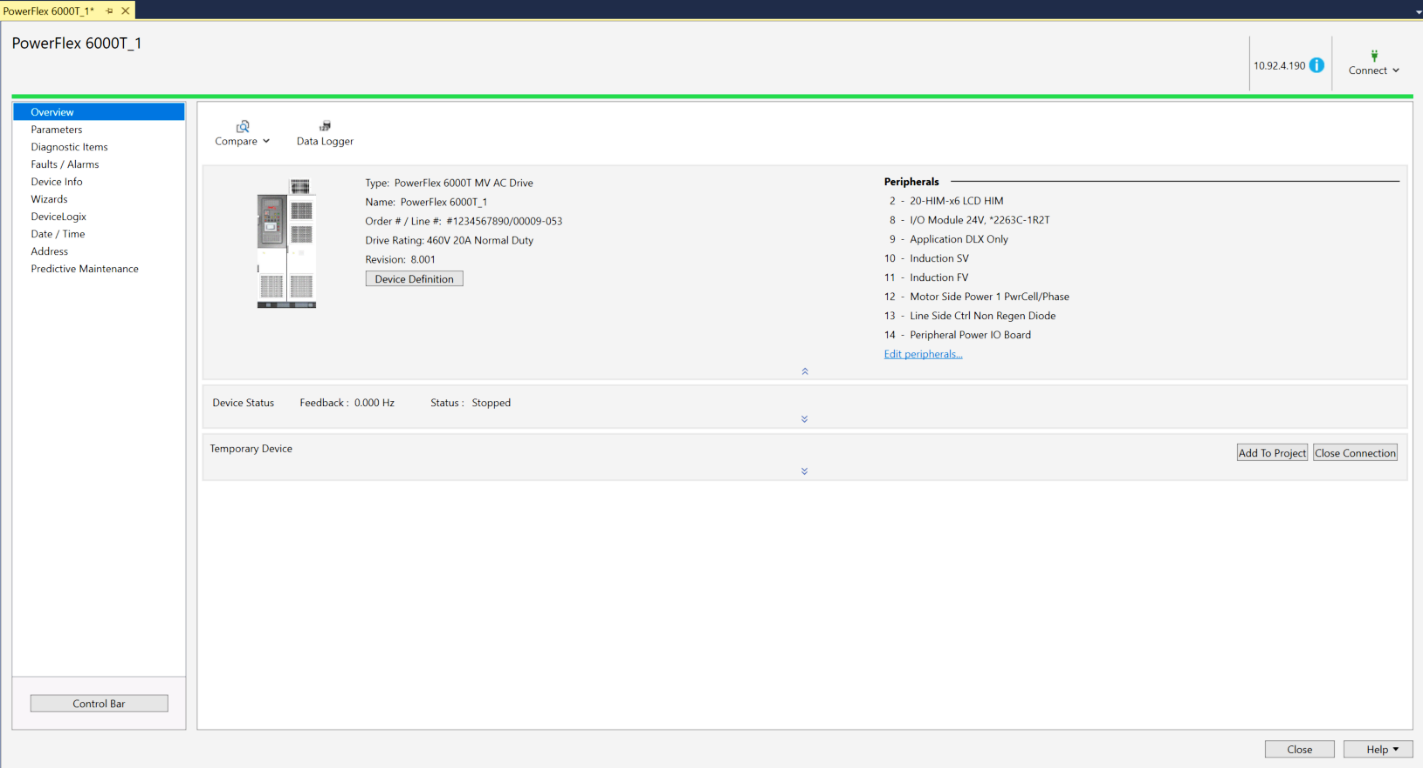
The firmware revision can be verified in the Overview screen in Connected Components Workbench™ software version 22 or later, or Studio 5000 Logix Designer® application.
If the firmware revision is earlier than 10.002 (for example 9.001), updating to firmware revision 10.002 or later is required to get all features that are available with the 10.002 release.
This firmware revision may also require additional hardware such as sensors for options such as predictive maintenance alerts.
For more information on updating the firmware revision, see the PowerFlex 6000T Drives Programming Manual, publication 6000-PM100.
Before You Begin a Firmware Update
- PowerFlex® 6000T firmware revisions 7.xxx and later are provided as a *.dmk file.
Download the file from PCDC (Product Compatibility and Download Center).
Select the file for firmware revision 10.002.
- ControlFLASH Plus™ software is the recommended application for upgrading your firmware when using a *.dmk file.
|
IMPORTANT
|
ControlFLASH™ is NOT supported for PowerFlex 6000T main control board
firmware updates. Only use ControlFLASH Plus.
|
- For instructions on how to install ControlFLASH Plus™ software, see the ControlFLASH Plus Quick Start Guide, publication CFP-QS001, or the ControlFLASH Firmware Upgrade Kit User Manual, publication 1756-UM105.
- For instructions on how to use ControlFLASH Plus to upgrade your PowerFlex 6000T product firmware, see the topic “Use ControlFLASH Plus to update firmware” in the ControlFLASH Plus Quick Start Guide.
We recommend that you download and use the latest version of Connected Components Workbench™ software version 22 or later, and Studio 5000 Logix Designer® application.
Update from firmware revision 9.001 to 10.002
- Launch Connected Components Workbench software and connect to the drive.
- Power down the control bucket.
If you are updating from firmware revision 7.001, you must also remove all option cards. - Power up the control bucket and connect to the drive using Connected Components Workbench software. Accept the new configuration.
- Update the drive to firmware revision 10.002 using the ControlFLASH Plus software.
- Connect to the drive using Connected Components Workbench software.
- Power down the control bucket.
If you are updating from firmware revision 7.011, you must also reinstall all option cards. - Power up the control bucket and connect to the drive using the Connected Components Workbench software. Accept the new configuration.
- eHIM Application Update
Prerequisite: You must download and install version 1.03 for eHIM from the Rockwell Automation PCDC website.
Update to firmware revision 10.002 for the PowerFlex 6000T drive.
The firmware revision file, a *.dmk file, can be downloaded from the Rockwell Automation PCDC website. ControlFLASH Plus™ software is the recommended application to update your firmware when using a *.dmk file,
- Power down the eHIM module.
- Remove the eHIM module’s Ethernet connection from the product.
- Connect the Ethernet connection to a network with internet connection. If required, change the IP address settings. Before doing so, record the existing settings so that they can be set back at the end of the procedure.
- Download the latest version of the “Enhanced HIM” software from the “Rockwell Automation Download Center” to the local “Download” folder on your computer.
- Once downloaded, power down the eHIM module and remove the Ethernet connection from the network with internet connection.
- Power up the eHIM module.
- Go to the “Download” folder and double-click on the file “EnhancedHIM.Installer.Bootstrapper.exe”.
- Follow the on-screen installation instructions to complete the Enhanced HIM software update installation.
- Connect the Ethernet
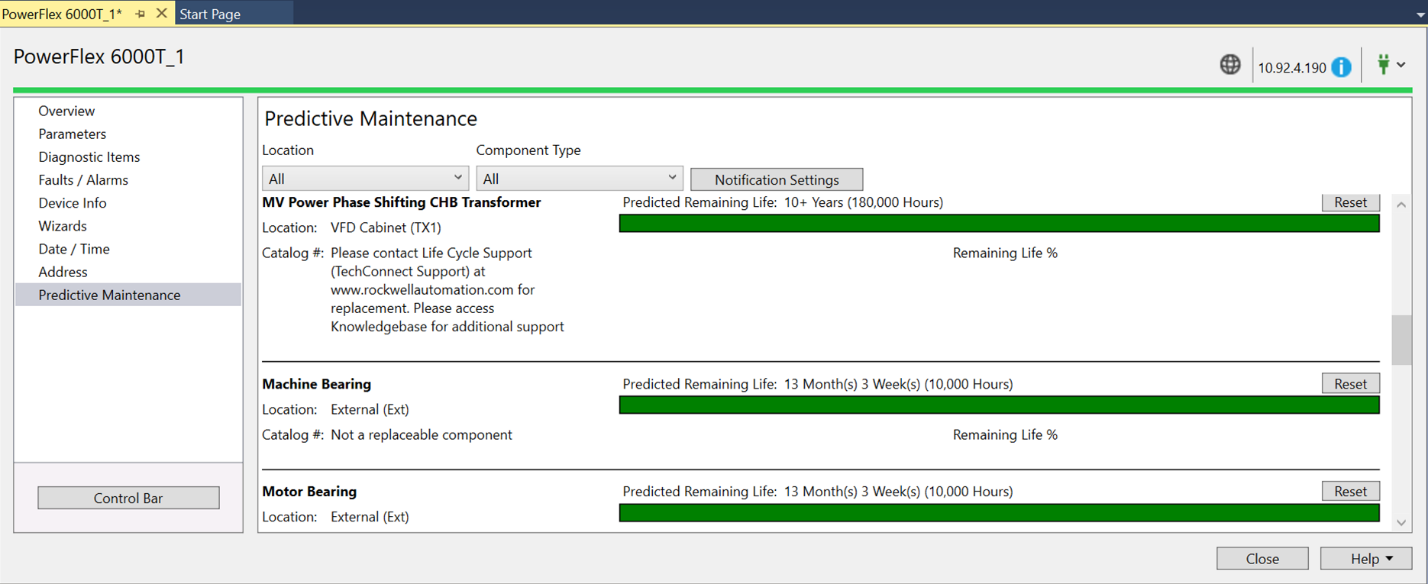
- Predictive Maintenance Dashboard in Connected Components Workbench software and Studio 5000 Logix Designer application
To view the option for the Predictive Maintenance dashboard in the explorer tree, download and use the following software from PCDC (Product Compatibility and Download Center).
- Connected Components Workbench (CCW) Standard Edition (free) single software to program – version 22 or later
- Studio 5000 Logix Designer – version 32.04.00 or later
The following dashboard example is visible from the explorer tree and shows the predicted life of the fans in the drive.
Copyright © 2026 Rockwell Automation, Inc. All rights reserved.
Rockwell Automation, Allen-Bradley, and FactoryTalk are trademarks of Rockwell Automation, Inc.
To view a complete list of Rockwell Automation trademarks please click here.
Trademarks not belonging to Rockwell Automation are property of their respective companies.