
Release Notes
FactoryTalk Updater
Version 4.00.00 (released 11/2022)
Catalog Number FactoryTalk Updater
Requirements
This release has the following requirements.
FactoryTalk Updater works within the system requirements of all Rockwell Automation® software products. For the latest compatibility information, refer to the Product Compatibility and Download Center.
FactoryTalk Updater does not have any specific hardware requirements. It runs on any hardware platform that supports the required software, either locally or on a virtual machine.
Rockwell Automation recommends at least 80 MB of available drive space for FactoryTalk Updater.
- Operating systems:
- Windows 10 Professional Edition 64-bit v21H1
- Windows 10 Enterprise Edition 64-bit v21H2
- Windows 10 Enterprise 2019 LTSC(1809)
- Windows 10 Enterprise 2021 LTSC 64-bit (21H2)
- Windows 11 Enterprise 64-bit v21H2
- Windows 11 Professional 64-bit v21H2
- Windows Server® 2019 Standard
- Windows Server 2019 DataCenter
- Windows Server 2022 DataCenter
- Windows Server 2022 Standard
- Internet browsers:
- Edge™
- FactoryTalk Updater web client: Chrome™ browser
- FactoryTalk Updater web client: Firefox®
- Additional software:
- .NET Framework 4.8
- Rockwell Software Windows Firewall Configuration Utility 1.00.16
- Microsoft .NET Hosting v6.0.4.22172 and IIS URL Rewrite Module v7.2.1993
Features
This release includes the following system features.
FactoryTalk Updater version 4.00.00 has these new and enhanced features:
- Export information on all Add-On Profiles (AOP).
- Use the FactoryTalk Updater application in a browser.
Known Anomalies in This Release
This release has the following known anomalies.
Anomalies for FactoryTalk Updater version 4.00.00
These lists identify the anomalies corrected in FactoryTalk Updater version 4.00.00 and the known anomalies found during testing or reported by customers for this release. Use the identification information provided in the brackets [] to track an anomaly in future releases or to request assistance from Customer Support with a related issue.
Corrected anomalies
- None in this release.
Known anomalies
- None in this release.
Functional Changes
This release has the following functional changes from the previous release.
None in this release.
Application Notes
This release has the following application notes.
These application notes apply to FactoryTalk Updater version 4.00.00.
OneApp.IGCC.WinService.exe, part of the Intel® graphics driver, sometimes occupies the default NetTcp port and blocks port sharing. The block prevents some Windows Communication Foundation (WCF) applications, including FactoryTalk Updater, from using the NetTcp port.
To work around this issue, follow the instructions in this TechConnect article:
https://rockwellautomation.custhelp.com/app/answers/answer_view/a_id/1128478
FactoryTalk Updater version 4.00.00 uses Windows authentication to enhance product security. This requires FactoryTalk Agent and FactoryTalk Server machines to be in the same domain.
To open the FactoryTalk Updater application in a browser you must use Transport Layer Security (TLS) 1.2 or later. Rockwell Automation recommends that you disable TLS 1.0 and TLS 1.1 in the system. Rockwell Automation also recommends using a certificate signed from your organization's internal certification authority (CA) or a commercial certification authority. Alternately, you can create a self-signed certificate on the FactoryTalk Updater server computer.
Follow these steps to create a self-signed certificate:
- On the FactoryTalk Updater server computer, run the following PowerShell command to create a self-signed certificate:
New-SelfSignedCertificate -FriendlyName EXAMPLE_CERT_NAME -DnsName EXAMPLE_FULL_COMPUTER_NAME -KeyUsage DigitalSignatureReplaceEXAMPLE_CERT_NAMEwith the name that should appear in the Server Certificates list in Internet Information Services (IIS). For example, use the name "FTUpdater".ReplaceEXAMPLE_FULL_COMPUTER_NAMEwith the fully qualified domain name of the server. For example, use the name4sk2h63.example.com. - Open the Internet Information Services (IIS) Manager application.
- Select Server Certificates.
- In the Server Certificates window, verify the self-signed certificate is visible in the list.
- (optional) If you have a CA certificate, right-click in Server Certificates, then:
- If you have a PFX file containing the certificate (public keys) and the correspondig private keys, select Import.
- If you have a file from a CA containing the CA's response (such as a CER file), select Complete Certificate Request.
- In the Connections list, right click the UpdaterWebServer certificate and select Edit Bindings.
- In the Site Bindings dialog, select the https binding and select Edit.
- In the Edit Site Binding dialog, in the SSL certificate menu, select the certificate and select OK.
- In the Connections list, right click the certificate and select Manage Website > Restart.
Follow these steps to export the self-signed certificate as a PFX file:
- On the FactoryTalk Updater server computer, open the Internet Information Services (IIS) Manager application.
- Select Server Certificates.
- In the Server Certificates window, identify the self-signed certificate, then write down or copy its Certificate Hash value. This value will be used in the following steps.
- Open PowerShell, then run the following command to create a password for the PFX file:
$mypwd = ConvertTo-SecureString -String 'EXAMPLE_PASSWORD' -Force -AsPlainTextReplaceEXAMPLE_PASSWORDwith the password that will secure the self-signed certificate. - In the same PowerShell window, run the following command to export the self-signed certificate as a PFX file:
$cert = Get-ChildItem -Path Cert:\LocalMachine\My\EXAMPLE_CERTIFICATE_HASH | Export-PfxCertificate -FilePath C:\mypfx.pfx -Password $mypwdReplaceEXAMPLE_CERTIFICATE_HASHwith the Certificate Hash value identified in previous steps. For example, the value might beca7e070c4448bc7ae47db59b65e39e8199edae08.ReplaceC:\mypfx.pfxwith the file path for the new self-signed PFX file.
Follow these steps to import the self-signed PFX file on FactoryTalk Updater client computers:
- Copy the PFX file created in the previous steps to the FactoryTalk Updater client computer.
- Double-click on the PFX file. The Certificate Import Wizard appears.
- For Store Location, select Local Machine and select Next.
- Verify that the certificate file name appears in the File name box and select Next.
- Enter the password that you set for the certificate and select Next.
- Select Place all certificates in the following store and select Browse to open the Select Certificate Store dialog.
- Select the Trusted Root Certification Authorities folder and select OK.
- Select Next.
- Select Finish.
When you create a self-signed certificate for using FactoryTalk Updater in a browser, the default HTTPS port number is 60129. To assign a different HTTPS port number, you need to complete these tasks:
- Configure a Windows firewall rule for the self-defined port.
- Change the port for the default website to the self-defined port in the Internet Information Services (IIS) Manager application.
To configure a Windows firewall rule for the self-defined port:
- On the FactoryTalk Updater server computer, on the Start menu, search for Windows Firewall With Advanced Security and open it.
- Right click Inbound Rules and select New Rule.
- In the New Inbound Rule Wizard dialog, select Port, and then select Next.
- In the Steps menu, select TCP Protocol and Ports.
- Select Specific local ports and enter a self-defined port number, such as
50000. Select Next. - In the Steps menu, select Name.
- In the Name field, enter a name for the new inbound rule, such as
FTUpdater Web Client Site New Port, and select Finish.
To change the port for the default website to the self-defined port in the IIS Manager application:
- On the FactoryTalk Updater server computer, open the Internet Information Services (IIS) Manager application.
- Select Server Certificates.
- In the Connections list, under Sites, right-click the
UpdaterWebServercertificate then select Edit Bindings. - In the Site Bindings dialog, select the https binding item and select Edit.
- In the Edit Site Binding dialog, in the Port box, enter the self-defined port number (for example, 50000) and select OK.
- In the Connections list, under Sites, right click the
UpdaterWebServercertificate then select Manage Website > Restart.
https://server-computer-name:50000For server-computer-name, you can insert the IP address or the fully qualified domain name for your FactoryTalk Updater server.
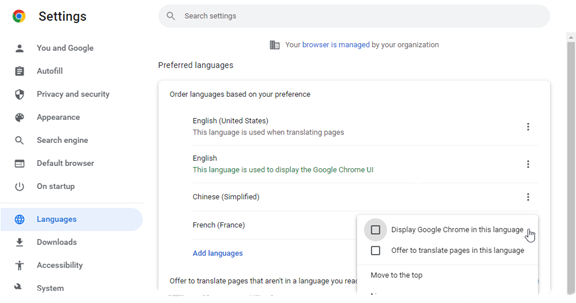
To change the display language for the FactoryTalk Updater web client, select a preferred language in your browser settings. The web client supports these languages:
- Chinese (Simplified)
- French (France)
- German (Germany)
- Italian (Italy)
- Japanese
- Korean
- Portuguese (Brazil)
- Spanish (Spain)
This example shows the language setting in the Chrome browser.
FactoryTalk Updater sometimes displays the status message Disconnected, check system log for details while using a proxy server. Refer to this Knowledgebase article for more information:
https://rockwellautomation.custhelp.com/app/answers/answer_view/a_id/1131670
In this release, some fields in tables in the License, Machines, and Activations tabs are not localized and appear only in English.
Install the required functionality for FactoryTalk Updater:
FactoryTalk Updater Agent collects information and activation license data from the Rockwell Automation software installed on the computer. Install the FactoryTalk Updater Agent on each computer that requires data collection. This is the default functionality installed with most Rockwell Automation software.
 |
Tip: Install FactoryTalk Agent and FactoryTalk Server
machines in the same domain.
|
FactoryTalk Updater Server:
- Communicates with online FactoryTalk Updater Agents to receive collected data.
- Connects to the Product Compatibility and Download Center to retrieve the latest software information.
- Responds to requests from the FactoryTalk Updater Client.
- Supports ~100 online Agents.
 |
Tip: To avoid issues, limit FactoryTalk Updater Server
installations to one instance per intranet.
|
FactoryTalk Updater Client is the user interface that displays information collected by the FactoryTalk Updater Server. Install FactoryTalk Updater Client to display information from the intranet.
Use a custom installation to install more than one FactoryTalk Updater functionality.
- Download the current version of FactoryTalk Updater software.
- Launch Setup.exe.
- In Select product to install, select one of these options: Agent, Server, Client, Custom Installation.
- For the Custom Installation, select Customize.
- Select the required options and select Install.
- Select Install now to start the installation.
- Read and consent to the End User License Agreements by selecting Accept all. The installation starts and a bar displays the progress.
- When prompted to restart the computer during the installation, select Restart now to restart the computer and continue the installation. Select Restart later to suspend and exit the installation.
- After restarting the computer, FactoryTalk Updater is ready to use. Select Close to exit the installation or perform one of these steps:
- Select Installation Summary to see the installation details.
- Select Register for updates to learn how to receive email updates about product patches.
- Select Download it free to install Adobe Acrobat Reader.
- Launch FactoryTalk Updater. When requested, enter the User Name and Password credentials for the Windows® account of the Server machine.
During operation, FactoryTalk Updater opens these firewall ports on the server:
|
Port Type
|
Port Number
|
Description
|
|
TCP
|
808
|
Allows the Updater agent and client to connect to the
Updater server.
|
|
TCP
|
60129
|
Allows access to the web-based FactoryTalk Updater
client.
|
|
UDP
|
137
|
Used to ping computer names.
|
|
Network-Echo Request
(ICMPv4-In)
|
Allows one computer to contact or ping another computer
to test network communications.
| |
During operation, FactoryTalk Updater opens these firewall ports on the agent:
|
Port Type
|
Port Number
|
Description
|
|
TCP
|
30064
|
Allows access to the agent service to change the server
address.
|
|
UDP
|
3702
|
Allows Auto Discovery broadcast message.
|
|
UDP
|
137
|
Used to ping computer names.
|
|
Network-Echo Request
(ICMPv4-In)
|
Allows one computer to contact or ping another computer
to test network communications.
| |
To ensure FactoryTalk Updater can access the Product Compatibility and Download Center (PCDC) data and download the latest patches, add these URLs to the firewall exception list:
- api.rockwellautomation.com
- idp.rockwellautomation.com
- netstorage.rockwellautomation.com
FactoryTalk Updater detects information for these software applications:
- BootP DHCP EtherNet/IP Tool
- Connected Components Workbench (CCW)
- ControlFLASH
- ControlFLASH Plus
- EtherNet/IP Address Commissioning Tool
- FactoryTalk Activation
- FactoryTalk AssetCentre
- FactoryTalk Edge Gateway
- FactoryTalk Historian Batch Interface
- FactoryTalk Historian SE Server
- FactoryTalk Historian to Historian Interface
- FactoryTalk Linx CommDTM
- FactoryTalk Linx Data Bridge
- FactoryTalk Linx Gateway
- FactoryTalk Linx RMCT
- FactoryTalk Logix Echo
- FactoryTalk Metrics
- FactoryTalk Network Manager
- FactoryTalk Policy Manager
- FactoryTalk Services (includes FactoryTalk Services Platform, FactoryTalk Linx, and FactoryTalk Alarms and Events)
- FactoryTalk Transaction Manager
- FactoryTalk Updater
- FactoryTalk VantagePoint
- FactoryTalk View Machine Edition
- FactoryTalk View Site Edition
- FactoryTalk ViewPoint
- Logix Designer Compare Tool
- RSLinx Classic
- RSLinx Classic Lite
- RSLogix 5
- RSLogix 500
- RSLogix Micro
- RSNetWorx
- Studio 5000® Application Code Manager™
- Studio 5000 Architect
- Studio 5000 Logix Designer
- Studio 5000 Logix Emulate
- Studio 5000 Simulation Interface
- Studio 5000 View Designer
- Patch Roll-up CPR9 SRx
Use command-line parameters to perform an unattended or silent installation of the software.
This table identifies the installation command-line parameters. Command-line parameters are case-insensitive. However, if a specified value includes a space, be sure to enclose the value in quotation marks (for example, "value with spaces").
|
Parameter
|
Description
|
|
/?
|
Displays the usage options for installation parameters.
|
|
/Q
|
Silent Install, install runs in a quiet mode without any user
interface.
This parameter is recommended when deploying the software
installation using an IT tool or script, and don’t expect any error
or restart messages. When using this parameter, check the
error codes, and respond as needed. For example, if the
installation returns error code 1641, then the IT tool or script
should restart the computer and relaunch the installation after
restart.
This parameter is required if /QS is not specified.
|
|
/QS
|
Unattended Install, install runs in a quiet simple mode and
shows progress through the UI, it does not accept any input but
still shows error or restart messages.
When using this parameter, the installation will stop and display
a prompt if there are error or restart messages. For example, if
an immediate restart is required to complete the install, a
restart message will be displayed to confirm the restart.
Installation resumes automatically from the point of interruption
after restart.
This parameter is required if /Q is not specified.
|
|
/IAcceptAllLicenseTerms
|
Acknowledges acceptance of the license terms.
This parameter is required for /Q or /QS parameters.
|
|
/AutoRestart
|
Automatically restarts the computer after the installation is
complete. Used when a restart is required to complete the
installation.
This parameter is optional. If this parameter is not used silent
install (/Q) will return either error code 1641 or 3010 if a restart
is required, and unattended install (/QS) will result in a
confirmation prompt that must be agreed to before the
installation is completed.
|
|
/Record
|
Records the installation options chosen to a recording file.
This parameter is optional.
|
|
/Playback
|
Plays back a recording file to specify the installation options.
This parameter is optional.
|
|
/SetupLanguage="value"
|
Specifies which language is displayed during install process.
The value must be the one of these:
This parameter is optional. If this parameter is not used, the
default language is the current user or operating system user
interface language.
|
|
/Product="value"
|
Specifies which sub-products will be installed.
The product name must be one of these:
|
|
/IgnoreWarning
|
Specifies that the setup ignores warnings and continues.
This parameter is optional. If it is not specified, the setup exits
when a warning occurs.
|
These examples show how to use the installation commands.
- To install the software with no user interface using the default settings during the installation process. (Silent install)
- To install the software with a Chinese language installation and display the progress, error, or complete messages during installation and restart the computer if necessary. (Unattended install)
This table identifies the error codes that can be returned by an installation.
|
Error Code
|
Value
|
Description
|
|
ERROR_SUCCESS
|
0
|
The installation completed successfully.
|
|
ERROR_INVALID_PARAMETER
|
87
|
One of the parameters was invalid.
|
|
ERROR_INSTALL_USEREXIT
|
1602
|
The installation was cancelled by the user.
|
|
ERROR_INSTALL_FAILURE
|
1603
|
A fatal error occurred during installation.
|
|
ERROR_BAD_CONFIGURATION
|
1610
|
The configuration data for this product is
corrupt. Contact your support personnel.
|
|
ERROR_REBOOT_CONTINUE
|
1641
|
A reboot is required to continue to
installation.
|
|
ERROR_SUCCESS_REBOOT_REQUIRED
|
3010
|
A restart is required to complete the
installation. After restart the product is
successfully installed.
|
|
ERROR_REBOOT_PENDING
|
3012
|
A restart is pending and is required before
the installation can continue.
|
|
ERROR_SUCCESS_NOT_APPLICABLE
|
3013
|
The installation cannot proceed because the
products are already installed.
|
CIS Benchmarks test results
FactoryTalk Updater has been tested on CIS Microsoft Windows 10 Enterprise (Release 21H2) Benchmark v1.12.0 (L1).
Exceptions settings for FactoryTalk Updater are listed.
- 2.2.2 (L1) Ensure 'Access this computer from the network' is set to 'Administrators, Remote Desktop Users.' FTUpdater Agent and Server communication need access to the Users account.
- 2.2.4 (L1) Ensure 'Adjust memory quotas for a process' is set to 'Administrators, LOCAL SERVICE, NETWORK SERVICE.'FTUpdater Server is hosted on IIS, which needs to assign the 'Adjust memory quotas for a process' user privilege to additional accounts.
- 2.2.16 (L1) Ensure 'Deny access to this computer from the network' is set to include 'Guests, Local account. ' FTUpdater Agent and Server communication need access to the Local account.
- 2.2.23 (L1) Ensure 'Generate security audits' is set to 'LOCAL SERVICE, NETWORK SERVICE.' FTUpdater Server is hosted on IIS, which needs to allow the IIS application pools to be granted this user permission.
- 2.2.24 (L1) Ensure 'Impersonate a client after authentication' is set to 'Administrators, LOCAL SERVICE, NETWORK SERVICE, SERVICE.' FTUpdater Server is hosted on IIS, which also needs to assign the user privilege to IIS_IUSRS.
- 2.2.36 (L1) Ensure 'Replace a process level token' is set to 'LOCAL SERVICE, NETWORK SERVICE.' FTUpdater Server is hosted on IIS, which requires the IIS application pools to be granted this User Right Assignment.
- 5.41 (L1) Ensure 'World Wide Web Publishing Service (W3SVC)' is set to 'Disabled' or 'Not Installed.' FTUpdater Server is hosted on IIS, which requires this setting to be Enabled.
Copyright © 2026 Rockwell Automation, Inc. All rights reserved.
Rockwell Automation, Allen-Bradley, and FactoryTalk are trademarks of Rockwell Automation, Inc.
To view a complete list of Rockwell Automation trademarks please click here.
Trademarks not belonging to Rockwell Automation are property of their respective companies.