
Release Notes
(9355-WABx) RSLinx® Classic permits 3rd-party software to access Rockwell Automation controllers using OPC DA and DDE.
Version 4.31.00 (released 1/2023)
Catalog Number RSLinx Classic
Requirements
This release has the following requirements.
RSLinx Classic version 4.31.00 (CPR 9 SR 13)
For the latest compatibility and driver support information, refer to the Rockwell Automation Product Compatibility and Download Center.
Hardware requirements
RSLinx Classic requires the following hardware:
- Intel® Core i5 Standard Power processor
- 4 GB of memory (RAM)
Software requirements
RSLinx Classic has been tested on the following operating systems:
- Windows 10 (v2004, v20H2, v21H1, and v21H2)
RSLinx Classic adopts .NET 4.8 which is only supported in Windows 10 v1803 and later.
- Windows 10 IoT Enterprise 2019 Long-Term Servicing Channel (LTSC)
- Windows 10 IoT Enterprise 2021 Long-Term Servicing Channel (LTSC)
- Windows 11
- Windows Server® 2012
- Windows Server 2012 R2
- Windows Server 2016
- Windows Server 2019
- Windows Server 2022
Rockwell Automation Test Environment
Rockwell Automation tests software products under a standard configuration of operating systems and antivirus software. For additional information, see the Knowledgebase Document ID: PN24 - Rockwell Software Products and Antivirus Software.
Software compatibility
RSLinx Classic version 4.31.00 (CPR 9 SR 13) has been tested, and is compatible, with the following products:
- Studio 5000 Logix Designer version 35.00.00 or earlier
- FactoryTalk View version 13.00.00
- FactoryTalk Services Platform version 6.31.00
- FactoryTalk® Activation Manager version 5.00.11
- Connected Components Workbench 21.00.00
- EDS Subsystem 35.0.13
RSLinx Classic version 4.31.00, Studio 5000 Logix Designer version 35.00.00, and device profiles that ship with Studio 5000 Logix Designer version 35.00.00 are not compatible with RSNetWorx version 9.00.00 or earlier. RSNetWorx and the DeviceNet Tag Generator must be upgraded to a version later than 9.00.00 prior to install these products.
Security requirements
To help meet secure system design requirements review these publications:
- Configure System Security Features User Manual (publication SECURE-UM001)
- System Security Design Guidelines (publication SECURE-RM001)
Features
This release includes the following system features.
There are no new features in RSLinx Classic version 4.31.00.
Corrected Anomalies in This Release
This release corrects the following anomalies.
- If the computer has no Internet connection, RSLinx Classic will be slow to open. First identified in RSLinx Classic version 4.30. [Jira 1857629]
Known Anomalies from Previous Releases
These anomalies are from previous releases but are still known in this release.
- RSLinx Classic may exit if click Cancel button when adding a SLC 500 (DH485) Emulator driver. When adding a SLC 500 (DH485) Emulator driver in RSLinx Classic, if you click Cancel on the Configure SLC 500 (DH485) Emulator Driver dialog box, RSLinx Classic may exit unexpectedly on Windows 7 operating systems. First identified in RSLinx Classic version 2.57.00. [269134]
There is currently no work around for this anomaly.
- RSWho may fail to upload and register all the EDS files from unregistered devices, if there are too many EDS files (for example, 400 files) or multiple RSWho instances (for example, 5 instances). First identified in RSLinx Classic version 3.80.00. [357152] To work around this problem, upload and register several EDS files (for example, 10 files) with a single RSWho instance each time, or manually upload and register the EDS files using the EDS Hardware Installation Tool.
- If an EDS file is removed using the EDS Hardware Installation Tool while RSLinx Classic is running, the EDS file cannot be uploaded and registered in the RSWho, neither automatically nor manually. First identified in RSLinx Classic version 3.80.00. [357375] To solve this problem, restart RSLinx Classic to upload and register the EDS file (either automatically or manually).
- When running RSLinx Classic for an extended period of time (For example, two days) and a new device appears with a yellow question mark, RSLinx Classic may not automatically upload the device’s EDS file. First identified in RSLinx Classic version 4.10.00. [144513] To solve this problem, restart RSLinx Classic and ensure the "Enable EDS File Automatic Upload" is selected.
- When creating a TCP driver (Remote Devices via RSLinx Gateway) in RSLinx Classic on workstation “A”, and use it to remotely browse an EtherNet/IP driver in RSLinx Classic on workstation “B”, if there is no TCP connection between RSLinx Classic from workstation “B” and the devices under that EtherNet/IP driver, the devices cannot be browsed or displayed under TCP driver in RSLinx Classic workstation “A” either. First identified in RSLinx Classic version 4.10.00 [Jira 96767] To solve this problem, establish TCP connection between the RSLinx Classic workstation and the devices before browsing them remotely. For example, right-click the device to check the Device Properties dialog box, and then click Cancel.
- The icons of some modules may not be updated in RSLinx Classic after and EDS is installed with a new icon. First identified in RSLinx Classic version 4.12.00. [Jira 625333] To avoid this situation, restart RSLinx Classic or remove the previously registered EDS files, and then upload and re-register them.
- Installing a very large quantity of EDS files (for example, over 25,000) or a high number of large EDS files could cause RSLinx Classic to fail during startup. First identified in RSLinx Classic version 4.12.00. [Jira 848905] To avoid this problem, either reduce the number of EDS files in the system or refer to Knowledgebase Document ID: BF25849 - RSLinx Crashes when a Large Number of EDS files (over 25,000) are Registered.
- FactoryTalk View Studio startup performance tends to degrade over time when there are a large number of devices on the network. First identified in RSLinx Classic version 2.56.00. [218691] To solve this problem, compact existing harmony topologies through RSLinx Classic:
- In RSLinx Classic menu bar, click File > Compact Harmony, or
- In RSLinx Classic Launch Control Panel, click Tools > Compact Harmony.
Functional Changes
This release has the following functional changes from the previous release.
There are no functional changes in RSLinx Classic version 4.31.00.
Application Notes
This release has the following application notes.
The following are the application notes for RSLinx Classic version 4.31.00.
Backup and restore
- When you run the Backup/Restore utility, the Restart RSLinx Classic when finished check box is not available on the Shutdown RSLinx Classic dialog box.
BOOTP/DHCP tool
- The host name information of a 1756-ENBT device cannot be configured through the BOOTP/DHCP tool. To solve this problem, use RSLinx Classic to configure the device information.
Data Monitor
- If a controller contains tags with ULINT or LREAL data type, RSLinx Classic may incorrectly display their Radix and Type information in Data Monitor.
Data type
- RSLinx Classic doesn’t support the data communication with the following data types:
- LREAL
- UDINT
- ULINT
- UINT
- USINT
- TIME
- LTIME
- TIME32
- LDT
- DT
DDE/OPC
- To receive unsolicited DDE messages from a processor through a DHRIO module, and through an ENET
module over an Ethernet network:
- Select your DDE topic from the DDE/OPC Topic Configuration dialog box.
- Select Advanced Communication and click Remote.
- Manually enter the Remote Link ID of the DHRIO channel through which the message is being sent.
- Newly created DDE topics default to 20 for the Limit Maximum Packets. This makes the updates more symmetrical for the group of optimized packets for each topic. For the same functionality on older DDE topics, set the Limit Maximum Packets on the DDE/OPC Topic Configuration dialog box, Data Collection tab to 20, or the best value for the PLC and access method.
- When configuring DDE/OPC topics to receive unsolicited messages from a ControlNet device, from the DDE/OPC Topic Configuration dialog box, select the Advanced Communication tab and select Local route for Local or Remote Addressing.
- When setting up a DDE topic to a remote processor via ControlLogix Gateway, ensure that unsolicited messages coming to RSLinx Classic to work properly by setting the Remote Link ID to match the Link ID of the remote module (such as DHRIO).
DF1 driver
- The DF1 Polling Master Driver and DF1 Slave Driver do not support hardware handshaking control.
DH+ and DH485
- You cannot download data to a Standard PanelView on a DH+ network if your computer is connected to the Standard Panel View via RSLinx Classic > EtherNet > 1756-ENBT Backplane > 1756-DHRIO > DH+ network path.
- RSLinx Classic does not support DH connected to a 1770-KF2.
- Duplicate nodes are not detected when configuring a 1784-KT(D) card. When configuring a 1784-KT(D) card, use a station address that is not in use by another device.
- The 1770-KF2 and 1770-KF3 do not support offlink messages. Therefore, when using these devices, you cannot browse through bridges such as 1785-KA, 1785-KA5, or 1756-DHRIO.
- When using auto configuration on a 1770-KF2 or1770-KF3 device, you must set the Station Number to that of the 1770-KF2 or1770-KF3 device before clicking Auto-Configure. Otherwise, Auto-Configure tries to detect the device at the currently selected station, and if the device is a PLC, Auto-Configure configures to the PLC rather than the 1770-KF2 or1770-KF3 device.
- If the 1784-PCMK driver is a duplicate node, all stations in the RSWho appear as a question mark with a red X.
- Since both channels of a PKTXD card share the same interrupt, you cannot configure one channel for SoftLogix 5 and the other for RSLinx Classic. You can configure RSLinx Classic and SoftLogix 5 to use separate PKTX(D) cards.
- If you plug in your DH-485 UIC device on a computer running a Windows or Windows Server operating
system, and the computer has already installed the 1752-L24BBB SmartGuard controller, the DH-485 UIC
device will not be recognized by the Plug and Play feature. To solve the problem, follow these steps:
- Press Windows and R on your keyboard to open the Run dialog box.
- Type devmgmt.msc and click OK to open the Device Manager.
- In the Device Manager window, expand the Universal Serial Bus controllers tree.
- You will see an entry for FTDI FT8U2xx Device. Right-click it, and click Properties.
- On the Driver tab, click the Update driver button.
- If you change the Station Number (node address) of a DH-485 UIC device without first removing or re-installing the device, the device will stop functioning. If you want to change the Station Number, you must re-install the DH-485 UIC device, and then use the Configure UIC devices dialog box to set the Station Number.
Driver certificate
- Computers running Windows that are not connected to the internet may not verify some of the RSLinx
Classic files. This is because the root certificate is not present on the local machine.
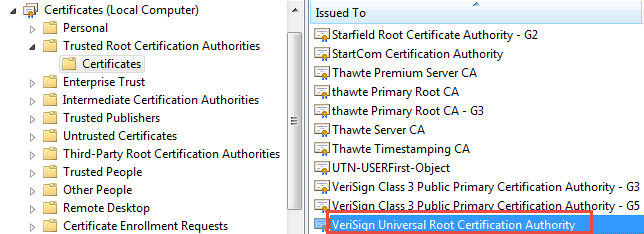
To correct this issue, the RSLinx Classic installation process adds a certificate verisign-univ.cer issued by VeriSign Universal Root Certification Authority to the Trusted Root Certification Authorities store for a local computer.
This certificate can be found in the Console Root > Certificates (Local Computer) > Trusted Root Certification Authorities > Certificates folder of the Windows Microsoft Management Console MMC.EXE tool’s certificates Snap-in option.
EtherNet and EtherNet/IP
- EtherNet/IP driver cannot recognize PLC5 and SLC devices when using Remote subnet.
- Prior to version 4.10, RSLinx Classic's configuration for the "Accept UDP Messages on Ethernet Port" setting was enabled by default. Beginning with RSLinx Classic version 4.10, this setting is disabled by default, to permit FactoryTalk Linx to allocate the CIP port (44818) for CIP Security. RSLinx Classic used this port to receive unsolicited messages from controllers and to function as a Gateway to permit remote instances of RSLinx Classic running on different workstations to interface with locally connected networks. To re-enable these functions, click DDE/OPC > Options... > General, and select Accept UDP Messages on Ethernet Port. Before making this change, ensure the CIP Port 44818 is free by disabling "Listen on EtherNet/IP encapsulation port" advanced driver setting(s) in FactoryTalk Linx.
FactoryTalk Activation Manager
- If you have disconnected one of the servers used for activation from the network, RSLinx Classic may stop
responding for up to two minutes during startup, as it checks the remote server for an activation file.
To work around this, go to Find Available Activations in FactoryTalk Activation Manager, select Update Activation Search Path, and clear the check box of the disconnected server (or delete the path to the server).
Hardware considerations
- This version of RSLinx Classic does not run on Alpha, MIPS, or Power computer processors.
- Do not use the power saver option on your computer when running RSLinx Classic. Use either the BIOS or Control Panel to disable this option.
Impact of Microsoft deprecating VBScript
- Microsoft announced the phased deprecation of VBScript in 2024. VBScript is now an optional feature beginning in Windows 11 24H2 and Windows Server 2025. Many FactoryTalk software products released before September 1, 2026, use VBScript during installation.
- RSLinx Classic versions 4.60.00 and earlier require VBScript for installation. Installation will fail if VBScript is not enabled.
- To mitigate the problem, enable VBScript manually. For more information, see the Knowledgebase Document ID: IN41397 - Impact of Microsoft deprecating VBScript. FactoryTalk software products released after September 1, 2026, no longer rely on VBScript.
Installation
- When you uninstall RSLinx Classic, the DTL32.dll file remains in the system directory if it is locked by another application.
- RSLinx Classic v4.20 provides a 64-bit OPC DA server connection (RSLinx Local OPC Server) for the users who utilize the RSLinx Classic Single Node or OEM editions with 64-bit clients.
Mitigation for Microsoft DCOM Hardening patch
In response to Microsoft Distributed Component Object Model (DCOM) Hardening patch (MS KB5004442), the minimum DCOM authentication level used by Rockwell Automation products was raised to Packet Integrity.
|
IMPORTANT
|
Installing this product’s latest version with earlier unpatched versions of
other FactoryTalk products or products using Classic OPC DA
connections may cause a loss of connectivity due to the difference in
DCOM authentication level used. For additional information, see the
Knowledgebase Document ID: IN39461 - Microsoft DCOM Hardening
Information TOC.
|
Microsoft releases the DCOM Hardening patch in response to CVE-2021-26414. This patch elevates the minimum DCOM authentication level that is required to establish a DCOM connection. DCOM is used by many Rockwell Automation products and may be affected by the change that is made by the Microsoft patch. For additional information about the affected Rockwell Automation products, see the Knowledgebase Document ID: PN1581 - Product Notification 2022-01-001 - Rockwell Automation products unable to establish proper DCOM connection after installing Microsoft DCOM Hardening patch (MS KB5004442).
Module statistics
- For 1794-AENT and 1756-ENB modules, module statistics on the Port Diagnostics tab may show zeros even though the modules work properly.
No-interrupt configuration
- RSLinx Classic supports no-interrupt configurations when using Allen-Bradley network cards; however, it is recommended to assign an interrupt to increase driver performance.
Repair software
- If you click Change to repair FactoryTalk Services Platform from Control Panel when UAC is enabled,
you may see the error 1722 message.
To work around this, click OK to close the error message, and retry to repair FactoryTalk Services Platform. [276317]
RSWho browse
- RSWho with the RSLinx Classic Gateway cannot be used to go online with a processor in RSLogix 5 or RSLogix 500 software. To select a processor connected to a RSLinx Classic Gateway, configure an RSLinx Classic driver, using the Remote Devices via RSLinx or 1756-ENET Gateway driver.
Running mode
- If RSLinx Classic is running as a service, there is no graphical user interface (GUI). If you need to configure RSLinx Classic, you must be in application mode. To switch between running as a service or application, use the RSLinx Classic Launch Control Panel.
Security considerations
- Information on the security considerations related to using Rockwell Automation products can be found in the Rockwell Automation Knowledgebase, including:
-
- File extensions created by Rockwell Automation software, firewall rules, and service dependences, see Knowledgebase Document ID: PN826 - Security considerations when using Rockwell Automation Software Products92.
- TCP/UDP ports used by Rockwell Automation products, see Knowledgebase Document ID: BF7490 - TCP/UDP Ports Used by Rockwell Automation Products.
Server OPC Data (Local)
- Offline browsing does not work to an .acd file on a different network machine. The .acd file must be on the local machine.
- OPC browse is not supported for .NET OPC applications.
- In Studio 5000 Logix Designer, for controllers that support External Access attribute, you can change the External Access attribute for a tag while online with the controller.
- The following scenarios may require you to restart RSLinx Classic and data clients:
-
- If a controller is replaced with a different controller, even if it has the same program. [265753]
- If tag attributes for tags on scan are changed and a new program is downloaded to the controller.
- If tag attributes for tags on scan are changed after an Alias Topic switch. [265756, 266168]
- The Logix L8 controllers (ControlLogix5580 and CompactLogix5380) added several new unsigned (USINT, UINT, UDINT) and 64 bit data types (LREAL, ULINT) with version 32 firmware. Because these data types are not supported by FactoryTalk software, RSLinx Classic v4.10.00 will prevent access to these types. Tags or structure members using these types will not appear in the FactoryTalk Live Data Tag Browser used by many of the FactoryTalk Software packages and any attempt to access data of these types will return an error.
SLC
- When downloading a program to an SLC 500, stop all data connections active to that station. Under certain instances, the processor may fault if applications continue to poll the SLC during a download.
SmartGuard
- If you are installing a SmartGuard driver on a computer that already has RSLinx Classic installed, make sure to re-start RSLinx Classic after installing the SmartGuard driver. If you do not restart RSLinx Classic, you are not able to configure the driver.
- Although you can communicate over the DeviceNet network through the USB port of a SmartGuard device, the USB-to-DeviceNet bridging capability is limited. For example, you cannot configure 1734-ADN or 1753-DNSI modules through SmartGuard. Use another DeviceNet interface to configure these devices.
SoftLogix
- RSLinx Classic does not reread a User Defined Structure list for SoftLogix™ until the topic is stopped and restarted.
Unsolicited message
- When receiving unsolicited messages from an SLC 500 processor via a 1785-KA5 bridge device, the DDE topic's remote configuration must be set to Internet mode. In addition, in the SLC 500 message instruction, the remote bridge node address must be set to 0.
- Unsolicited messages sent from a PLC or other node to RSLinx Classic causes errors if no DDE clients or C-API applications are running to receive them.
Unattended or silent install
Use command-line parameters to perform an unattended or silent installation of the software.
Installation Command-line parameters
The following table identifies the installation command-line parameters. Command-line parameters are case-insensitive. However, if a specified value includes a space, be sure to enclose the value in quotation marks (for example, "value with spaces").
|
Parameter
|
Description
|
|
/?
|
Displays the usage options for installation parameters.
|
|
/Q
|
Silent Install, install runs in a quiet mode without any user interface.
This parameter is recommended if you are deploying the software installation using
an IT tool or script, and don’t expect to see any error or restart messages. When using
this parameter, your IT tool or script should check the error codes, and respond as
needed. For example, if the installation returns error code 1641, then the IT tool or
script should restart the computer and relaunch the installation after restart.
This parameter is required if /QS or /Record is not specified.
|
|
/QS
|
Unattended Install, install runs in a quiet simple mode and shows progress through
the UI, it does not accept any input but still shows error or restart messages.
When using this parameter, you will not have to check the error codes, and the
installation will stop and display a prompt if there are error or restart messages. For
example, if an immediate restart is required to complete the install, a restart message
will be displayed for you to confirm the restart. Installation resumes automatically
from the point of interruption after restart.
This parameter is required if /Q or /Record is not specified.
|
|
/IAcceptAllLicenseTerms
|
Acknowledges acceptance of the license terms.
This parameter is required for /Q or /QS parameters.
|
|
/AutoRestart
|
Automatically restarts the computer after the installation is complete. Used when a
restart is required to complete the installation.
This parameter is optional. If this parameter is not used silent install (/Q) will return
either error code 1641 or 3010 if a restart is required, and unattended install (/QS)
will result in a confirmation prompt that must be agreed to before the installation is
completed.
|
|
/SetupLanguage="value"
|
Specifies which language will be displayed during install process.
The value must be the one of the following:
This parameter is optional. If this parameter is not used, the default language is the
current user or operating system user interface language.
|
|
/Record
|
Records the installation options chosen to a recording file.
This parameter is optional.
|
|
/Playback
|
Plays back a recording file to specify the installation options.
This parameter is optional.
|
|
/IgnoreWarning
|
Specifies that the setup ignores warnings and continues.
This parameter is optional. If it is not specified, the setup exits when a warning
occurs.
|
|
/ftsp-s
|
Specifies the FactoryTalk directory scope for restore. Only "Global" and "Local"
scopes are supported.
This parameter is optional.
|
|
/ftsp-bak
|
Specifies the location where the restore file can be found.
This parameter is optional.
|
|
/ftsp-pp
|
Specifies the plain text used to decrypt the backup file.
This parameter is optional.
|
|
/ftsp-value=enable/disable
|
Specifies to enable or disable the option Require computer accounts for all client
machines in Security Policy. The option is used to determine whether or not a client
computer account must exist in the directory to login.
This parameter is optional.
|
|
/DirectoryServer
|
Specifies the directory server name.
This parameter is optional. If it is not specified, the setup turns on HTTPS for
communication, and a TLS certificate must be configured after installation.
|
| /InstallLocation="value"
Or
/InstallDrive="value"
|
Specifies the install location or install drive respectively.
This parameter is optional. If this parameter is not used, the default install location is
"C:\Program Files (x86)\Rockwell Software".
Some software restricts the installer to only change the drive the software is installed
on. Use /? to determine which parameter is supported.
|
|
/Uninstall
|
Use to uninstall RSLinx Classic. This parameter is optional.
|
|
/SerialNumber="value"
|
Specifies the serial number of the software being installed. This is used to activate the
software during installation.
This parameter is optional. If it is not specified the software must be activated
manually after installation if activation is required.
Some software does not require activation. If activation is not required this parameter
is not available.
|
|
/ProductKey="value"
|
Specifies the product key used to get activation keys during installation.
This parameter is optional. If it is not specified the software must be activated
manually after installation if activation is required.
Some software does not require activation. If activation is not required this parameter
is not available.
|
|
/Version="value"
|
Specifies the version of the software to activate which corresponds to the product
version associated with the SerialNumber and ProductKey.
This parameter is optional. If it is not specified the installer will use the most recent
product version available.
Some software does not require activation. If activation is not required this parameter
is not available.
|
Error codes
The following table identifies the error codes that can be returned by an installation.
|
Error Code
|
Value
|
Description
|
|
ERROR_SUCCESS
|
0
|
The installation completed successfully.
|
|
ERROR_INVALID_PARAMETER
|
87
|
One of the parameters was invalid.
|
|
ERROR_INSTALL_USEREXIT
|
1602
|
The installation was cancelled by the user.
|
|
ERROR_INSTALL_FAILURE
|
1603
|
A fatal error occurred during installation.
|
|
ERROR_BAD_CONFIGURATION
|
1610
|
The configuration data for this product is corrupt. Contact your
support personnel.
|
|
ERROR_SUCCESS_REBOOT_INITIATED
|
1641
|
The installer has initiated a restart. After restart installation will
continue.
|
|
ERROR_SUCCESS_REBOOT_REQUIRED
|
3010
|
A restart is required to complete the installation. After restart the
product is successfully installed.
|
|
ERROR_REBOOT_PENDING
|
3012
|
A restart is pending and is required before the installation can
continue.
|
|
ERROR_SUCCESS_NOT_APPLICABLE
|
3013
|
The installation cannot proceed because the products are already
installed.
|
|
ERROR_SUCCESS_WARNING_REBOOT
|
3014
|
The installation succeeded with warnings. Check the installation log
file for details. To complete the installation, restart the computer.
|
User account
- RSLinx Classic does not start properly when it is configured to run as an administrator, while you attempt to log on as a standard user.
User-defined type
- Block reads and writes do not work with user defined types (for Logix5000 controllers).
- RSLinx Classic does not support an entire UDT (User Defined Type) tag as a destination element for unsolicited message. You can only configure a member of the UDT tag as a destination element in a message instruction in the ControlLogix processor.
User documentation
- Topics in .chm (Compiled Help Module) files do not show when the help file is opened from a remote
computer or UNC (Universal Naming Convention) path.
To avoid this problem, use one of the following methods:
- Open the help files from the installation DVD or copy them to a folder on your local computer.
- If you want the help files to be accessible from a network directory (shared folder), use Registry Editor to modify certain registry entries.
- If you attempt to view the Support Services (support.hlp) or Activation (copyprot.hlp) information, an error message shows, and the online help files are not displayed. To view the Support Services or Activation information, refer to the RSLinx Classic Getting Results Guide.
Certificates
The following certificates are installed while installing Rockwell Automation software.
- Use Microsoft Management Console (MMC) to view the certificates in Console Root > Certificates
(Local Computer) > Trusted Root Certification Authorities > Certificates.
- 2016-Rockwell-Driver-SHA1.cer
- 2016-Rockwell-SHA256.cer
- DriverCodeSigning2012-1.cer
- Drivers-10-10-2018.cer
- Drivers-11-03-2017.cer
- Drivers-12-06-2016.cer
- DriversSHA1-10-10-2018.cer
- Drivers-SHA1-11-27-2017.cer
- Logix-11-04-2016.cer
- Rockwell_2013.cer
- Rockwell_2014.cer
- Rockwell_2015.cer
- rockwellcert2010.cer
- rockwellcert2013.cer
- VeriSign Class 3 Public Primary Certification Authority -G5 2036.cer
- Use Microsoft Management Console (MMC) to view the certificates in Console Root > Certificates (Local Computer) > Trusted Publishers > Certificates.
- MicRooCerAut2011_2011_03_22.cer
- RA - Enterprise Root Certification Authority.cer
- VeriSign Universal Root Certification Authority.cer
Copyright © 2026 Rockwell Automation, Inc. All rights reserved.
Rockwell Automation, Allen-Bradley, and FactoryTalk are trademarks of Rockwell Automation, Inc.
To view a complete list of Rockwell Automation trademarks please click here.
Trademarks not belonging to Rockwell Automation are property of their respective companies.