
Release Notes
( 9518-Hx ) The Rockwell Software Distributed FT Historian Site Edition Server.
Version 6.00.00 (released 7/2018)
Catalog Number FactoryTalk Historian SE Server
Requirements
This release has the following requirements.
FactoryTalk Historian SE 6.00.00 Release Notes
July 2018
These release notes apply to FactoryTalk® Historian Site Edition version 6.00.00.
FactoryTalk Historian Site Edition (SE) provides the capability to collect, store, analyze, and visualize data using a powerful engine and a set of reporting tools such as time-series trends, bar charts, pie charts, Pareto charts, tabular trends, and a method of generating reports using Microsoft Excel. It also uses compressed-storage data algorithms to contain a vast amount of data in a small format.
The release notes summarize the new features, feature enhancements, and anomalies fixed in this release.
| In this document
System features
Known anomalies
System requirements
FactoryTalk Historian SE works within the system requirements of all Rockwell Automation software products.
For the latest information regarding software platform support, refer to Product Compatibility & Download
Center.
The hardware required with FactoryTalk Historian Site Edition depends on the demands an application places
on the system. The greater the demand, the more powerful system is required. In any application, faster
processors and more memory will result in better performance. In addition, there should always be sufficient
disk space to provide virtual memory that is at least twice the size of the physical memory.
Product compatibility
The table lists the minimum supported versions of Rockwell Automation products with which this version of
FactoryTalk Historian SE is compatible:
| |||||||||||||||||||||||||||||||||||||||||||||||||||||||
Operating systems
|
Product
|
Operating systems
|
|
|
|
|
|
|
|
SQL databases for FactoryTalk Historian Asset Framework
FactoryTalk Historian Asset Framework supports the following versions of Microsoft® SQL databases (64-bit):
- Microsoft SQL Server 2016 Express with Service Pack 1
- Microsoft SQL Server 2012 Express with Service Pack 3
- Microsoft SQL Server 2012 Standard with Service Pack 3
- Microsoft SQL Server 2012 Express with Service Pack 2
Required SQL Server components:
- Database Engine
- Agent (backup and replication)
Database requirements for FactoryTalk Historian Asset Framework
Database size
Database storage is consumed depending on the type and quantity of FactoryTalk Historian Asset Framework objects. The table below shows approximate database sizes of some representative Asset Framework systems.
|
AF element count
|
Notifications count
|
Event frames count
|
SQL DB size
(in MB) |
Recommended
memory
(in MB) |
|
0
|
0
|
0
|
40
|
24
|
|
1,000
|
1,000
|
10,000
|
165
|
99
|
|
2,000
|
2,000
|
20,000
|
285
|
171
|
|
3,000
|
3,000
|
30,000
|
400
|
240
|
|
4,000
|
4,000
|
40,000
|
520
|
312
|
|
5,000
|
5,000
|
50,000
|
640
|
384
|
|
6,000
|
5,000
|
60,000
|
755
|
453
|
|
10,000
|
5,000
|
100,000
|
1,100
|
660
|
|
20,000
|
5,000
|
200,000
|
2,230
|
1,338
|
|
30,000
|
5,000
|
300,000
|
3,300
|
1,980
|
|
40,000
|
5,000
|
400,000
|
4,320
|
2,592
|
|
50,000
|
5,000
|
500,000
|
5,380
|
3,228
|
|
100,000
|
5,000
|
1,000,000
|
10,640
|
6,384
|
SQL Server requirements
Required memory:
- 1GB for databases with up to 50000 elements.
- 4 GB for databases with up to 200000 elements.
|
Note:
|
For databases with up to 1000 elements, Asset Framework may be
installed on the FactoryTalk Historian server.
For more information on the Microsoft SQL Server system requirements, refer to the Microsoft Development Network. |
Known Anomalies from Previous Releases
These anomalies are from previous releases but are still known in this release.
Installation blocked when done remotely
The installation will be blocked if you are trying to install FactoryTalk Historian SE from the FactoryTalk Historian SE installation DVD that you access from a local DVD drive shared through a remote desktop connection. It is a security feature of Microsoft Windows operating systems.
Incorrect names in installation blockers
During the installation of FactoryTalk Historian SE 5.01.00, blockers are installed to prevent you from installing any of the clients in the versions listed above on a computer on which you have already installed FactoryTalk Historian SE. If you try to install the clients in unsupported versions, the system identifies the blockers as newer versions of the clients, which results in aborting the installation. The messages that inform you about a newer version of the client installed contain incorrect names of the following clients:
|
For this suite:
|
There is:
|
There should be:
|
|
FactoryTalk Historian
ActiveView
|
FactoryTalk Historian DataLink
|
FactoryTalk Historian
ActiveView
|
|
FactoryTalk Historian SE
Management Tools
|
FactoryTalk View Studio
Update
|
FactoryTalk Historian SE
Management Tools
|
|
FactoryTalk Historian
ProcessBook
|
FactoryTalk Historian DataLink
|
FactoryTalk Historian
ProcessBook
|
The names of the clients on the message title bars are displayed correctly.
The messages come from the client installation files and cannot be corrected.
The messages are followed by several other messages and installation wizard pages that are triggered by the intent of installing the clients in unsupported versions. The content and the form of the messages differ depending on the client you are trying to install. Follow the on-screen instructions and acknowledge the messages to abort the installation process.
Missing installation logs
FactoryTalk Historian SE installation logs are stored in the Windows temporary folder. When the folder is pruned occasionally, the installation logs are deleted.
To keep the logs, copy the log file to another location.
Read and write access to Windows system folders for installation purposes
For a successful installation of FactoryTalk Historian SE, you must have read and write access to Windows system folders, regardless of the drive selected for the installation. Otherwise, the installation of FactoryTalk Historian SE will fail. Even though most components will be installed in the selected drive, some components are required to be installed in the Windows system folders.
Warnings in the installation log file
When you perform a clean installation of the FactoryTalk Historian SE Management Tools, a set of warnings is logged to the installation log file. The warnings result from the installation application trying to remove from the computer previous components of the suite that do not exist in case of a clean installation. The warnings have no impact on the operation of the suite and hence should be ignored.
Missing System Explorer
System Explorer will not be available on a computer, on which you have installed first FactoryTalk Historian DataLink, and then the FactoryTalk Historian SE server.
Missing components after installation or upgrade procedures
When you perform the following installation and upgrade steps:
- Install FactoryTalk Historian SE Management Tools 3.00.
- Upgrade FactoryTalk Historian SE Management Tools to version 3.01.
- Upgrade FactoryTalk Historian SE Management Tools to version 4.00.
- Upgrade FactoryTalk Historian SE Management Tools to version 5.00.
- Remove FactoryTalk Historian SE Management Tools from the computer.
- Install FactoryTalk Historian SE Management Tools 5.00.
- Install FactoryTalk Historian SE Management Tools 5.01.
The following components are missing from the computer:
- The TagConfigurator and the Module Database Builder are not installed.
- Shortcuts to MDB to AF Preparation Wizard, System Explorer, and System Management Tools are not available in the Start menu.
- The FactoryTalk Historian SE System folder is not available in the Start > All Programs > Rockwell Software > FactoryTalk Historian SE location.
Incompatible software packages
The following software packages are not compatible with FactoryTalk Historian SE 5.01.00 when they are installed on the same computer on which you intend to install any component of FactoryTalk Historian SE 5.01.00:
- FactoryTalk Historian ActiveView 3.20.02 and earlier
- FactoryTalk Historian DataLink 4.20.01 and earlier
- FactoryTalk Historian ProcessBook 3.20.01 and earlier
- FactoryTalk Historian SE Management Tools 2.20 and earlier
If the software packages listed above exist on the computer on which you are installing FactoryTalk Historian SE, they will be detected during the installation process and you will be requested to remove them before you proceed with the installation.
If you want to have both the clients and FactoryTalk Historian SE 5.01.00 installed on the same computer, you need to install client versions that are compatible with the Historian server 5.01.00. Otherwise, install the Historian server on a different computer.
|
NOTE
|
See "Software Compatibility" for more information.
|
Double listing of components in Control Panel
After you have upgraded a FactoryTalk Historian SE suite from version 3.00 or 3.01 to a newer one, some components of the suite are listed in Control Panel for both the upgraded-from and the upgraded-to versions.
The list of the doubled components consists of, but is not limited, to:
- FactoryTalk Historian SE WCF Installer
- FactoryTalk Historian SE Server Core x64 Installer
- FactoryTalk Historian SE Server Core Installer
- FactoryTalk Historian SE RA Components
- FactoryTalk Historian SE RA Components Folders
- FactoryTalk Historian SE Live Data Interface
Despite the misleading information, the only suite that is installed is the upgraded version. The listing of the doubled components has no impact on the products' functioning.
Special characters in point sources created in the Administration Console
When you create point sources in the FactoryTalk Administration Console, avoid using special characters (such as " or |) in the point source names, since they may corrupt the list of point sources that is sent to FactoryTalk Historian SE.
Removing license activation assignments after creating points for the FTLD interface
Avoid unassigning the FHSE and/or FHLD license activations in the FactoryTalk Administration Console when you have already created points for the FTLD interface, because you will not be able to create any new points for any point sources on the server.
Point in Use values don't refresh after removing all points
If you delete all points that you have, the information on the points in use will no longer be refreshed in the System Management Tools and the FactoryTalk Administration Console. To refresh the point counts, restart the FactoryTalk Historian SE server.
Delay in refreshing the Points in Use values
The Points in Use values in the FactoryTalk Administration Console are refreshed and updated 20 minutes after the restart of the FactoryTalk Historian SE server.
Sum of point counts is understated
The sum of point counts from the new Rockwell license activations (FTHSE) and the third-party license activations that equals 500000 is understated in the System Management Tools.
Point in use from certain point sources appear to be added to the Rockwell license pool
Points in use of the FHSS, FTBOINT, and/or PIFTBOINT point sources appear to be added to the Rockwell license pool in the FactoryTalk Administration Console.
The FHSE.H2H and FTBAInt license activations set their point sources (FHSS, FTBOINT, and PIFTBOINT) to unlimited. The correct behavior of unlimited point sources and their allocations in the FactoryTalk Administration Console is that they are listed in the Point Sources tab, under Interface Type, but the number of their points in use is not reflected in the number of points in use of the individual license pools (Rockwell and General).
If you allocate the FHSE.H2H and/or FTBAInt license activations and create points for the FHSS, FTBOINT, and/or PIFTBOINT point sources on the server, they are correctly handled by the system, but the points in use of these point sources appear in the FactoryTalk Administration Console as if they are added to the Rockwell license pool, which is an incorrect behavior.
To get a correct calculation of points in use of the Rockwell license pool, add up all the points in use of the FHSS, FTBOINT, and/or PIFTBOINT point sources under Interface Type Allocation, and then subtract them from the points in use of the Rockwell interface type.
Can't revoke the activation assignment
If you have assigned a license activation to your Historian server in the FactoryTalk Administration Console, and the license activation file is no longer visible in the FactoryTalk Activation Manager (for example due to connection problems), you will not be able to revoke the assignment of the activation.
To solve this issue, make sure that the license activation file is available in the FactoryTalk Activation Manager at all times. It may be done in many ways, depending on the cause of the problem. For example:
- If the license activation files are stored by the FactoryTalk Activation Manager on your local machine, restore in the FactoryTalk Activation Manager the missing license activation file, or assign another file of the same license activation type as the missing one. The number of points available per license activation may vary.
- If the license activation files are stored by the FactoryTalk Activation Manager on a remote machine, reestablish the network connection to that machine, or connect to another FactoryTalk Activation Manager server that stores license activation files of the same type as the missing one. The number of points available per license activation may vary.
Running PISDKUtility for the first time after the installation takes time
When you run PISDKUtility on your Historian server for the first time after its installation, the starting process may take some time. It results from the fact that PISDKUtility fails to identify itself on the server. The problem does not apply to any future occurrences of starting the utility.
Backward compatibility with FactoryTalk Security authentication
Since FactoryTalk Historian SE 3.0, Historian security has been configured using Windows-based authentication. The security of earlier versions of FactoryTalk Historian was based on configured authentication using FactoryTalk Security. To support backward compatibility, during the installation of the FactoryTalk Historian SE server, trusts for FactoryTalk Security are created in the System Management Tools.
Incorrect permissions of points (tags) created in the PI Performance Monitor
The points (tags) created in the PI Performance Monitor use piadmin, piadmins, and PIWorld permissions instead of the permissions defined in the PIPOINT table. This behavior does not reflect the current security model of FactoryTalk Historian SE, in which points should be created with the access permissions defined in the PIPOINT table. To solve this problem, do the following:
To correct point (tag) permissions:
- In the System Management Tools, expand IT Points > Performance Counters.
- Select counter entries for which you want to create tags.
- In the right pane of the System Management Tools dialog box, right-click the listed entries, and then click Properties.
- In the Properties dialog box, go to the Security tab.
- Under Point Security, remove piadmins, and then replace it with a group that should have access to point attributes.
- Under Data Security, remove piadmins, and then replace it with a group that should have access to point values.
- Click OK to apply the changes.
Now you can create the tags.
FTHAdministrators group does not let creating data points
If you want a user to have privileges to create data points, you need to either map the user to the piadmin user or to the FTHEngineers group. Being mapped to the FTHAdministrators group does not give you the privileges to create data points.
Incorrect interface state logged to the archive when the primary interface is disconnected
When the primary interface is disconnected from the network, the wrong interface state is logged to the archive. In the event that the current primary interface (intf1) is disconnected (for example, the Ethernet cable to the Intf1 computer is cut) from both the file share and the primary FactoryTalk Historian SE, the backup interface (intf2) will take on the primary role. In this situation, the disconnected primary interface will also maintain its primary role, as the algorithm used by the failover state machine specifies that an interface will never voluntarily give up the primary role. Although it is up to the backup interface to take over the primary role, Intf1 is blind and does not know what intf2 is doing. As such, it maintains its primary role. Because of the complete disconnection, Intf1 should not be collecting any data outside of the status tags. When it comes back online, you may see some incorrect values for the interface status tags after the old primary interface comes back online. This is because even though intf1 is blind and disconnected, it is still generating events for the status points, and will send them to the Historian server once it comes back online.
Primary and secondary servers go down when using an SMT collective
If the primary and secondary servers go down when you are using a System Management Tools (SMT) collective, it is possible that the SMT has crashed. In this case, you will need to re-launch the SMT.
SMT may crash when the secondary server is booted up first
In a collective configuration, if a secondary FactoryTalk Historian SE server is booted up first, then the SMT might crash when attempting to stop and re-start the application.
Data loss after the primary interface node is disconnected
If the FactoryTalk Historian SE primary interface node is disconnected when the server is configured as a collective and the interface node is configured redundant, data will be lost for about 8-10 seconds.
SMTHost.exe memory leak while performing disconnect/reconnect tests
When performing disconnect/reconnect tests (of controllers and interface node Ethernet cables) on the Historian server, there is a slight SMTHost.exe memory leak. If you restart the System Management Tools, the memory for SMTHost.exe is released and the memory consumption goes down.
Third-party tag licenses not recognized by the Administration Console
If you make a FactoryTalk Historian SE server(s) a member of a collective, you must restart the server(s) after creating the collective. If you do not restart the server(s), the FactoryTalk Administration Console will not recognize any of the third-party tag licenses you have on your server(s).
Loss of polled tags data while disconnecting and reconnecting a server in a collective
If a server in a collective is disconnected from the network and is reconnected to the network later, it might lose the first 20 seconds of polled tag data during both the disconnection and reconnection. Use advised tags if a 20 second data loss is unacceptable.
Manual switchover behavior with the current primary interface failover ID equal 1
If the current primary interface failover ID equals 1, then a manual switchover can NOT be accomplished by changing the value of the Active_ID to "2" in the System Management Tools.
PIbufss fails to initialize on a newly redundant interface pair
PIbufss does not initialize on a newly redundant interface pair if the FactoryTalk Historian Live Data Interface (FTLD) is connecting to a collective Historian server and the following applies:
- API hostname in the Interface Configuration Utility (ICU) is addressed with FQDN.
- Buffer servers are set to Path (FQDN).
- The piclient.ini file does not have Historian servers addressed with FQDN, but instead they are addressed with names only.
As a result, buffering does not work, and there are no errors in the system.
Incorrect scan class statistics generated by health points
Scan class statistics generated by health points in the Interface Configuration Utility that is running on an interface computer are incorrect.
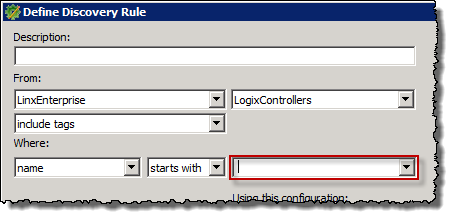
Discovery rule XML file corrupted when defined with an apostrophe mark character
If you type the apostrophe mark character (') in a discovery rule in the rule name definition list (marked in red in the figure below), and then save the rule, the XML rule file will be corrupted and you will not be able to use it in the Rule Editor. To repair the file, open it in an external XML editor, and then remove the character.
Missing points created in the main folder on the HMI server
If an area contains both an RSLinx Enterprise and an HMI server, and you search points from both servers using the Discover Historian Points tool in the FactoryTalk Administration Console, the points created in the main folder on the HMI server will not be found.
Discovery rule can't be modified by another Windows system user
A Windows system user cannot modify a discovery rule that has been created by another Windows system user.
Installing FactoryTalk Historian Live Data Interface may fail if the OPC DA interface is running
To ensure a successful installation of FactoryTalk Historian Live Data Interface, it is recommended that you stop the OPC DA interface before starting the installation.
Removing FactoryTalk Historian Live Data Interface may fail if the OPC DA interface is not removed first
To ensure a successful removal of the FactoryTalk Historian Live Data Interface, it is recommended that you delete the OPC DA interface service before starting the removal process:
- Open the Interface Configuration Utility.
- From the Interface list, select the OPC interface that you want to remove.
- Click
 to stop the interface if it is running.
 - Click
 to delete the interface.
 - Confirm the deletion in the message box that appears. This action cannot be undone.
Removing some FactoryTalk Historian SE suites may render the remaining ones nonfunctional
If you have several FactoryTalk Historian SE suites installed on the computer (e.g., the FTLD interface and FactoryTalk Historian SE Management Tools), and you remove some of them, the remaining suites may not work. To resolve this problem, remove all the suites installed on the computer and reinstall the desired FactoryTalk Historian suite.
Data transfer from FactoryTalk Historian ME to FactoryTalk Historian SE requires a trust
If you want to transfer data from FactoryTalk Historian ME to FactoryTalk Historian SE, create a trust on the FactoryTalk Historian SE server with the PI Identity option pointing to piadmin.
Managing users that are members of several Historian security groups
The Historian users are configured so that some of them, depending on the role they fulfill in the system, are members of several Historian groups. As a result, these Historian users get privileges from all the groups to which they belong.
In the previous versions of FactoryTalk Historian SE (2.20 and earlier), if you wanted to give a Windows user privileges from several Historian groups, you mapped Windows users to relevant FactoryTalk Security groups using the FactoryTalk Administration Console. The FactoryTalk Security groups, in turn, were mapped to individual Historian users by means of trusts.
Since FactoryTalk Historian SE 3.0, which introduced a new security model, if you want to give a Windows user privileges from several Historian groups, create mappings using the System Management Tools following either of the methods:
- Create a mapping between an Active Directory (AD) group and a Historian user. In this way, the Windows user from the AD group used in the mapping gets privileges from all the Historian groups to which the Historian user referred to in the mapping belongs.
- Create 1-to-1 mappings between each AD group and a corresponding Historian group. If the Windows user is a member of only one AD group for which you have created the mapping, they will get privileges only from the Historian group referred to in the mapping. If you want the Windows user to get privileges from several Historian groups, make sure the user is a member of all the AD groups that are mapped to the Historian groups whose privileges the user should get.
Creating a collective with Historian servers fails
Creating a collective with FactoryTalk Historian servers will fail unless the servers are members of the same network domain.
SMT crashes when trying to view licenses on a Historian server
When you try to view licenses on a Historian ME server using the System Management Tools, the application crashes and an error message appears.
Installing a Historian suite on a drive other than C: fails
If you're installing a FactoryTalk Historian SE suite on a drive other than the system drive (usually the C: drive), the installation may fail, even if there is sufficient space on the selected drive to install the suite. The installation fails due to the fact that there is not enough free space on the system drive.
The anomaly is caused by the incorrect calculation of the required disk space on the system drive while installing a FactoryTalk Historian SE suite on another drive.
A Visual Studio error while installing PI OLEDB Enterprise 2012
During the installation of PI OLEDB Enterprise 2012 you may see an error message reading that "a later version of Microsoft Visual Studio 2010 Tools for Office Runtime (x64) is already installed". Despite the error message the installation is completed successfully.
Duplicated polled tags data after the failover to the secondary interface
If the FactoryTalk Historian primary interface stops and the secondary interface assumes the primary role, data may be duplicated for about 10 seconds only for polled points.
Administering FactoryTalk Historian SE on computers with FTLD interfaces in versions 3.0 - 4.01 fails
If you administer FactoryTalk Historian SE (for example, by creating points or configuring interfaces) on computers with older versions (from 3.0 to 4.01) of FactoryTalk Historian Live Data Interfaces installed, in particular from within the FactoryTalk Administration Console or FactoryTalk View Studio, the applications will crash.
To solve the issue, perform the FactoryTalk Historian SE administration only on either the FactoryTalk Historian SE 5.01.00 Server or the Engineering Workstation with FactoryTalk Historian SE 5.01.00 Management Tools installed.
For details on FactoryTalk Historian SE suites compatibility, see the FactoryTalk Historian SE Installation and Configuration Guide, section "Learn about product compatibility for installing or upgrading FactoryTalk Historian suites".
Adding or editing rules by other users than Administrator fails
When you try to add or edit a rule in the Rule Editor and you use a user account other than Administrator, saving the changes made to the rule fails.
"Administrator" means here a local Administrator account or any other account that is a member of the Domain Admins group.
It is caused by the fact that the Rule Editor is installed by Administrator, and hence only Administrator is entitled to modify the rules.
To solve the anomaly, perform these steps as a user with administrative privileges:
1. On the computer with the Rule Editor installed, go to the following location:
<System drive>\ProgramData\Rockwell Automation\
2. Right-click the FactoryTalk Historian folder.
The FactoryTalk Historian Properties dialog box appears.
3. Click the Security tab.
4. Under Group or user names, select Users, and then click Edit.
The Permissions for FactoryTalk Historian dialog box appears.
5. Under Group or user names, select Users.
6. Under Permissions for Users, check the Allow option next to the Modify item.
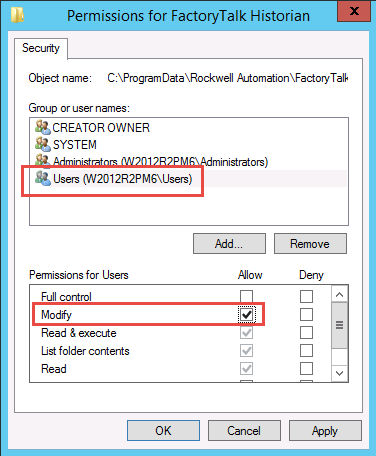
7. Click Apply.
Copyright © 2026 Rockwell Automation, Inc. All rights reserved.
Rockwell Automation, Allen-Bradley, and FactoryTalk are trademarks of Rockwell Automation, Inc.
To view a complete list of Rockwell Automation trademarks please click here.
Trademarks not belonging to Rockwell Automation are property of their respective companies.