
Release Notes
25C... More information: PowerFlex® 527 Site
Version 1.008 (released 11/2017)
Catalog Number PowerFlex 527
Corrected Anomalies in This Release
This release corrects the following anomalies.
IP Address and Gateway Address anomalies (LGX00163759/LGX00173005)
Corrected:
- PowerFlex 527 Drives Firmware Revision 1.008
Known anomaly first identified as of PowerFlex 527 Drives Firmware Revision 1.006
With firmware revision 1.007 or earlier:
- It is possible to enter identical values for the IP address and gateway address by using the keypad. This is an illegal IP address configuration for the PowerFlex 527 drive because the drive does not have the functionality or capability of an independent router and gateway.
- It is possible to change some of the IP configuration octets on the LCD display but, after a power cycle or after leaving and returning to the IP configuration pages, the drive reverts to the original value for the first three octets and retains the new value for the last octet.
With firmware revision 1.008 or later, you can change the IP configuration without any limitations to the IP configuration octet (parameters). You must enter a valid IP configuration and cycle power to the drive for the new IP configuration to take effect. If an illegal IP configuration exists upon power up, for example, if the IP address and gateway address are identical, the drive faults and exhibits INIT FLT M22 – ILLEGAL ADDRESS on the display and the IP address configuration changes to DHCP.
Change in keypad and webpage display (LGX00200090)
Corrected:
- PowerFlex 527 Drives Firmware Revision 1.008
Known anomaly first identified as of PowerFlex 527 Drives Firmware Revision 1.006
Shunt utilization data on the keypad and webpage always shows zero (0).
With firmware revision 1.008, shunt utilization is no longer shown on the keypad and webpage. In addition, Output Current is now displayed as Output Curt 0.0 with a value in Amps RMS. Refer to motion attribute 601 for more information.
Incorrect VelocityLockStatus bit behavior (LGX00171746)
Corrected:
- PowerFlex 527 Drives Firmware Revision 1.008
Known anomaly first identified as of PowerFlex 527 Drives Firmware Revision 1.006
Once the ActualSpeed reached or surpassed the Velocity Limit, the “Axis.VelocityLockStatus” tag / bit in Logix Designer stayed at 1 instead of changing to 0.
Intermitted M28 faults or Safe Torque Off events occur (LGX00194147, LGX00194148, LGX00194596, LGX00201704)
Corrected:
- PowerFlex 527 Drives Firmware Revision 1.008
Known anomaly first identified as of PowerFlex 527 Drives Firmware Revision 1.006
The PowerFlex 527 drive’s internal safety data integrity check leads to an unexpected close and re-open of its safety connection.
Incorrect motor capacity decay model (LGX00194295, LGX00195436)
Corrected:
- PowerFlex 527 Drives Firmware Revision 1.008
Known anomaly first identified as of PowerFlex 527 Drives Firmware Revision 1.006
The implementation of the motor capacity decay model for the PowerFlex 527 drive is inconsistent when compared to the PowerFlex 750 Series drive.
With firmware revision 1.008, the drive’s motor capacity decay model is updated to be in-line with the PowerFlex 750 Series drive.
Application Notes
This release has the following application notes.
Determine PowerFlex 527 Firmware Revision Level
Using Studio 5000 Logix Designer® Software
- Launch the Logix Designer software.
- Open the project for your PowerFlex® 527 drive.
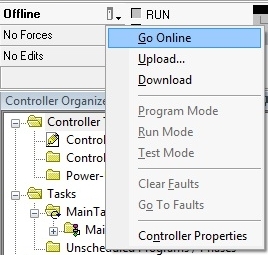
- On the main screen, click
 and select Go Online.
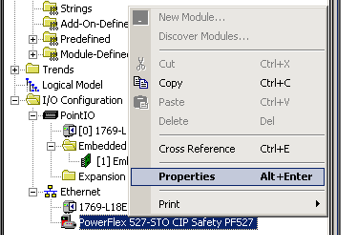
- Right-click on the PowerFlex 527 drive and select Properties.
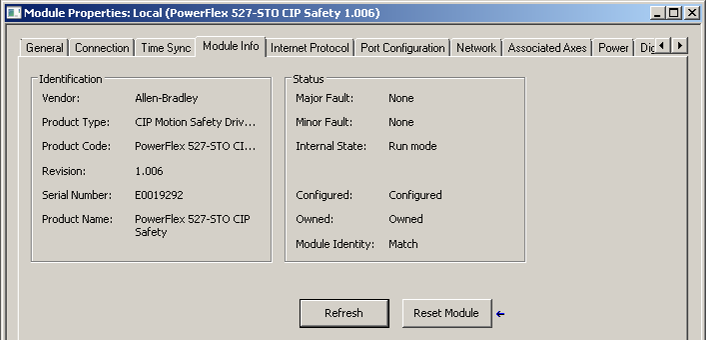
- In the Module Properties window, select the Module Info tab to display the firmware revision.
Update PowerFlex 527 Firmware
Using the ControlFLASH™ Software
- Install the flash kit utility for the PowerFlex 527 drive. You can download the flash kit utility from the Product Compatibility and Download Center (PCDC) website at: http://www.rockwellautomation.com/support/pcdc.page
- Launch the ControlFLASH software.
- On the ControlFLASH Welcome screen, click Next. The Catalog Number Dialog box appears.
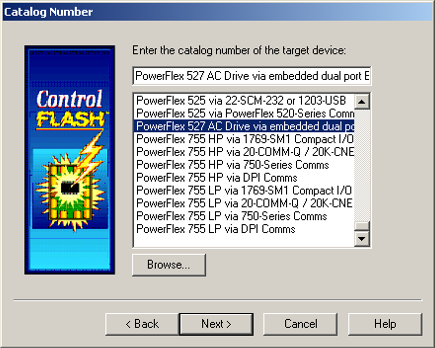
- Select the communication device you will use to update the firmware revision and click Next. For this example, select “PowerFlex 527 via embedded dual port Ethernet”.
- In the Select Device to Update dialog box, expand the hardware view by clicking the “+” symbol next to the communication path you are using. For this example, click the “+” next to “AB_ETHIP-1, Ethernet”.
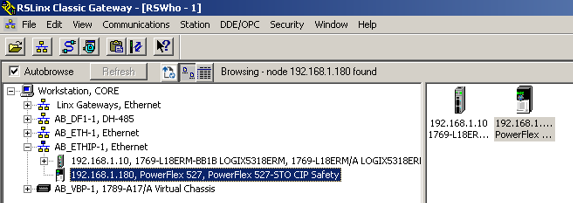
- Select the entry of the PowerFlex 527 drive you are updating and click OK. The Firmware Revision dialog box appears.
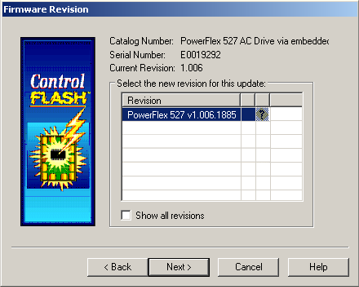
- Select the firmware revision you want to flash and click Next.
- Follow the remaining prompts to complete the flash update. When the process is complete, the new firmware revision is displayed in the dialog box.
Copyright © 2026 Rockwell Automation, Inc. All rights reserved.
Rockwell Automation, Allen-Bradley, and FactoryTalk are trademarks of Rockwell Automation, Inc.
To view a complete list of Rockwell Automation trademarks please click here.
Trademarks not belonging to Rockwell Automation are property of their respective companies.