
Release Notes
20G - Firmware versions and revisions can be found in the Versions tab above
Version 7.002 Signed (released 12/2014)
Catalog Number PowerFlex 755 (series A)
Requirements
This release has the following requirements.
System Requirement Identified as of PowerFlex 755 Drives Firmware Revision 11.001
System Requirement Identified as of PowerFlex 753 Drives Firmware Revision 11.001
With this revision of drive firmware, an encryption layer with a digital signature has been attached to the drive firmware file. This encryption layer will not allow a drive firmware update with a firmware file that is not digitally signed by Rockwell Automation.
Digitally-signed firmware files have been created for previous unsigned firmware revisions. The minor revision number has been incremented to identify the signed revision. See the tables below for a list of PowerFlex 755 and PowerFlex 753 unsigned and signed firmware revisions.
You must update the unsigned firmware to revision 11.001 CONVERT to enable the secure firmware feature to read the digital signature. Once the unsigned firmware has been updated to revision 11.001 CONVERT, the drive can be updated to any desired signed firmware revision (earlier or later than 11.001).
For example, to update the drive firmware from revision 9.001 Unsigned to revision 10.003 Signed, update the drive firmware using the revision 11.001 CONVERT file to enable the secure firmware feature and read the digital signature. Then, update the drive firmware to revision 10.003 Signed. This process is true for any of the other previous unsigned firmware revisions.
Note: Use the 11.001 Signed firmware file when updating any previous signed revision of firmware to revision 11.001.
Note: If you want to update your drive firmware revision to 12.001 Signed, or later, see the ‘Update PowerFlex 75x Drive Firmware rev C’ topic in the revision 12.001 (or later) release notes.
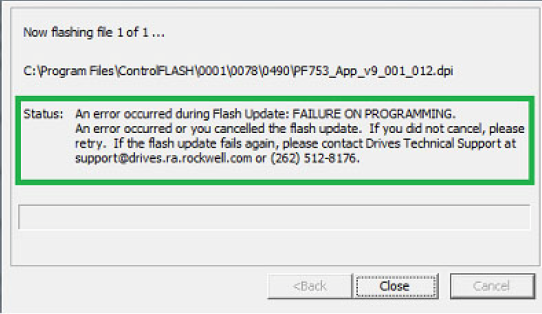
Revisions of drive firmware that don’t have a ‘Signed’ digital signature embedded in the firmware file will display the error shown below when an update is attempted.
The following table identifies which PowerFlex 755 firmware revisions have a secure digital signature embedded in the firmware file:
|
Firmware
Revision
|
Disposition
|
|
3.004
|
Unsigned revision
|
|
3.005
|
Signed revision
|
|
4.001
|
Unsigned revision
|
|
4.002
|
Signed revision
|
|
5.001
|
Unsigned revision
|
|
5.002
|
Signed revision
|
|
6.003
|
Unsigned revision
|
|
6.004
|
Unsigned revision
|
|
6.005
|
Signed revision
|
|
7.001
|
Unsigned revision
|
|
7.002
|
Signed revision
|
|
8.001
|
Unsigned revision
|
|
8.002
|
Signed revision
|
|
9.001
|
Unsigned revision
|
|
9.002
|
Signed revision
|
|
10.002
|
Unsigned revision
|
|
10.003
|
Signed revision
|
The following table identifies which PowerFlex 753 firmware revisions have a secure digital signature embedded in the firmware file:
|
Firmware
Revision
|
Disposition
|
|
5.001
|
Unsigned revision
|
|
5.002
|
Signed revision
|
|
6.002
|
Unsigned revision
|
|
6.003
|
Unsigned revision
|
|
6.004
|
Unsigned revision
|
|
6.005
|
Signed revision
|
|
7.001
|
Unsigned revision
|
|
7.002
|
Signed revision
|
|
8.001
|
Unsigned revision
|
|
8.002
|
Signed revision
|
|
9.001
|
Unsigned revision
|
|
9.002
|
Signed revision
|
|
10.001
|
Unsigned revision
|
|
10.002
|
Signed revision
|
System Requirements Identified as of:
• PowerFlex 755 Drive Firmware Revision 2.011
• PowerFlex 753 Drive Firmware Revision 9.001
With this firmware revision, the drive’ s embedded EtherNet/IP port requires the EtherNet/IP scanner to use a compatible method of specifying Quality of Service (QoS). The following table details the compatible products and firmware revisions.
|
Product
|
Compatible Rev. No.
|
|
DriveLogix 5730 Embedded
Ethernet Port
|
Rev. 3.004
|
|
CompactLogix (1769-L2x/L3x)
|
Rev. 17.03
|
|
ControlLogix (1756-ENBT)
|
Rev. 4.005
|
|
CompactLogix (1768-ENBT)
|
Rev. 2.001
|
|
FlexLogix (1788-ENBT)
|
Rev. 2.004
|
|
ControlLogix 1756-EN2T (F)(XT)
|
No Update needed
|
|
SoftLogix I/O Messaging
|
No Update needed
|
System Requirements Identified as of PowerFlex 755 Drive Firmware Revision 3.004
The new Auto/Manual HIM Preload feature requires firmware in the HIM that is newer than 1.007.
System Requirements Identified as of PowerFlex 755 Drive Firmware Revision 3.004
System Requirements Identified as of PowerFlex 753 Drive Firmware Revision 5.001
The Customer Configurable Response to HIM Communications Loss feature requires a new enhanced style HIM (20-HIM-A6, 20-HIM-C6S). This feature will not work with older contemporary 7-Class HIM’ s (20-HIM-A3, 20-HIM-A5, 20-HIM-C3S, 20-HIM-C5S).
Drive Firmware, Series, and Frame Size Compatibility Requirements
System Requirement Identified as of PowerFlex 755 Drive Firmware Revision 3.004
The following table identifies firmware revisions and the PowerFlex 755 drive series and frame sizes with which they are compatible:
|
Firmware
Revision
|
Compatible with Drive
Series
|
Compatible with Drive Frame
Size
|
|
2.xxx
|
A
|
2…8
|
|
3.xxx…5.xxx
|
A
|
2…7
|
|
B
|
8 and 9
| |
|
6.xxx…7.xxx
|
A
|
1…7
|
|
B
|
8 and 9
| |
|
8.xxx and
Later
|
A
|
1…7
|
|
B
|
8…10
|
Features
This release includes the following system features.
System Feature Identified as of:
• PowerFlex 755 Drive Firmware Revision 7.001
• PowerFlex 753 Drive Firmware Revision 7.001
This revision of drive firmware includes an enhancement, which will add absolute value comparisons to the to the digital output selections.
This enhancement adds two bit enumerations to the following digital output selection parameters, which are in the I/O modules but hosted by the drive: 10 [RO0 Sel], 20 [TO0 Sel], 20 [RO1 Sel] and 30 [TO1 Sel].
The new enumerations are: bit 2 - Abs LessThan and bit 3 - AbsGrtThanEq.
This allows customers to select absolute value comparisons: Abs LessThan works like the Less Than selection (bit 0) but compares the absolute values of the two quantities; AbsGrtThanEq works like the Grt Than Equ selection (bit 1) but compares the absolute values of the two quantities.
System Feature Identified as of PowerFlex 755 Drive Firmware Revision 7.001
This revision of firmware adds the following ratings to the Frame Rating Tables:
Frames 3… 7 Ratings
|
600V ND
| ||
|
Hp
|
Amps
|
Frame
|
|
1
|
1.7
|
3
|
|
2
|
2.7
| |
|
3
|
3.9
| |
|
5
|
6.1
| |
|
7.5
|
9
| |
|
10
|
11
| |
|
15
|
17
| |
|
20
|
22
| |
|
25
|
27
|
4
|
|
30
|
32
| |
|
40
|
41
|
5
|
|
50
|
52
| |
|
10
|
12
|
6
|
|
15
|
18
| |
|
20
|
23
| |
|
20
|
24
| |
|
25
|
28
| |
|
30
|
33
| |
|
40
|
42
| |
|
50
|
53
| |
|
60
|
63
| |
|
75
|
77
| |
|
100
|
99
| |
|
125
|
125
| |
|
150
|
144
| |
|
200
|
192
|
7
|
|
250
|
242
| |
|
300
|
289
| |
Frames 6… 7 Ratings
|
690V ND
| ||
|
kW
|
Amps
|
Frame
|
|
7.5
|
12
|
6
|
|
11
|
15
| |
|
15
|
20
| |
|
18.5
|
23
| |
|
22
|
30
| |
|
30
|
34
| |
|
37
|
46
| |
|
45
|
50
| |
|
55
|
61
| |
|
75
|
82
| |
|
90
|
98
| |
|
110
|
119
| |
|
132
|
142
| |
|
160
|
171
|
7
|
|
200
|
212
| |
|
250
|
263
| |
System Feature Identified as of PowerFlex 755 Drive Firmware Revision 7.001
This revision of drive firmware provides CIP Motion access to drive parameter 83 through a CIP Enhanced Attribute; this will allow adjustment so that the PM Offset Test can run properly when there is a load on the motor.
System Feature Identified as of PowerFlex 755 Drive Firmware Revision 7.001
The embedded EtherNet/IP port supports the Embedded EDS file feature. It stores the PowerFlex 755 EDS and bitmap files. With this version of firmware one can upload the EDS file from the drive.
Corrected Anomalies in This Release
This release corrects the following anomalies.
CORRECTED with PowerFlex 755 Drive Firmware Revision 7.001
CORRECTED with PowerFlex 753 Drive Firmware Revision 7.001
This revision of drive firmware corrects the offline default value for 20-750-2263C-1R2T parameters 79 and 89, for consistency with the other two DIO cards.
CORRECTED with PowerFlex 755 Drive Firmware Revision 7.001
This revision of drive firmware sets the type 2 alarm code 190 [PM FV Pri Fdbk] and prevent the drive from starting when an unsupported configuration for feedback with permanent magnet motor control has been selected.
NOTE that in v3 through v6, this alarm was set and visible in the alarm queue; however, in some conditions a customer could mistakenly configure the drive for open loop PM operation without any warning or alarm even though the drive is not truly capable of open loop control.
CORRECTED with PowerFlex 755 Drive Firmware Revision 7.001
When using the acceleration feed forward in the velocity loop of an axis with an incremental encoder feedback the drive would become unstable.
CORRECTED with PowerFlex 755 Drive Firmware Revision 7.001
CORRECTED with PowerFlex 753 Drive Firmware Revision 7.001
This revision of drive firmware sets the type 2 alarm code 191 [PM FV Alt Fdbk] and prevents the drive from starting when an unsupported configuration for auto tach switchover for an IPM or PM motor has been selected.
NOTE: For PowerFlex 755 drives firmware revisions 3 through 6, and PowerFlex 753 drives firmware revisions 5 and 6, this alarm was set and visible in the alarm queue for only some of the unsupported configurations; in addition, in some conditions the alarm was set only intermittently and the drive was allowed to start.
CORRECTED with PowerFlex 755 Drive Firmware Revision 7.001
CORRECTED with PowerFlex 753 Drive Firmware Revision 7.001
This revision of drive firmware corrects the operation of the analog input loss fault, to eliminate nuisance faults on powerup.
CORRECTED with PowerFlex 755 Drive Firmware Revision 7.001
This revision of drive firmware correctly saves and restore the DPI NVS data for ports 10 and 11. These ports will now not be unnecessarily reconfigured or incorrectly indicate failure when Automatic Device Configuration is used on a PowerFlex 755 frame 8 and lager drive.
CORRECTED with PowerFlex 755 Drive Firmware Revision 7.001
When using an Incremental Encoder the Automatic Position Recovery function would not function properly when the RSLogix 5000 ACD file is downloaded to the controller while the drive is powered. The Incremental Encoder card would reset the encoder counts upon a reconnect to the Logix controller causing the Automatic Position Recovery to fail.
CORRECTED with PowerFlex 755 Drive Firmware Revision 7.001
When using an Increment Encoder the Homing Status and Position Feedback will not be lost when the ACD file is downloaded to the controller.
CORRECTED with PowerFlex 755 Drive Firmware Revision 7.001
CORRECTED with PowerFlex 753 Drive Firmware Revision 7.001
When using a 20-COMM-x with a PowerFlex 750-Series drive there could be a 250 millisecond delay before the commands are responded to.
CORRECTED with PowerFlex 755 Drive Firmware Revision 7.001
This revision of drive firmware corrects the online minimum, maximum, and/or default values for some parameters on 600/690V drives.
CORRECTED with PowerFlex 755 Drive Firmware Revision 7.001
This revision of drive firmware corrects the offline limits for drive parameter 375, so that the online limits for 600/690V drives do not exceed the offline limits.
CORRECTED with PowerFlex 755 Drive Firmware Revision 7.001
CORRECTED with PowerFlex 753 Drive Firmware Revision 7.001
This revision of drive firmware corrects the offline minimum and maximum values for drive parameters 79 and 394, to represent the widest online minimum and maximum values.
CORRECTED with PowerFlex 755 Drive Firmware Revision 7.001
CORRECTED with PowerFlex 753 Drive Firmware Revision 7.001
This revision of drive firmware corrects the operation of the point to point position planner so that the drive does not overshoot the intended position on small moves with short accel times.
CORRECTED with PowerFlex 755 Drive Firmware Revision 7.001
This revision of drive firmware changes the maximum value on the embedded Ethernet From Peer Timeout parameter (P80) to 200.
CORRECTED with PowerFlex 755 Drive Firmware Revision 7.001
CORRECTED with PowerFlex 753 Drive Firmware Revision 7.001
This revision of drive firmware corrects the parameter descriptor for parameter 1154, so that the parameter value is preserved through a power cycle.
CORRECTED with PowerFlex 755 Drive Firmware Revision 7.001
CORRECTED with PowerFlex 753 Drive Firmware Revision 7.001
This revision of drive firmware corrects the fault action behavior on a Peer I/O connection with datalinks only. Note: applies only to use with the Dual Port EtherNet/IP Communications Adapter with DLR..
CORRECTED with PowerFlex 755 Drive Firmware Revision 7.001
This revision of drive firmware corrects the behavior of the embedded Ethernet port so that a Peer I/O follower connection recovers properly after disconnect and reconnect.
CORRECTED with PowerFlex 755 Drive Firmware Revision 7.001
CORRECTED with PowerFlex 753 Drive Firmware Revision 7.001
A hardware overcurrent fault, could occur when using Adjustable Voltage Mode and giving the drive a coast to stop. The Hardware Overcurrent Fault would occur on the next restart.
CORRECTED with PowerFlex 755 Drive Firmware Revision 7.001
When using the PowerFlex 755 in a CIP Motion application that loading of the system could cause the TCP/IP portion of the Ethernet communications to stop responding. The drive would no longer appear on an RSWho Web page request or Ping of the IP address. The drive may continue to function properly during this TCP/IP communications loss. The drive would need to be power cycled to recover the TCP/IP connection capabilities.
CORRECTED with PowerFlex 755 Drive Firmware Revision 7.001
The previous versions of the Roll Position had the numerator and denominator of the gear ratio swapped. This version of drive firmware corrects the anomaly. However in order to avoid disruption to customers who have found a way to make this feature work as desired in older versions of firmware, the behavior from V6 and previous will be the default behavior; selection of a new bit in the Roll Position Configuration parameter shall be required in order for the new corrected behavior to be used.
Known Anomalies from Previous Releases
These anomalies are from previous releases but are still known in this release.
Known Anomaly First Identified as of PowerFlex 755 Drives Firmware Revision 3.004
Known Anomaly First Identified as of PowerFlex 753 Drives Firmware Revision 5.001
The HIM startup on the PowerFlex 755 drive includes a feedback device selection step. Depending on the option modules installed, that step may first ask the user to choose a port, then a parameter. In some situations, the list of ports incorrectly shows multiple copies of 'Port 0 - PowerFlex 755' followed by the feedback port/module.
The incorrect behavior happens only under the following conditions:
- It is the first time that startup feedback selection has been run since flashing the drive.
- The feedback module is a dual encoder or UFB and no other option modules are installed.
- A reset to defaults of the drive NVS parameters has not been performed since the drive was last flashed.
When the incorrect port list appears, it is still possible to successfully select the feedback module port by following one of these methods.
- Scroll past the multiple copies of Port 0 to reach the desired feedback module.
- Press the Esc soft key to back up one screen, then select Feedback and press the Enter soft key to display the port selection screen a second time. This time the correct list will be shown.
Known Anomaly First Identified as of PowerFlex 755 Drive Firmware Revision 3.004
Known Anomaly First Identified as of PowerFlex 753 Drive Firmware Revision 5.001
The following internal diagnostic items may contain incorrect data after upgrading a PowerFlex 755 from revision 1 to revision 6 firmware: 2 [PBLT Pwrup Time], 3 [PBLT GatesOnTime], 4 [PBLT Mtr MW Hrs], 5 [PBLT Rgn MW Hrs] and 67 [PwrBd Pwr Cycles].
The following parameters may contain incorrect data after upgrading a PowerFlex 755 from revision 1 to revision 6 firmware: 13[Elapsed MWH], 14 [Elapsed kWH], 15 [Elapsed Run Time], 16 [Elpsd Mtr MWHrs], 17 [Elpsd Rgn MWHrs], 18 [Elpsd Mtr kWHrs], 19 [Elpsd Rgn kWHrs], 490 [HSFan ElpsdLife], 497 [InFan ElpsdLife], 503 [MtrBrngElpsdLife], 508 [MtrLubeElpsdHrs], 512 [MchBrngElpsdLife] and 517 [MchLubeElpsdHrs].
These values will affect the associated calculated “ remaining life ” parameter values and predictive maintenance events.
Known Anomaly First Identified As of PowerFlex 755 Drive Firmware Revision 3.004
This anomaly affected customers using Integrated Motion on EtherNet/IP (CIP Motion). If you attempted to use Drive NV when configuring the motor on a motion axis with a PowerFlex 755, the drive would not return the appropriate error. This feature is not currently supported in the PowerFlex 755.
Known Anomaly First Identified as of PowerFlex 755 Drive Firmware Revision 6.004
Known Anomaly First Identified as of PowerFlex 753 Drive Firmware Revision 6.004
When running in Flux Vector open loop mode for induction motor or Interior Permanent Magnet (IPM) motor mode, the drive may experience an F918 exception event when the motor accelerates through a 7 Hz operating frequency due to the simultaneous transition from a 2 to 4 KHz carrier frequency. This exception can be avoided by setting parameter 40 [Mtr Options Cfg] bit 9 – PWM FreqLock], which will keep the carrier frequency at 4 KHz.
Known Anomaly First as of PowerFlex 755 Drive Firmware Revision 2.011
The protection algorithms in frame 8 drives create false 168 “PWM Freq Reduced” exception events when running at zero speed. These can occur when the drive is first energizing the motor and establishing motor flux.
Known Anomaly First Identified as of PowerFlex 755 Drive Firmware Revision 2.011
Known Anomaly First Identified as of PowerFlex 753 Drive Firmware Revision 7.001
You cannot change the level of current used during the direction test on a permanent magnet motor while in Integrated Motion on EtherNet/IP (CIP Motion) mode. It is set at 10%. If the system requires more than 10% to turn the motor, it will fail to perform the test.
Application Notes
This release has the following application notes.
Product Updates and Replacements
Flashing can be performed using a 1203-USB or 1203-SSS converter. For information on connecting either converter to your drive, refer to the 1203-USB USB Converter User Manual, publication DRIVES-UM001, or 1203-SSS Smart Self-powered Serial Converter User Manual, publication 20COMM-UM001.
Note: Images are shown for example only. They are not intended to identify the exact firmware version to which you are updating. Therefore, do not use the data in the images as input or selections for your update.
Frame 8 and Larger Drives
When a Frame 8 or larger drive is flashed with firmware earlier than V4, a F361 “Rerate See Manual” fault will result.
- Confirm the drive's current configuration by viewing Port 10, P21 [Effctv I Rating].
- Save the current parameter settings using the Human Interface Module (HIM), DriveExecutive, or DriveExplorer.
- Perform the flash update.
When concluded, an F361 “Rerate See Manual” fault is indicated.
- Set Port 10, P20 [Recfg Acknowledg ] to 1 “Acknowledge” to accept the reconfiguration.
Important: Drive parameters are set to factory defaults when the reconfiguration is acknowledged. If a condition exists that does not allow the drive parameters to be set to factory defaults, setting P20 to 1 “Acknowledge” will not be accepted. Such conditions include the drive is currently running, DeviceLogix is currently running, or the drive is communicating with a PLC.
- Download the saved drive configuration.
- Confirm the motor and drive ratings before running the drive.
Install the Flash Kit
- Install the flash kit utility for the PowerFlex 755 drive, which includes the latest version of the ControlFLASH utility and deploys firmware files for using HyperTerminal on your computer.
- You are now ready to use DriveExplorer, DriveExecutive, ControlFLASH or HyperTerminal to update the drive.
Use DriveExplorer Lite/Full to Flash Update
- With the Flash Kit installed (see “Install the Flash Kit”), launch DriveExplorer and go online (via a 1203-USB or 1203-SSS converter) with the PowerFlex 755 drive.
- In the Devices hardware view, select the PowerFlex 755 drive (
 ).
). - Click the information icon (
 )to display the drive’s Properties dialog box.
 - In the Properties dialog box, click the Component Details tab (
 ).
).
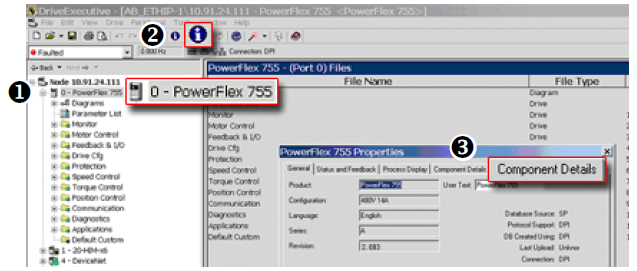
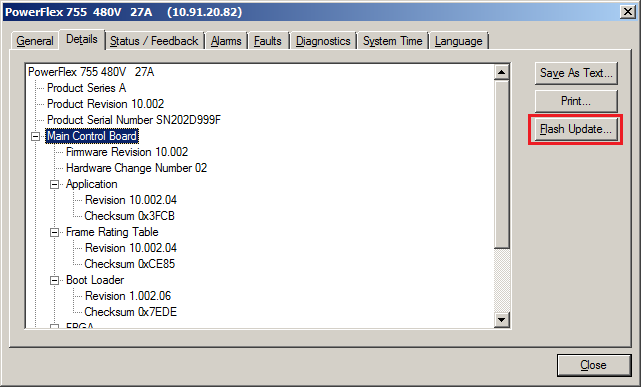
- With the Main Control Board selected, click Flash Update.
Important: Flash updating the device firmware may cause the device to load defaults. It is recommended that you save the setting to your PC before proceeding.
- From the list of available updates, select the desired firmware revision and click Next >.
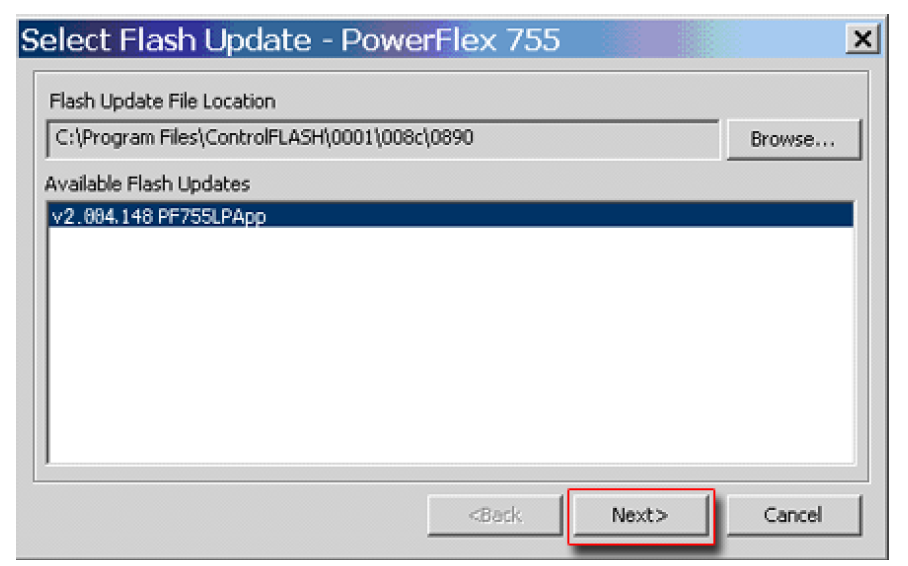
- Follow the remaining prompts until the flash update procedure completes and displays the new firmware revision.
Use DriveExecutive to Flash Update
- With the Flash Kit installed, launch DriveExecutive and go online (via a 1203-USB or 1203-SSS converter) with the PowerFlex 755 drive.
- In the Drives hardware view, select the PowerFlex 755 drive (
 ).
). - Click the information icon (
 )to display the drive’s Properties dialog box.
 - In the Properties dialog box, click the Component Details tab (
 ).
).
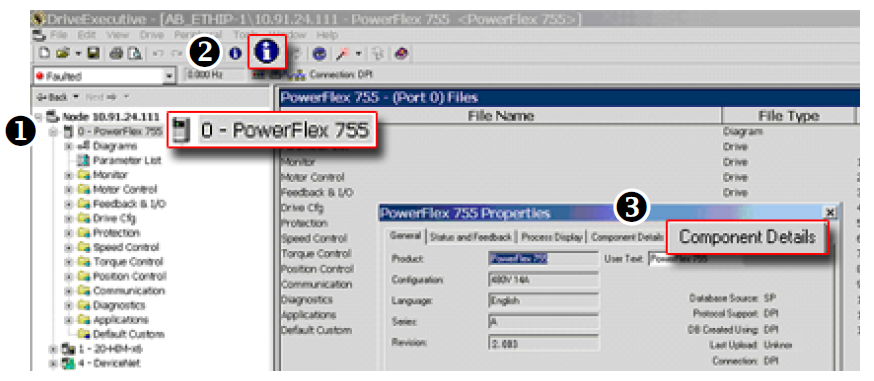
- With the PowerFlex 755 drive selected, click Flash Update.
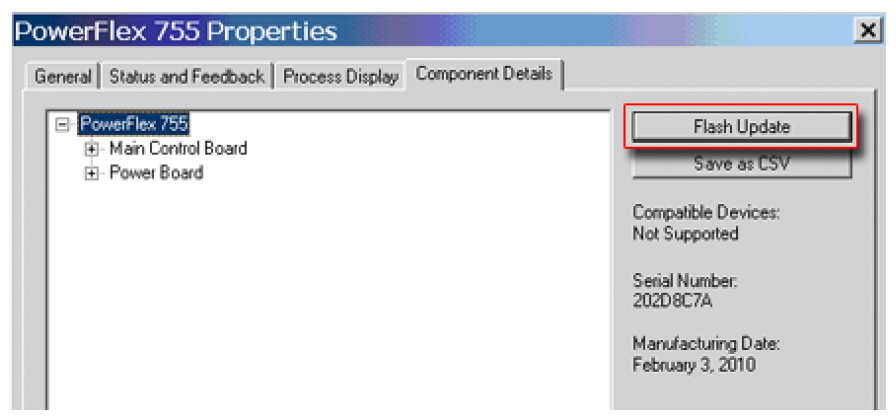
- From the list of available devices, select the PowerFlex 755 drive and click Next >.
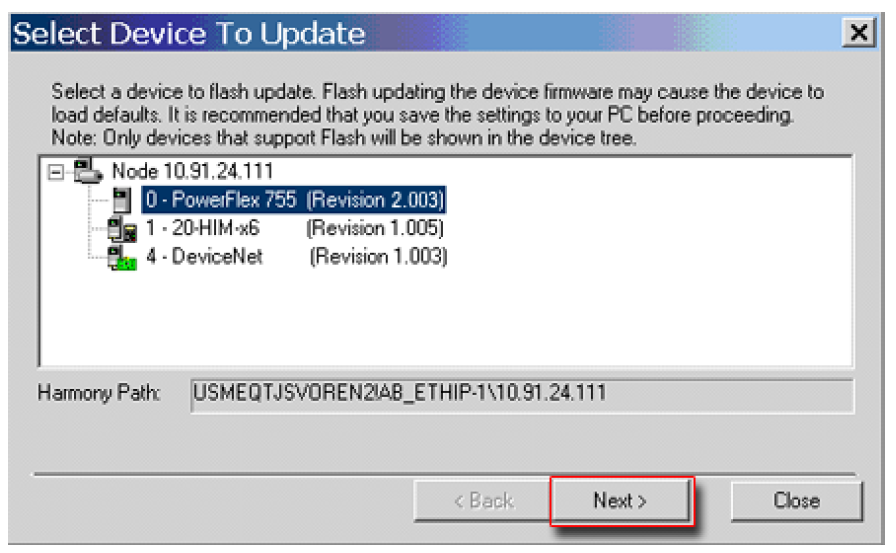
Important: Flash updating the device firmware may cause the device to load defaults. It is recommended that you save the setting to your PC before proceeding.
- From the list of available updates, select the desired firmware revision and click Next >.
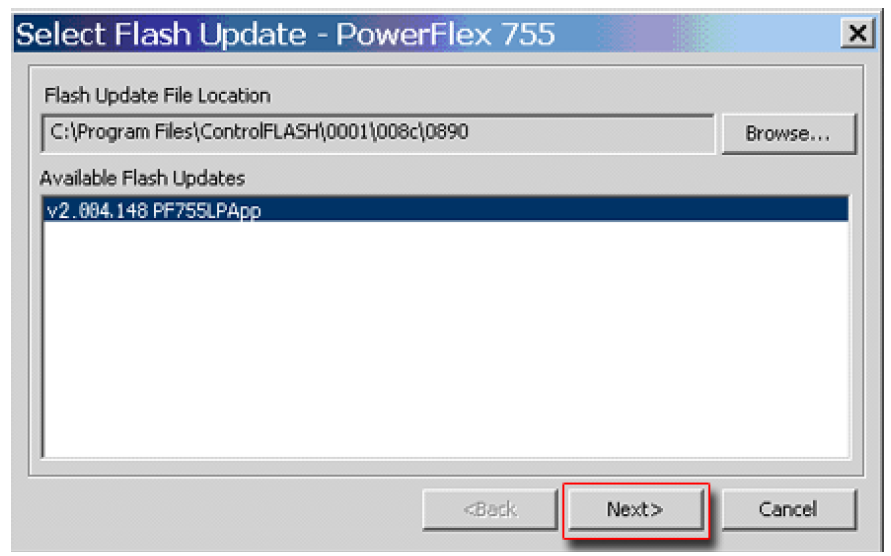
- Follow the remaining screen prompts until the flash update procedure completes and displays the new firmware revision.
Use ControlFLASH to Flash Update
- With the Flash Kit installed, launch ControlFLASH by selecting Start > (All) Programs > Flash Programming Tools > ControlFLASH.
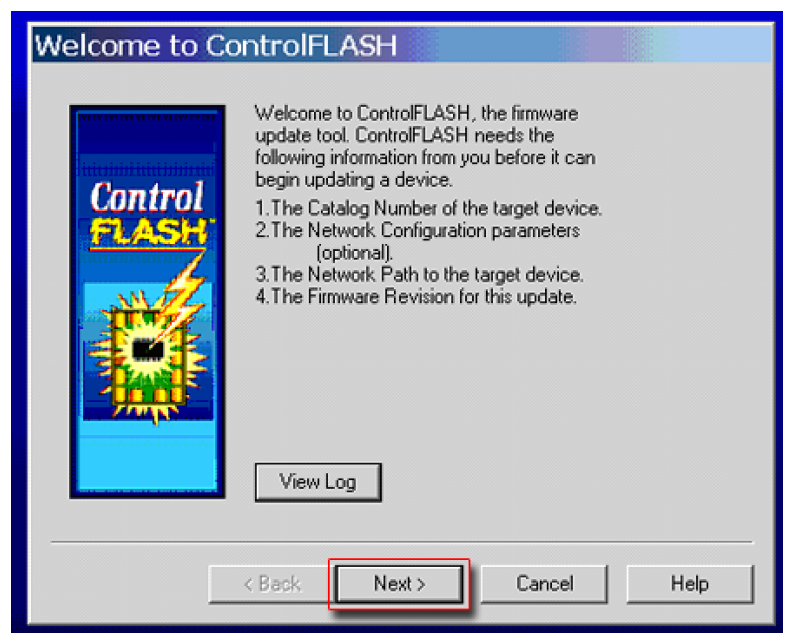
- On the ControlFLASH Welcome screen, click Next >.
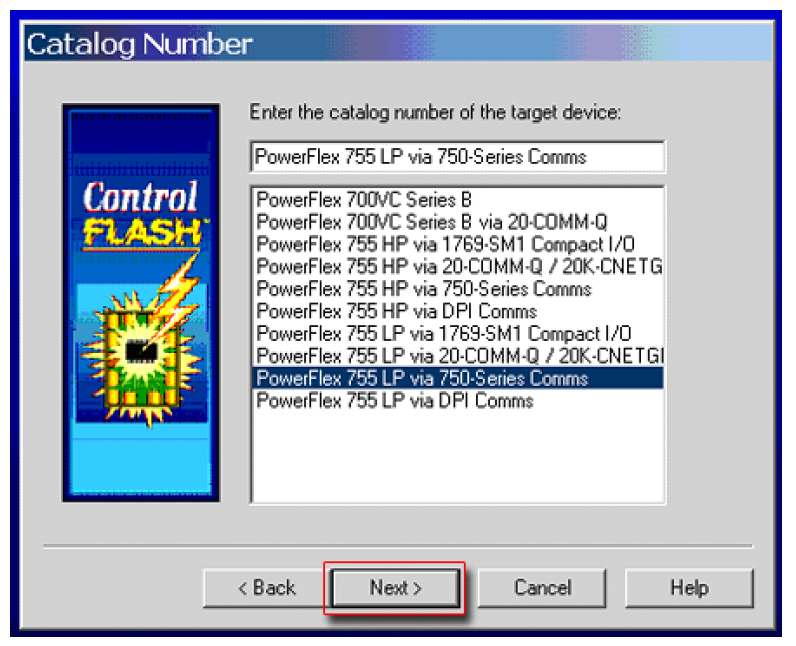
- The Catalog Number dialog box appears. From the list, choose the communication device you will use to update the PowerFlex 755 drive. In the figure below, the embedded EtherNet device is selected.
Once the appropriate communication device is selected, click Next >.
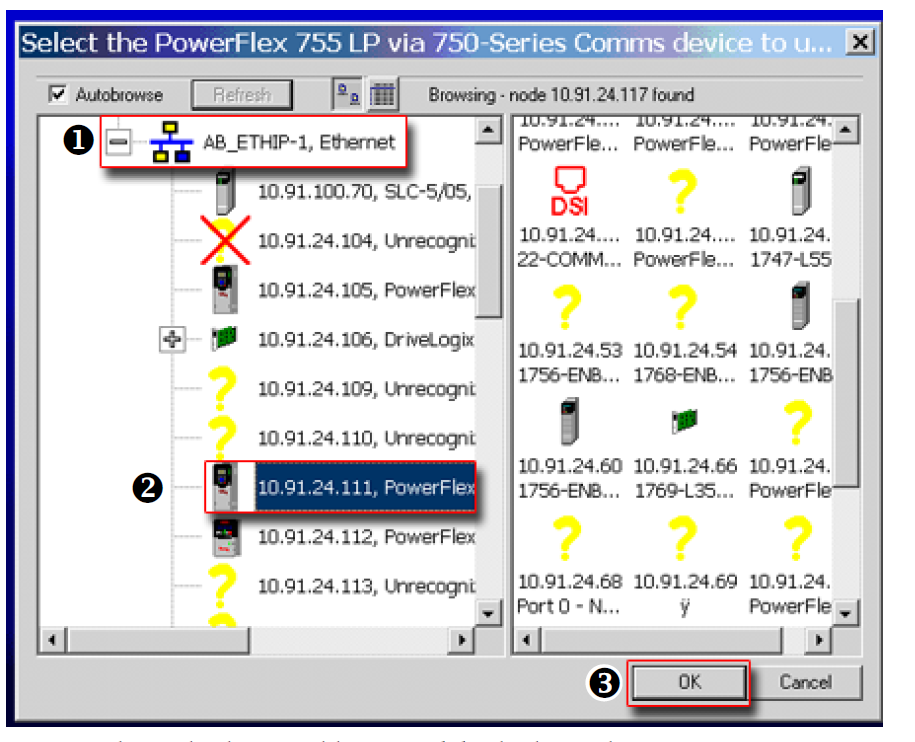
- Now that the correct communication device has been selected, you must select
which device is being updated. With the Select the PowerFlex… dialog box
displayed, follow these steps.
- Expand the hardware view for the communication path you are using (
 ).
). - Select the drive icon that represents the PowerFlex 755 drive you are
updating (
 ).
). - Click OK (
 ).
).
- Expand the hardware view for the communication path you are using (
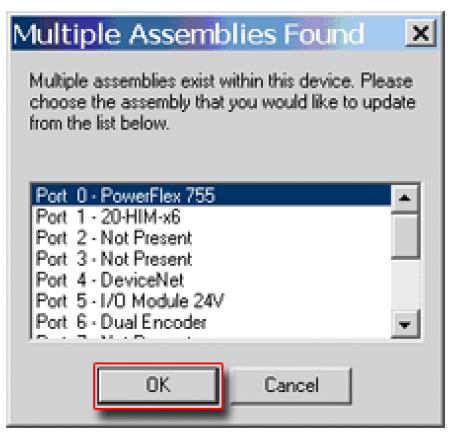
- In the Multiple Assemblies Found display box, select “Port x-PowerFlex 755” from the list and click OK.
- In the Firmware Revision dialog box, select the desired firmware revision from the list of available updates and click Next >.
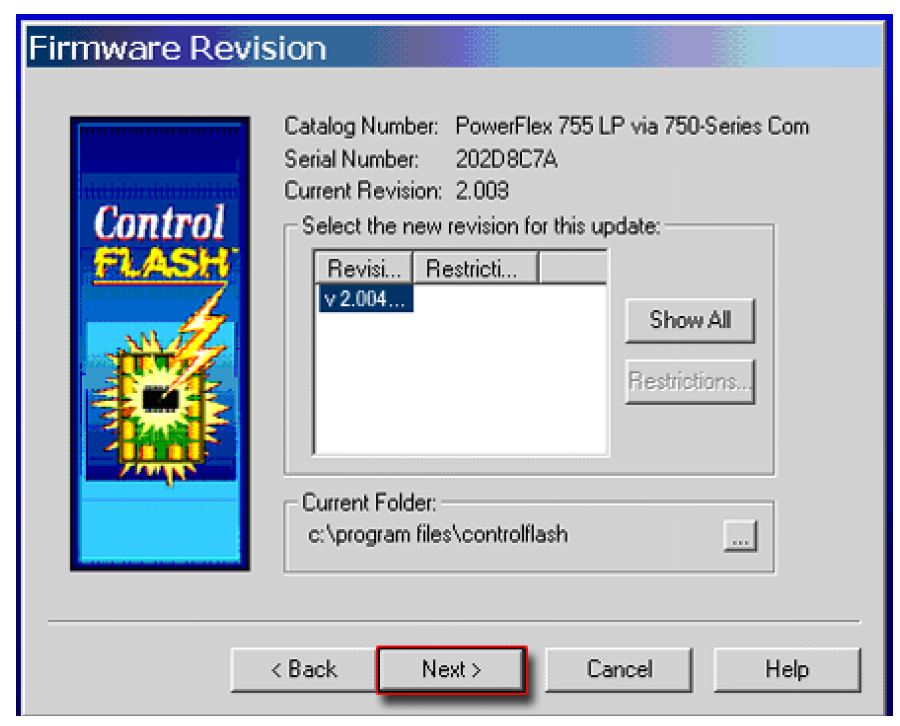
- Follow the remaining prompts until the flash procedure completes and displays the new firmware revision.
Use HyperTerminal to Flash Update
Important: The HyperTerminal process takes at least one hour to complete.
- With the Flash Kit installed, access and launch HyperTerminal as shown below.
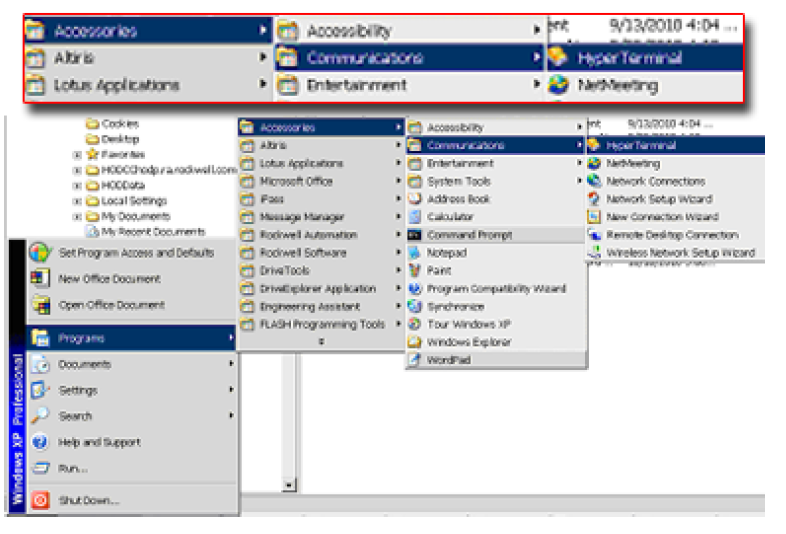
- A New Connection dialog box appears.
- Enter the connection device name in the Name field or select an icon from the library.
- Click OK once you have finished.
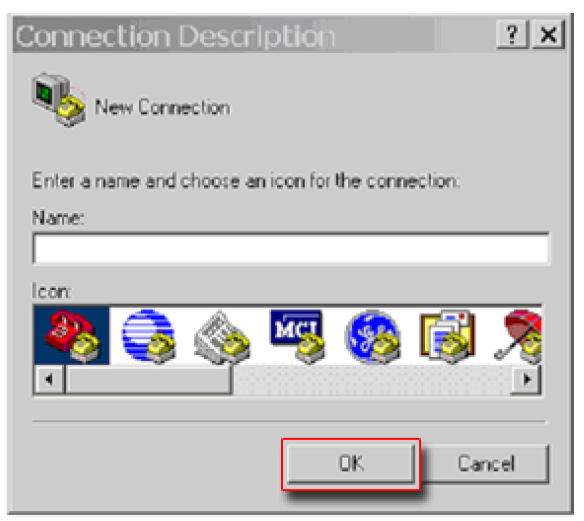
- A Connect To dialog box appears.
- Use the “Connect using:” drop-down menu to select the appropriate connection device.
- Click OK once you have finished.
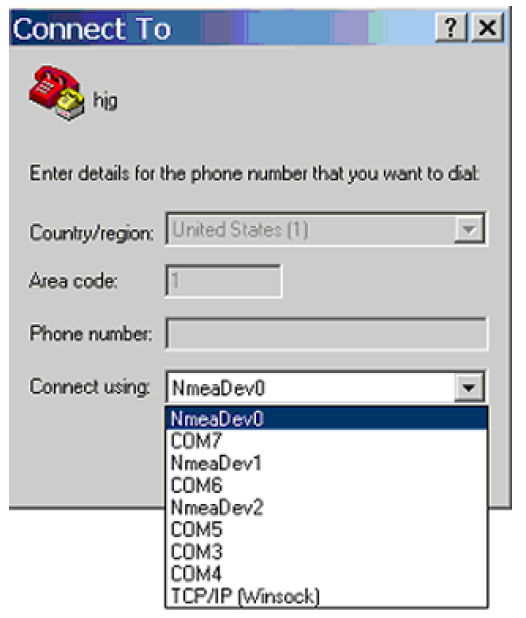
- A Properties dialog box will appear for the selected connection device.
- Use any of the drop-down menus to change the various port settings.
- Click OK once you have finished.
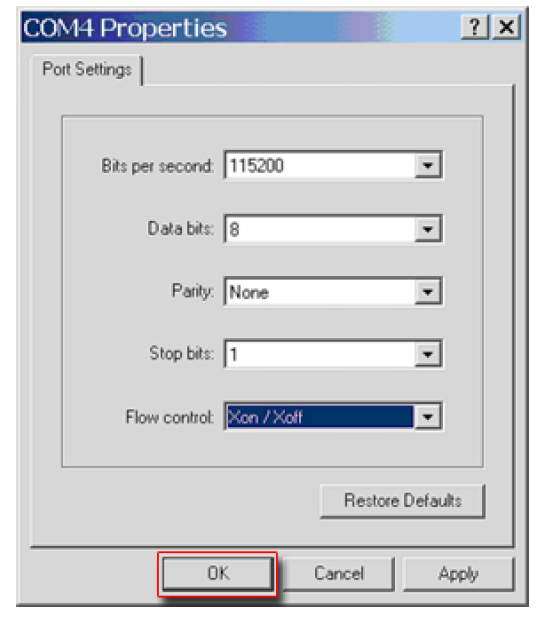
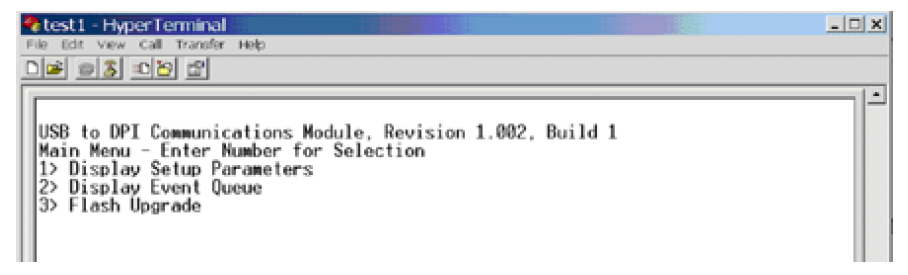
- After you click OK, you will get a blank screen.
Press Enter on your computer keyboard so the following test screen appears.
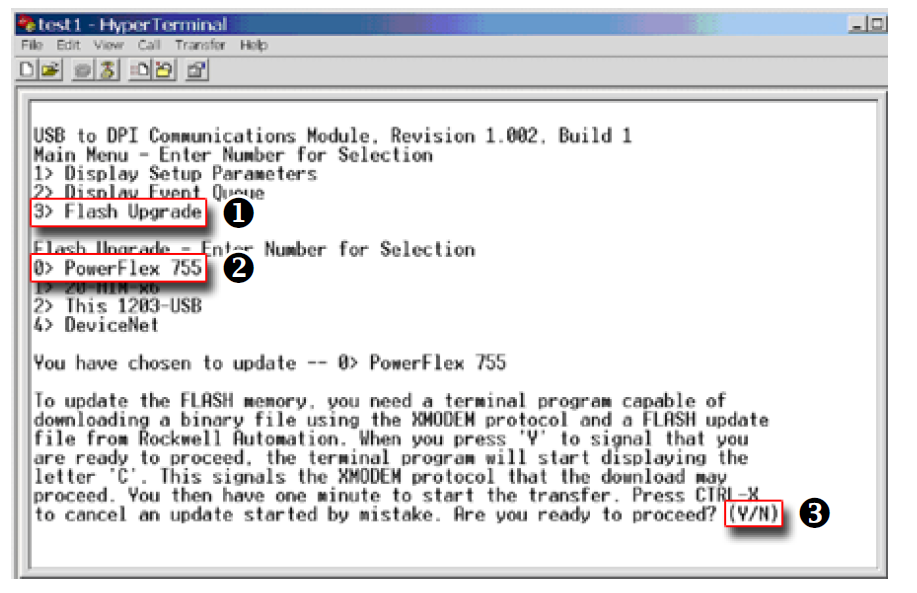
- From the Main Menu, select the flash upgrade (
 ) by pressing the number 3 key
on your computer keyboard.
) by pressing the number 3 key
on your computer keyboard. - Additional text appears. From the Flash Upgrade menu, select the PowerFlex 775
drive (
 ) by pressing the number 0 key on your computer keyboard.
 - Additional text appears. After reading the conditions, select Yes (
 ) to proceed by
pressing the letter Y key on your computer keyboard.
) to proceed by
pressing the letter Y key on your computer keyboard.
The terminal program will start displaying the letter “C”. This signals the XMODEM protocol that the download may proceed.
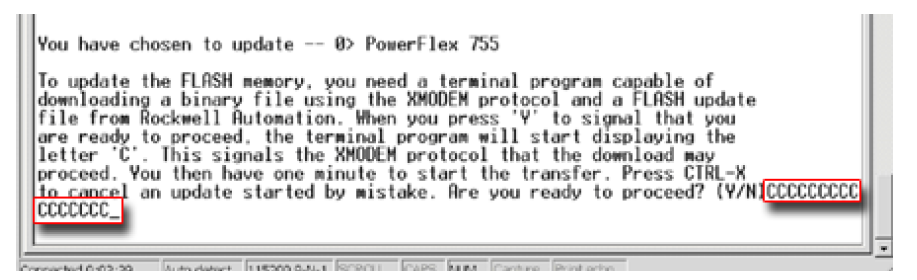
Important: You have one minute to complete steps 9…14 or HyperTerminal will return to step 5, where you must repeat steps 5…8.
Tip: To cancel the flash update at any time, press CTRL-X.
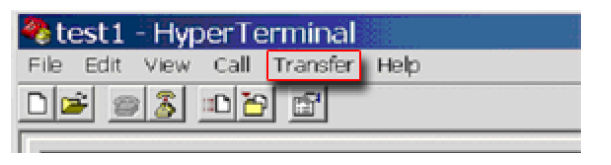
- Select Transfer > Send File to display the Send File dialog box.
- Click Browse and navigate to one of the following locations:
- For PowerFlex 755 drive frames 1…7, go to C: > Program Files >ControlFLASH > 0001 > 0086 > 0890
- For PowerFlex 755 drive frames 8 and larger, go to C: > Program Files > ControlFLASH > 0001 > 0086 > 0C90
- Search within the appropriate subfolder until the “PF755_LP_App_vxx_xxx_xxx.dpi” file appears in the Select File to Send list.
- With the file name highlighted, click Open so it appears in the Filename data field in the Send File dialog box.
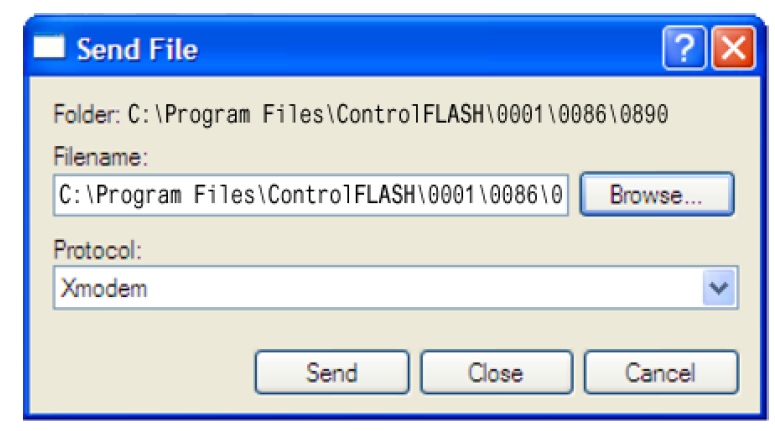
- In the Protocol box, select “Xmodem.”
- Click Send.
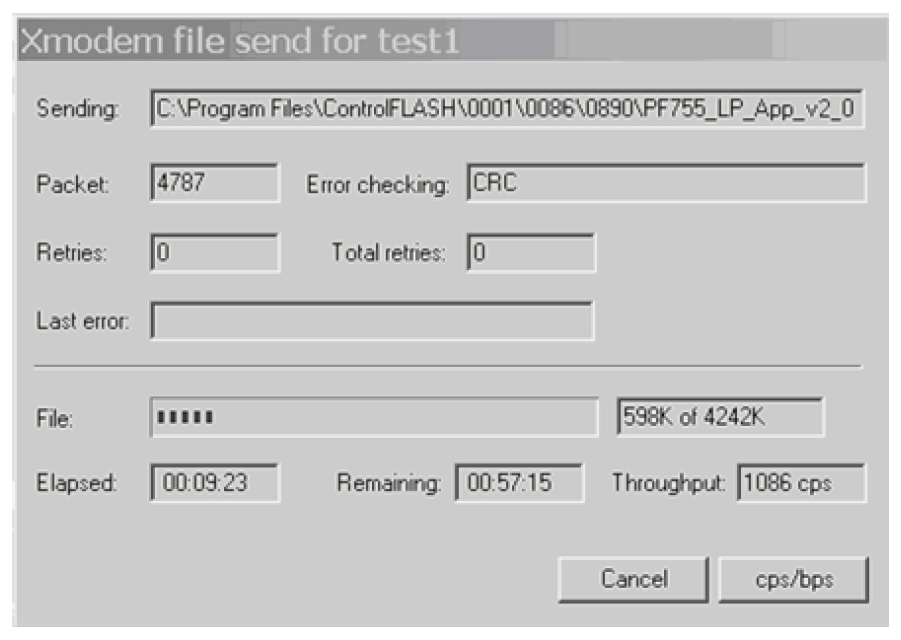
A dialog box appears and reports the update progress, which takes about one hour for HyperTerminal to complete. When it is complete, the message “Flash Complete” appears.
- Press any key to continue.
- Press the Enter key to return to the main menu.
Application Notes
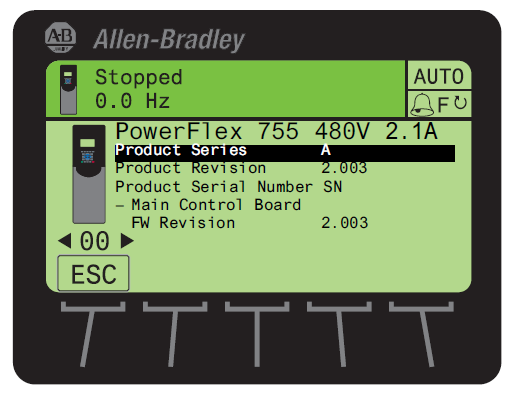
Use the Drive LCD HIM
- Access the Status screen, which is displayed on HIM power up.
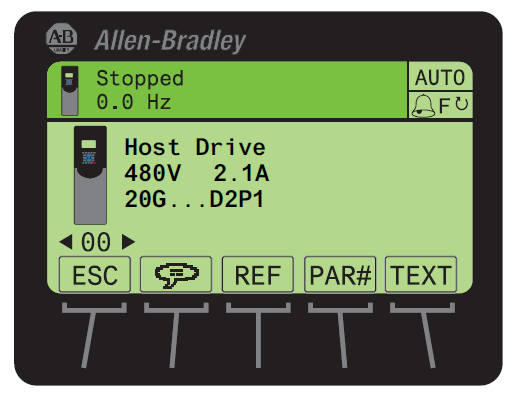
- Use the
 or
or  key to scroll to Port 00 for the Host Drive.
 - Press the
 key to display its last-viewed folder.
 - Use the
 or
or  key to scroll to the DIAGNOSTIC folder.
 - Use the
 or
or  key to select Device Version.
 - Press the
 (Enter) key to display device version information.
FW Revision is listed under – Main Control Board.
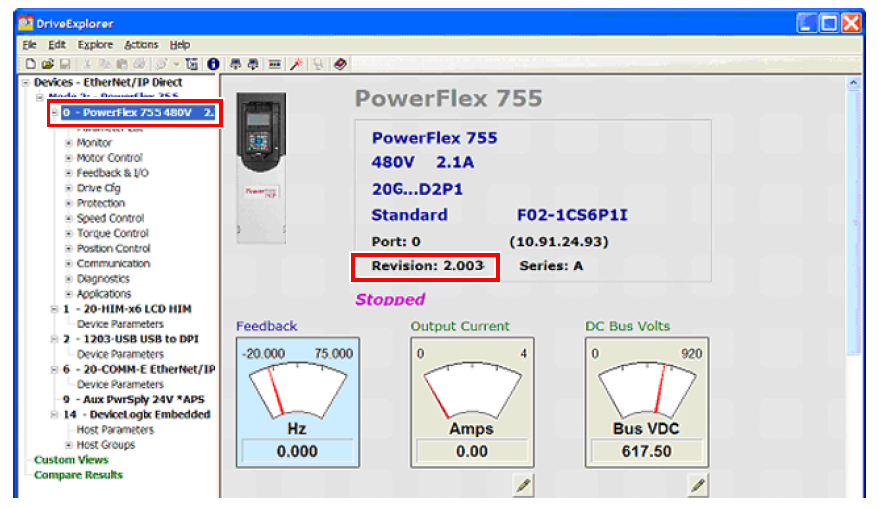
Use DriveExplorer Lite/Full
Important: You need DriveExplorer version 6.01 or later to interface with the PowerFlex 755 drive. To obtain the latest version, visit the Allen-Bradley Web Updates site located at http://www.ab.com/support/abdrives/webupdate
- Launch DriveExplorer and go online with the PowerFlex 755 drive. To connect to the drive, use a 1203-USB converter, a 1203-SSS converter, or an EtherNet/IP network connection.
- In the Devices hardware view, select the PowerFlex 755 drive.
Once selected, information regarding the PowerFlex 755 drive is shown in the right panel including the current firmware revision number.
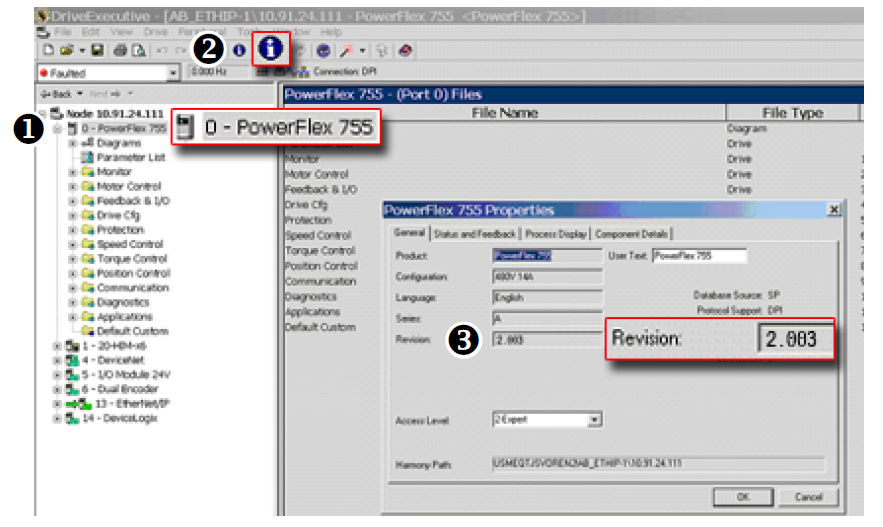
Use DriveExecutive
Important: You need DriveExecutive version 5.01 or later to interface with the PowerFlex 755 drive. To obtain the latest version, visit the Allen- Bradley Web Updates site located at http://www.ab.com/support/abdrives/webupdate
- Launch DriveExecutive and go online with the PowerFlex 755 drive. To connect to the drive, use a 1203-USB converter, a 1203-SSS converter, or an EtherNet/IP network connection.
- In the Drives hardware view, select the PowerFlex 755 drive (
 ).
). - Click the information icon (
 ) to display the drive’
s Properties dialog box.
) to display the drive’
s Properties dialog box.
In the Properties dialog box the “
Revision:”
field ( ) will show the drive
’s
current firmware revision number.
) will show the drive
’s
current firmware revision number.
Copyright © 2025 Rockwell Automation, Inc. All rights reserved.
Rockwell Automation, Allen-Bradley, and FactoryTalk are trademarks of Rockwell Automation, Inc.
To view a complete list of Rockwell Automation trademarks please click here.
Trademarks not belonging to Rockwell Automation are property of their respective companies.